Connecting Calibre to ScrollWizard
You've spent hours — maybe years — curating your Calibre library. Tagging genres, cleaning metadata, organizing covers. It's a collection you're proud of.
There's just one problem: it's stuck on your computer.
This guide fixes that. In about five minutes, your entire Calibre library will be browsable from your iPhone or iPad, over your home Wi-Fi. No cloud accounts. No file transfers. No USB cables. Just your books, wherever you are.
Table of Contents
- What is Calibre and why use it?
- Setting up Calibre Content Server
- Connecting ScrollWizard to Calibre
- Browsing and downloading books
- Troubleshooting
- Advanced: Remote access
- Bonus: Built-in book catalogs
What is Calibre and Why Use It?
Calibre is a free, open-source e-book manager for macOS, Windows, and Linux. If you have a collection of EPUBs, Calibre is almost certainly the best way to organize them — it handles metadata, covers, format conversion, and much more.
ScrollWizard connects to Calibre through OPDS (Open Publication Distribution System), a standardized catalog format built on Atom feeds. It's the same protocol used by public libraries and digital bookstores. Calibre ships with a built-in Content Server that speaks OPDS out of the box. Turn it on, and ScrollWizard can see your entire library over Wi-Fi and download any book with a single tap.
What this gets you:
- Browse your full Calibre library from your iPhone or iPad, complete with covers and metadata
- Download books wirelessly — no USB cable, no email, no cloud upload
- Keep Calibre as the single source of truth for your collection
- Metadata, covers, and author information transfer automatically
Setting Up Calibre Content Server
Calibre already knows how to share your library over your network. You just need to turn it on.
Step 1: Install Calibre
If you don't have Calibre yet, download it from calibre-ebook.com/download. Add a few books to your library if it's empty — you'll want something to test with.
Step 2: Start the Content Server
- Open Calibre on your computer.
- Go to Preferences (the gear icon, or
Cmd+P/Ctrl+P). - Under Sharing, click Content server.
- Check Run server automatically when calibre starts (so you only do this once).
- Note the port number — the default is 8080.
- Click Start server if it isn't already running.
- Click Apply.
Step 3: Verify It Works
Open a browser on the same computer and go to http://localhost:8080. You should see the Calibre Content Server web interface showing your library. If your books appear here, the server is working.
That's the Calibre side done. Leave it running.
Step 4 (Optional): Set Up Authentication
If you want to protect your library with a username and password:
- In the Content Server preferences, click the User accounts tab.
- Click Add new user.
- Enter a username and password.
- Check Require username and password to access the content server.
- Click Apply.
Remember these credentials — you'll need them in ScrollWizard.
Connecting ScrollWizard to Calibre
Before You Start
Both your computer (running Calibre) and your iPhone or iPad (running ScrollWizard) must be on the same Wi-Fi network. This is the single most common source of connection issues, so double-check before proceeding.
Find Your Computer's IP Address
You'll need your computer's local IP address (it usually looks like 192.168.x.x or 10.0.x.x).
macOS: Open System Settings > Wi-Fi, click Details on your network, and find the IP address. Or in Terminal:
ipconfig getifaddr en0
Windows: Open Settings > Network & Internet > Wi-Fi, click your network, and scroll to find the IPv4 address. Or in Command Prompt:
ipconfig
Linux:
hostname -I | awk '{print $1}'
Write it down. For this guide, we'll use 192.168.1.42 as an example — replace it with yours.
Open the Catalog Panel
OPDS browsing lives in the Catalog panel — one of the four panels in the right-edge stack (Notes, Stats, Catalog, Settings). Swipe in from the right edge of the screen (or tap the right-edge affordance) and select Catalog.
Let ScrollWizard Find It For You (the easy way)
If your computer is on the same Wi-Fi network, you may not need the IP address at all. Calibre advertises its Content Server over Bonjour, and ScrollWizard listens for it. In the Catalog panel, tap Find on network — any Calibre (or other OPDS) server within reach shows up under Discovered on network, ready to add with a tap. The browse runs for about ten seconds. (The first time, iOS asks for local-network permission; allow it, or discovery comes up empty.)
If nothing appears — some networks block Bonjour — add the library by hand, below.
Add Your Calibre Library by Hand
- In the Catalog panel, tap Add a library….
- Fill in:
- Catalog name: anything you like (e.g., "My Calibre Library")
- URL:
http://192.168.1.42:8080/opds(your actual IP) - If you enabled authentication, check Requires authentication and enter your credentials.
- Tap Verify Connection — you should see a green success message.
- Tap Save.
Your username and password are kept in the iOS Keychain on this device only. They are never written into the catalog URL and never sync to your other devices — so you'll re-enter them once per device, and that's by design.
Non-default port? Replace 8080 with your port number.
Multiple Calibre libraries? Append the library ID to the URL:
http://192.168.1.42:8080/opds/My_Second_Library
The library ID is the name with spaces replaced by underscores.
Using SSL? Use https:// instead of http://.
Browsing and Downloading Books
Once your catalog is saved, tap it to browse. Your Calibre library appears — covers, categories, and all. Browse it the way you browse a bookstore.
Navigating Your Library
- Recent additions — books you recently added to Calibre
- Authors — browse alphabetically
- Tags / Categories — your Calibre tags carry over
- Search — find specific titles from the search bar
Tap any book for its detail sheet: cover, author, description, language, categories, and available formats.
Downloading a Book
- Tap a book to see its details.
- Under Available Formats, you'll see each format Calibre has (EPUB, PDF, MOBI, etc.).
- Tap Download. ScrollWizard reads both EPUB and PDF — it grabs the EPUB by default, since that's the format it's happiest with, but a PDF download is one tap away under Other formats.
The download runs in the background with a progress indicator. Once complete, the book appears in your Library with its cover and metadata intact.
Only MOBI or AZW3 available? Those aren't supported. Use Calibre's converter: right-click the book > Convert books > set output to EPUB. Next time you browse from ScrollWizard, the EPUB will be available.
What Gets Transferred
- The book file — EPUB or PDF, whichever you downloaded
- Cover art — displayed in your library
- Metadata — title, author, language, categories, and description
- Duplicate detection — ScrollWizard checks if a book is already in your library (matched by title and author) and shows an "Already in library" badge
Downloaded books behave like any other import. Organize them into domains, smart collections, and tags from the Library Management guide, and apply per-book typography from Settings and Customization.
Troubleshooting
Almost all connection issues come down to one of three things. Here's how to fix them.
"Connection failed" or Timeout
The server isn't running. Open Calibre and verify the Content Server is active. Look for the green icon in Calibre's bottom-right status bar.
Wrong IP address. Home network IPs can change. Re-check your computer's current IP and update the catalog URL in ScrollWizard.
Different Wi-Fi networks. Your devices must be on the same network. Watch out for guest networks, 2.4 GHz vs. 5 GHz splits, or VPN connections routing traffic differently.
Firewall blocking the port.
- macOS: System Settings > Network > Firewall — add Calibre to allowed apps
- Windows: Windows Defender Firewall > Allow an app > Add Calibre (or allow port 8080)
- Linux: sudo ufw allow 8080/tcp
Computer went to sleep. The Content Server stops when your computer sleeps. Keep it awake while downloading, or adjust your power settings.
Authentication Errors
HTTP 401 means the server requires credentials. Edit your catalog in ScrollWizard, check Requires authentication, and enter your username and password. Calibre credentials are case-sensitive.
Books Not Showing Up
Unsupported format only. ScrollWizard downloads EPUB and PDF. If a book is only available as MOBI or AZW3, convert it in Calibre first (right-click > Convert books > EPUB).
Standard Ebooks returns "401" or "authentication required." The Standard Ebooks catalog is gated behind a paid membership (see Built-in book catalogs). Without it, the feed refuses the connection. This isn't a Calibre problem — it's the catalog asking for credentials ScrollWizard can't supply.
Large library pagination. OPDS catalogs may paginate big result sets. Scroll down or use search to find specific books. Initial browsing of a library with thousands of books may take a moment while the catalog loads — this is normal.
Advanced: Remote Access
The setup above works on your home Wi-Fi. But what if you want your Calibre library from a coffee shop, a train, or another country?
You can. Here's how the power users do it.
Option 1: Tailscale (Recommended)
Tailscale creates a secure private network between your devices, wherever they are. Free for personal use.
- Install Tailscale on your computer and your iPhone/iPad.
- Sign in with the same account on both.
- Find your computer's Tailscale IP (shown in the app, usually
100.x.x.x). - In ScrollWizard, add a catalog:
http://100.x.x.x:8080/opds.
Your library is never exposed to the public internet. Simple and secure.
Option 2: VPN
If you already run a VPN server at home (WireGuard, OpenVPN, etc.), connect your iPad to it and use your computer's local IP as usual.
Option 3: Port Forwarding
Forward port 8080 on your router to your computer's local IP. This exposes your Calibre server to the internet.
Important: If you do this, you must enable authentication. Never expose a content server without a password. Consider also enabling HTTPS in Calibre's settings.
After port forwarding, use your public IP (find it at whatismyip.com):
http://YOUR_PUBLIC_IP:8080/opds
Your public IP may change unless you have a static IP or use dynamic DNS.
Bonus: Built-in Book Catalogs
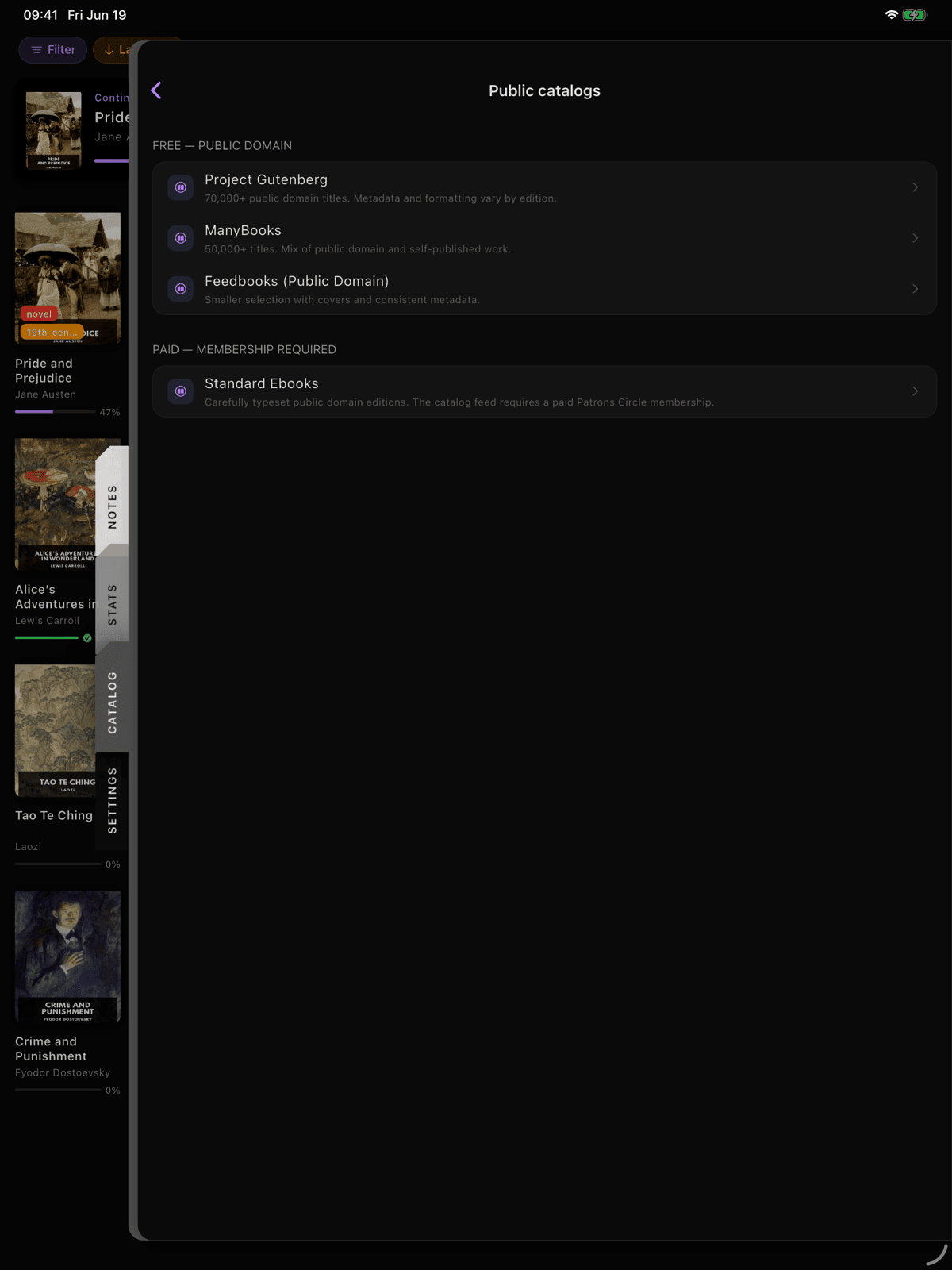
Calibre isn't the only thing the Catalog panel can talk to. In the Catalog panel, tap Browse public catalogs and you'll find four catalogs ScrollWizard already knows about:
Free — public domain:
- Project Gutenberg — 70,000+ free public-domain books. The world's oldest digital library, founded in 1971. Everything from Jane Austen to H.G. Wells.
- ManyBooks — 50,000+ free e-books spanning every genre, including independently published works.
- Feedbooks — A curated selection of public-domain works with polished metadata and covers.
Paid — membership required:
- Standard Ebooks — Beautifully typeset editions of public-domain literature with custom cover art. The library itself is public domain, but the OPDS feed is open only to paid Standard Ebooks "Patrons Circle" members. Without that membership the feed simply refuses to connect (a "401"), and ScrollWizard won't prompt you for a login. It's a convenience preset for people who already support the project — not a free catalog.
They're all OPDS catalogs, just like your Calibre connection. Same interface, same one-tap downloads. Think of it as your library expanding beyond what's on your hard drive.
Moving Catalogs Between Devices
Built up a collection of OPDS subscriptions and want them on another device? You don't have to do anything — your catalog list syncs over iCloud, so the libraries you save on one device show up on the rest. One thing for safety: passwords never sync, so authenticated libraries (a login-protected Calibre server, Standard Ebooks Patrons Circle) ask you to sign in again on the new device.
Quick Reference
| Detail | Value |
|---|---|
| Default Calibre port | 8080 |
| OPDS path | /opds |
| Full default URL | http://YOUR_IP:8080/opds |
| Multi-library URL | http://YOUR_IP:8080/opds/Library_Name |
| Authentication | Basic HTTP Auth (username + password, stored in the iOS Keychain) |
| Supported downloads | EPUB and PDF (EPUB preferred) |
| Connection timeout | ~10 seconds |
| Auto-discovery | Bonjour, on the local network |
That's it. Your Calibre library is on your phone. Your iPad. Wherever you read.
No subscriptions. No DRM. No corporate bookstore deciding what you can keep.
Happy reading.