Export to Obsidian, Notion & Logseq
Your highlights belong in your knowledge system, not locked inside a reading app. ScrollWizard treats your annotations as your data — structured, portable, and one tap away from Obsidian, Notion, Logseq, or whatever you build your second brain in.
ScrollWizard's Knowledge Export writes files tailored to Obsidian (YAML frontmatter + callout syntax), Notion (property tables + clean blockquotes), Logseq (page properties + bullet outlines), generic Markdown, and JSON. Export a single book or your entire library. Toggle what's included. Share via the iOS share sheet. A single book is a few seconds; a full-library export takes longer the more you've got.
Every export format is completely free. No premium tier, no "upgrade to unlock PKM formats." Your data leaves whenever you want, in whatever format you want.
The Export Landscape
ScrollWizard has four separate export paths. They serve different purposes and work differently. Every one of them produces a file that goes out through the iOS share sheet — there's no "copy to clipboard" path lurking anywhere.
| Export Path | Where to Find It | Output | Scope |
|---|---|---|---|
| Knowledge Export | Notes panel > Export knowledge | File (share sheet) | Single book or entire library |
| Annotation Export | Settings > Data Management > Export Annotations | Markdown file (share sheet) | Whole library |
| Vocabulary Export | Notes panel > Export vocabulary | File (share sheet) | All saved words |
| Full Data Backup | Settings > Data Management > Export All Data | JSON file (share sheet) | Everything in the database |
Most of this guide focuses on Knowledge Export — that's where the Obsidian, Notion, and Logseq formats live. The other three are covered in shorter sections at the end.
Looking for an "export from the reader" button? There isn't one. The reader's only clipboard trick is copying a single highlight as plain text (long-press a highlight). Everything else flows through the panels and Settings paths above.
The Knowledge Export Screen
Every highlight, note, and bookmark from a book, gathered in one place and ready to leave.
Getting There
Swipe in from the right edge to open the panel stack, switch to the Notes panel, and tap Export knowledge.
Opened this way it exports your entire library. (The same screen can also be scoped to a single book, in which case it exports only that book's annotations.)
What You See
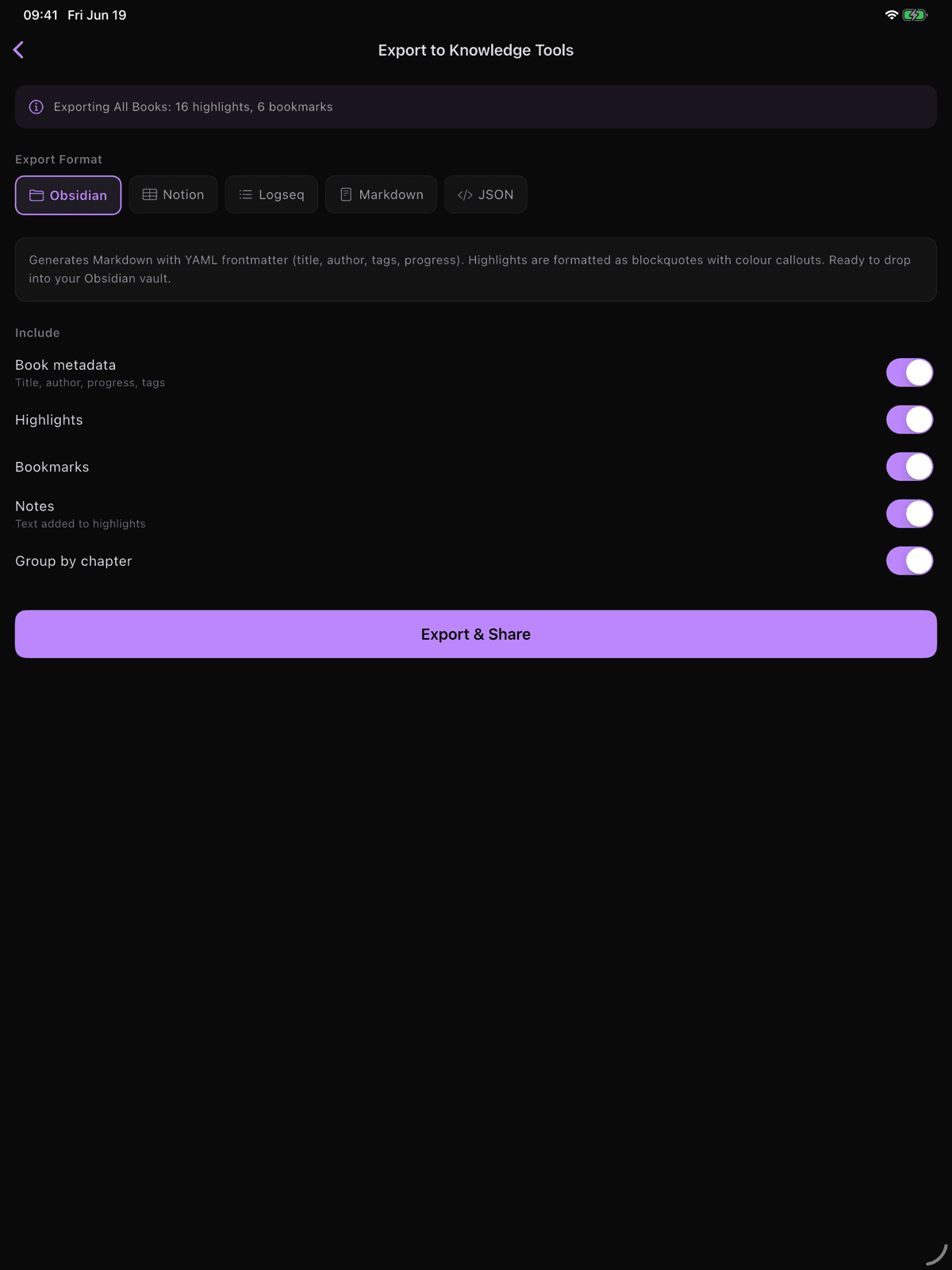
An info box at the top shows what you're exporting: the book title (or "All Books" for library-wide), highlight count, and bookmark count.
Five format buttons in a row:
| Format | File Type |
|---|---|
| Obsidian | .md |
| Notion | .md |
| Logseq | .md |
| Markdown | .md |
| JSON | .json |
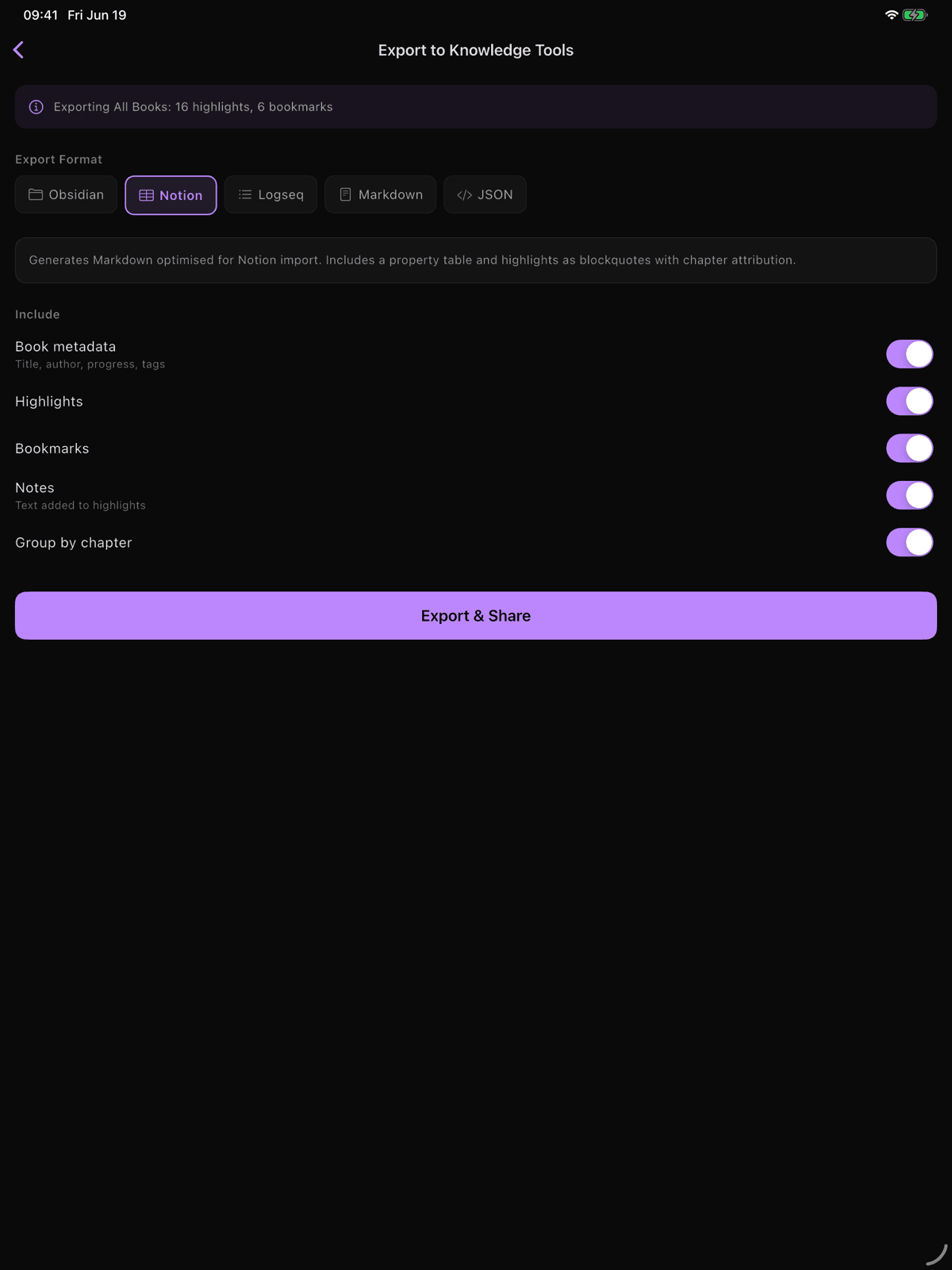
Tap to select. A description box below updates to explain what the selected format produces. There's no wrong choice here — every format contains the same highlights and notes. The difference is just styling. You can export the same book in multiple formats, try each one, and keep what fits. Nothing is consumed by exporting.
Content Toggles
| Toggle | Default | What It Controls |
|---|---|---|
| Book metadata | ON | Title, author, progress, tags |
| Highlights | ON | All highlighted passages |
| Bookmarks | ON | All bookmarked pages |
| Notes | ON | Text you added to highlights |
| Group by chapter | ON | Organizes highlights under chapter headings |
All five default to ON. Turn off what you don't need. "Bookmarks only" gives you a clean page-reference list. "Highlights + Notes" gives you a pure reading journal.
Exporting
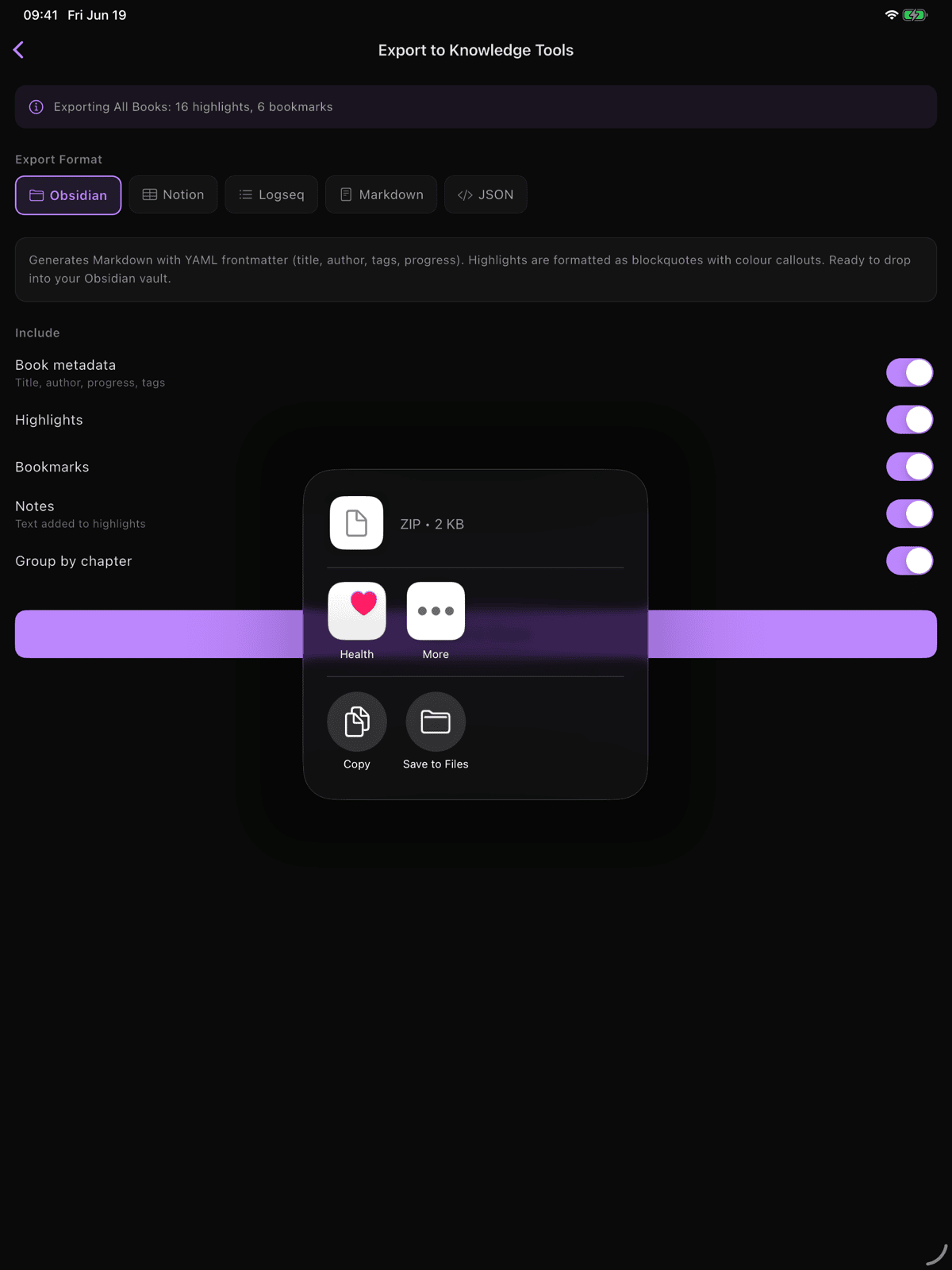
Tap Export & Share. ScrollWizard writes the file, then opens the iOS share sheet — save to Files, AirDrop to your Mac, drop into your vault, whatever you need.
Single-book export produces one file named after the book title (e.g., Moby_Dick.md).
Library-wide export bundles one file per book into a single ZIP archive named library_YYYYMMDD_HHmmss.zip — one item to hand to the share sheet, no stray folder left behind. Books with no annotations are skipped.
Exporting to Obsidian
YAML frontmatter, callout syntax, and a folder structure that feels like you set it up yourself. Drop the file into your vault and it works immediately — no plugins, no reformatting.
What the Output Looks Like
---
title: "Moby Dick"
author: "Herman Melville"
type: book
exported: 2026-04-04
tags:
  - fiction
  - classics
progress: 73%
highlights: 14
---

# Moby Dick
*by Herman Melville*

## Chapter 1 - Loomings

> [!yellow]
> Call me Ishmael.

**Note:** The most famous opening line in American literature.

> [!blue]
> Whenever I find myself growing grim about the mouth...

**Note:** This is the opening mood-setting passage.

## Bookmarks

- **Page 12**: Map of Nantucket
- **Page 89**: Cetology chapter start
Frontmatter Fields
Every field is Dataview-queryable. If you use Dataview, you can immediately run:
TABLE author, progress, highlights
FROM #book
WHERE progress < 100
SORT highlights DESC
| Field | Value |
|---|---|
title |
Book title (quoted for YAML safety) |
author |
Author name |
type |
Always book |
exported |
Export date (YYYY-MM-DD) |
tags |
Array of your book tags |
progress |
Reading progress percentage |
highlights |
Total highlight count |
Highlight Colors as Callouts
Each highlight uses Obsidian's callout syntax with the color as the callout type, drawn from ScrollWizard's five highlight colors: [!yellow], [!green], [!blue], [!red], [!purple]. If you've customized your Obsidian CSS to style these callout types, they'll render with your custom colors automatically.
Notes appear as bold text below their highlight.
Tips for Obsidian Users
Drop into your vault's inbox folder. The frontmatter means the file is already tagged and typed — move it into your permanent structure later.
Re-exporting overwrites. Same book = same filename. This means you can re-export after adding new highlights without accumulating duplicates.
Library export for vault seeding. Starting a reading vault from scratch? Library-wide export gives you a ready-made collection — one ZIP, one file per book, all with consistent frontmatter. Unzip it straight into your vault.
Exporting to Notion
Clean Markdown that imports into Notion without reformatting. A property table at the top replaces YAML frontmatter (which Notion ignores).
What the Output Looks Like
# Moby Dick

| Property | Value |
| --- | --- |
| Author | Herman Melville |
| Progress | 73% |
| Highlights | 14 |
| Exported | 2026-04-04 |
| Tags | fiction, classics |

## Highlights

> Call me Ishmael.
> — *Chapter 1 - Loomings*

  The most famous opening line in American literature.

> Whenever I find myself growing grim about the mouth...
> — *Chapter 1 - Loomings*

  This is the opening mood-setting passage.

## Bookmarks

- Page 12: Map of Nantucket
- Page 89: Cetology chapter start
The Property Table
Standard Markdown table that Notion renders cleanly. If you paste into a database page, you can reference these values in Notion formulas and filters.
The property table only appears when "Book metadata" is toggled on.
Tips for Notion Users
Import as a page. Use Import > Markdown. The property table, headings, and blockquotes all render correctly.
Create a reading database. If you maintain a Notion database of books, create a new page and paste the exported content. The property table gives you a quick-reference block at the top.
Tags are comma-separated. Notion won't auto-convert them to multi-select properties — set those manually in your database if you want filterable tags.
Exporting to Logseq
Block-based output with page references, designed to land in your graph and just work. Page properties and bullet outlines — Logseq's native structure.
What the Output Looks Like
title:: Moby Dick
author:: Herman Melville
type:: [[Book]]
exported:: [[2026-04-04]]
tags:: [[fiction]], [[classics]]
progress:: 73%

- ## Highlights
    - > Call me Ishmael.
      collapsed:: true
        - **Chapter:** Chapter 1 - Loomings
        - **Date:** 2026-03-15
        - **Color:** yellow
        - **Note:** The most famous opening line in American literature.
    - > Whenever I find myself growing grim about the mouth...
      collapsed:: true
        - **Chapter:** Chapter 1 - Loomings
        - **Date:** 2026-03-15
        - **Color:** blue
        - **Note:** This is the opening mood-setting passage.

- ## Bookmarks
    - Page 12: Map of Nantucket
    - Page 89: Cetology chapter start
Page Properties
Tags and dates use [[double brackets]] — they become clickable page references. type:: [[Book]] means you can query all books with {{query (property :type "Book")}}.
Collapsed Highlight Blocks
Each highlight has collapsed:: true, so metadata (chapter, date, color, note) is nested but hidden by default. You see a clean list of quotes. Expand any to see its details. This keeps pages scannable — Logseq's outliner works best when you can expand what you need.
Tips for Logseq Users
Drop into your pages folder. Place the .md file in your graph's pages/ directory. Logseq picks it up on next refresh.
Graph connections happen automatically. Tags as [[brackets]] link to your tag pages and journal dates immediately.
Generic Markdown
Plain Markdown with no app-specific formatting — works everywhere, depends on nothing. Bear, Ulysses, iA Writer, Apple Notes, GitHub, a text editor.
# Moby Dick
*by Herman Melville*

**Progress:** 73%
**Exported:** 2026-04-04
**Tags:** fiction, classics

---

## Chapter 1 - Loomings

> Call me Ishmael.

*The most famous opening line in American literature.*

> Whenever I find myself growing grim about the mouth...

*This is the opening mood-setting passage.*

## Bookmarks

- **Page 12:** Map of Nantucket
- **Page 89:** Cetology chapter start
Metadata as bold lines, highlights as blockquotes, notes in italics, chapter grouping optional. If you don't use Obsidian, Notion, or Logseq — or if you want a single canonical export you can transform yourself — this is your format.
JSON Export
Structured data for the people who'd rather write their own integration than use someone else's.
{
  "book": {
    "title": "Moby Dick",
    "author": "Herman Melville",
    "progress": 0.73,
    "tags": ["fiction", "classics"],
    "exportedAt": "2026-04-04T14:30:00.000Z"
  },
  "highlights": [
    {
      "text": "Call me Ishmael.",
      "note": "The most famous opening line in American literature.",
      "color": "yellow",
      "chapterIndex": 0,
      "chapterTitle": "Chapter 1 - Loomings",
      "createdAt": "2026-03-15T10:22:00.000Z"
    },
    {
      "text": "Whenever I find myself growing grim about the mouth...",
      "note": "This is the opening mood-setting passage.",
      "color": "blue",
      "chapterIndex": 0,
      "chapterTitle": "Chapter 1 - Loomings",
      "createdAt": "2026-03-15T10:23:00.000Z"
    }
  ],
  "bookmarks": [
    {
      "label": "Map of Nantucket",
      "pageIndex": 11,
      "createdAt": "2026-03-15T09:00:00.000Z"
    }
  ]
}
Pretty-printed with 2-space indentation. Progress is a decimal (0.73 = 73%). Page indices are zero-based. Timestamps are ISO 8601. Feed into jq, pipe into a script, import into a database, build a custom template. JSON is the escape hatch when the five built-in formats don't match your workflow.
Annotation Export (the quick, no-frills dump)
When you don't need the PKM styling and just want every highlight and bookmark in one plain file, there's a simpler path that skips the format picker entirely.
Settings > Data Management > Export Annotations
It walks your whole library, gathers every highlight and bookmark grouped by book, writes a single Markdown file (scrollwizard_annotations.md), and hands it to the iOS share sheet. No format choice, no content toggles — one button, one file.
How it differs from Knowledge Export: always the whole library (not a single book), always Markdown (no Obsidian/Notion/Logseq/JSON variants), no toggles. It's the "give me everything, plain" button. Knowledge Export is for deliberately shaping data for a specific PKM tool.
And if you only want one highlight? Long-press it in the reader and copy it as plain text — straight to the clipboard, no file involved. That's the only clipboard path in the whole app.
Vocabulary Export
Your saved words have their own export path. Covered in detail in the Save Words guide — here's the summary.
Tap the share button on the Words screen:
| Format | File | Best For |
|---|---|---|
| Anki CSV | .txt |
Direct Anki import. Front: word + phonetic. Back: HTML definition. Tags: book::Title. |
| TSV | .tsv |
Spreadsheets. Every stored field, one row per word. |
| JSON | .json |
Backups, scripts, or any tool that reads JSON. |
Full Data Backup
Your entire library — books, annotations, settings — in a single file you control. This isn't a PKM export — it's a complete database dump.
Settings > Data Management > Export All Data as JSON
The backup includes:
| Table | Contents |
|---|---|
books |
All book metadata |
book_progress |
Reading position / progress (kept separate so it survives a reinstall) |
domains |
Folders / domains |
tags, book_tags |
Tags and their book assignments |
highlights |
Every highlight with text, color, notes |
bookmarks |
Every bookmark |
reading_sessions |
Reading time tracking |
reading_settings, book_reading_settings |
Global and per-book settings |
themes |
Custom reading themes |
dictionary_sources |
Dictionary configuration |
smart_collections |
Your smart collections |
opds_catalogs |
Catalog subscriptions (credentials are not exported — re-authenticate on restore) |
yearly_goals |
Reading goals |
download_history |
Catalog download history |
vocabulary_words |
Saved words with their definitions and context |
rsvp_sessions |
Speed-reader session history |
The file includes a schema version field and exportedAt timestamp. Use it before device migrations, as insurance against accidental deletion, or for building reading analytics from the session data.
Your annotations live in ScrollWizard's local database and sync to iCloud. Export creates a copy — it doesn't move or delete anything. You can export the same book a hundred times.
Tips & Tricks
Export early, export often. Don't wait until you finish a book. Re-exporting overwrites the previous file — no duplicate management.
Use library export to seed a vault. Starting an Obsidian vault or Logseq graph from scratch? One export, one ZIP of ready-to-use book notes — unzip and go.
Color-code with export in mind. If you consistently use yellow for key ideas and blue for definitions, the Obsidian callout types and Logseq color labels make those categories filterable in your PKM tool. The system you build in ScrollWizard carries over.
Grab a single quote fast. Reading and want to send someone one favorite line? Long-press the highlight, copy as plain text, paste into a message. No export screen needed.
JSON is the universal escape hatch. None of the formats match? Export JSON and transform with a script. Clean structure, every field documented by the output itself.
Back up separately. Knowledge Export covers annotations. Full Data Backup covers everything — reading progress, sessions, themes, dictionary settings. Think of it as your save file.
What's Next
From reading to knowing — no friction in between. Pick the format that matches where your thinking lives, and the data flows there — a single book in a few seconds, a full-library export longer the more you've got.
- Building your annotation system? The Annotations & Highlights Guide covers colors, notes, bookmarks, and the timeline.
- Saving words from your reading? The Save Words guide covers the dictionary, your saved-word list, and export.
- New to ScrollWizard? The Getting Started Guide covers the basics.
Nothing stays trapped. Everything exports. Happy reading.