Save Words & Look Them Up in a Built-In Dictionary
You know that moment — you hit a word you don't quite know, and you have to choose: break your reading flow to look it up, or keep going and hope it sticks. It never sticks.
ScrollWizard's dictionary fixes the lookup part without ever leaving the page. The words worth keeping go into a personal list — with the sentence, the book, the moment — and the whole list exports when you want to take it with you.
Here for the custom-dictionary JSON format? Skip straight to Custom Dictionaries.
Looking Up a Word
Get the definition right there, right then — no app-switching, no lost place, no broken thread of thought.
- Long-press on a word in the reader, then adjust the selection handles if needed.
- The context menu appears with options including Define.
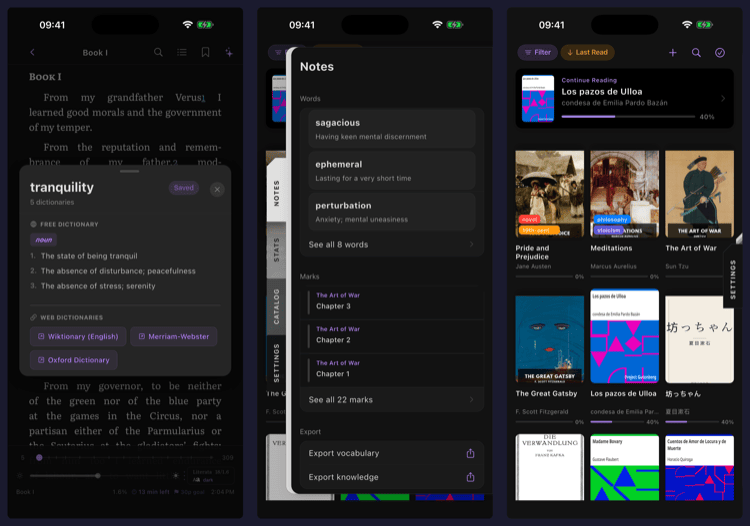
- Tap Define. A popup appears showing definitions from multiple sources at once.
This works the same in EPUB and PDF books: select the text, tap Define, and the popup queries all your enabled sources in parallel. The bundled offline Webster's 1913 and any local dictionaries are instant; the online Free Dictionary API takes a moment depending on your connection. The whole thing takes about three seconds.
What the Popup Shows
- Word in large bold text
- Phonetic pronunciation in italics (when available)
- Definitions grouped by source, each with a source label
- Part of speech badges (noun, verb, adjective) in accent color
- Up to three definitions per part of speech — enough to understand, not enough to overwhelm
- Example sentences in context
- Web dictionary buttons at the bottom (Wiktionary, Merriam-Webster, Oxford) for deeper dives
If a word has definitions from multiple sources, they all appear in the same popup. The Free Dictionary API gives you a concise modern definition; Webster's 1913 gives you an etymologically rich one. Having both means you get practical clarity and historical depth.
Dismiss the popup by tapping the X button, tapping outside it, or swiping down. You're back to reading instantly. Your position in the book hasn't changed.
Saving Words
One tap turns a fleeting lookup into a word you'll actually keep.
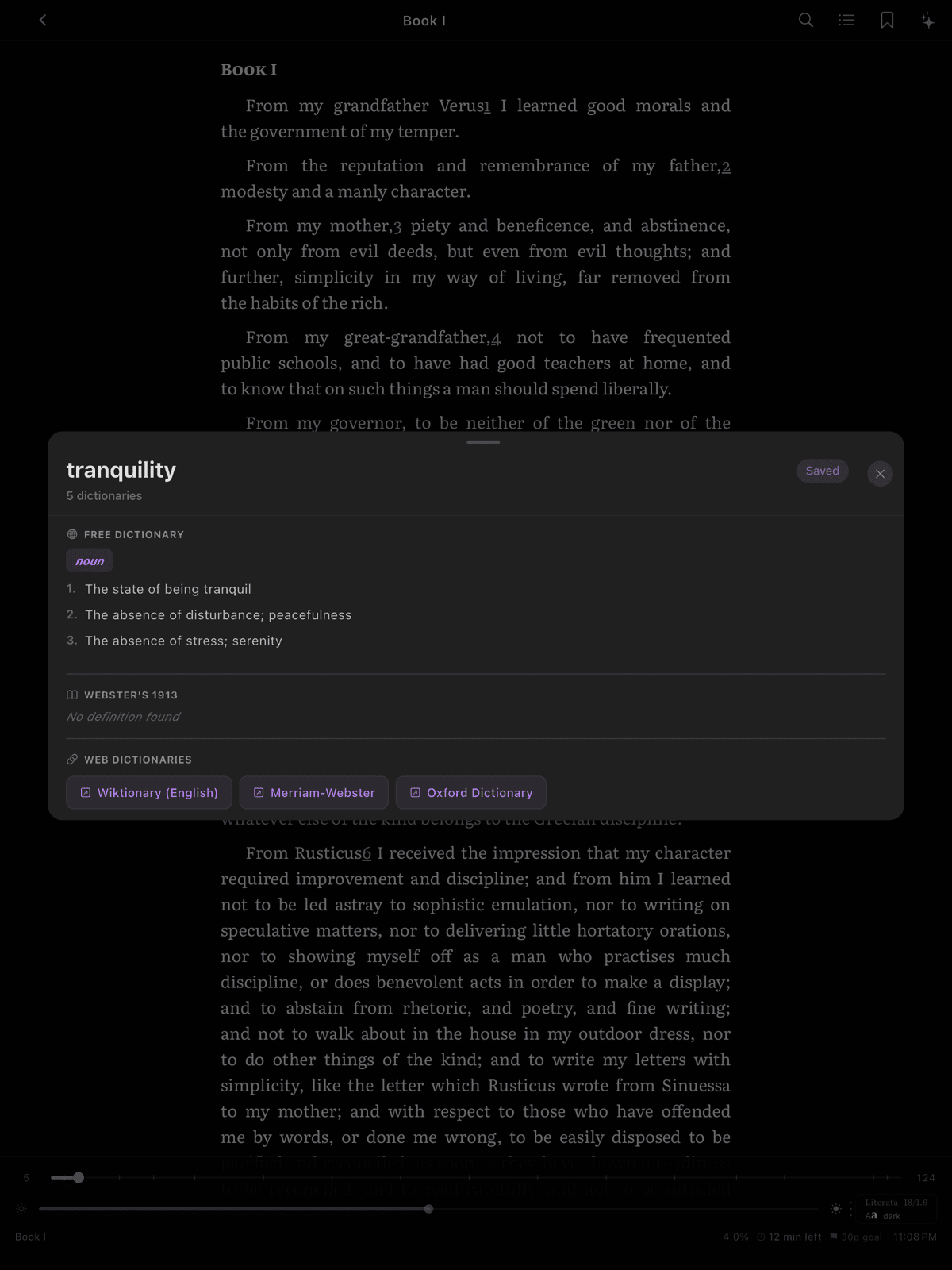
At the bottom of the dictionary popup, tap Add to saved words. That's it. This works while you're reading an EPUB or a PDF — a word saved from a PDF is stamped with the page you found it on. Each saved word stores:
- The word itself
- The definition shown in the popup
- Part of speech and phonetic pronunciation
- An example sentence from the dictionary
- The book title and reference (plus the page for PDFs)
- The context — the actual sentence from your book where you found the word
That last one matters. Six months from now, "ameliorate" with a textbook definition is forgettable. "Ameliorate" with the exact sentence from chapter seven of a novel you loved — that sticks. ScrollWizard captures the real context automatically because a word remembered in context is a word remembered for good.
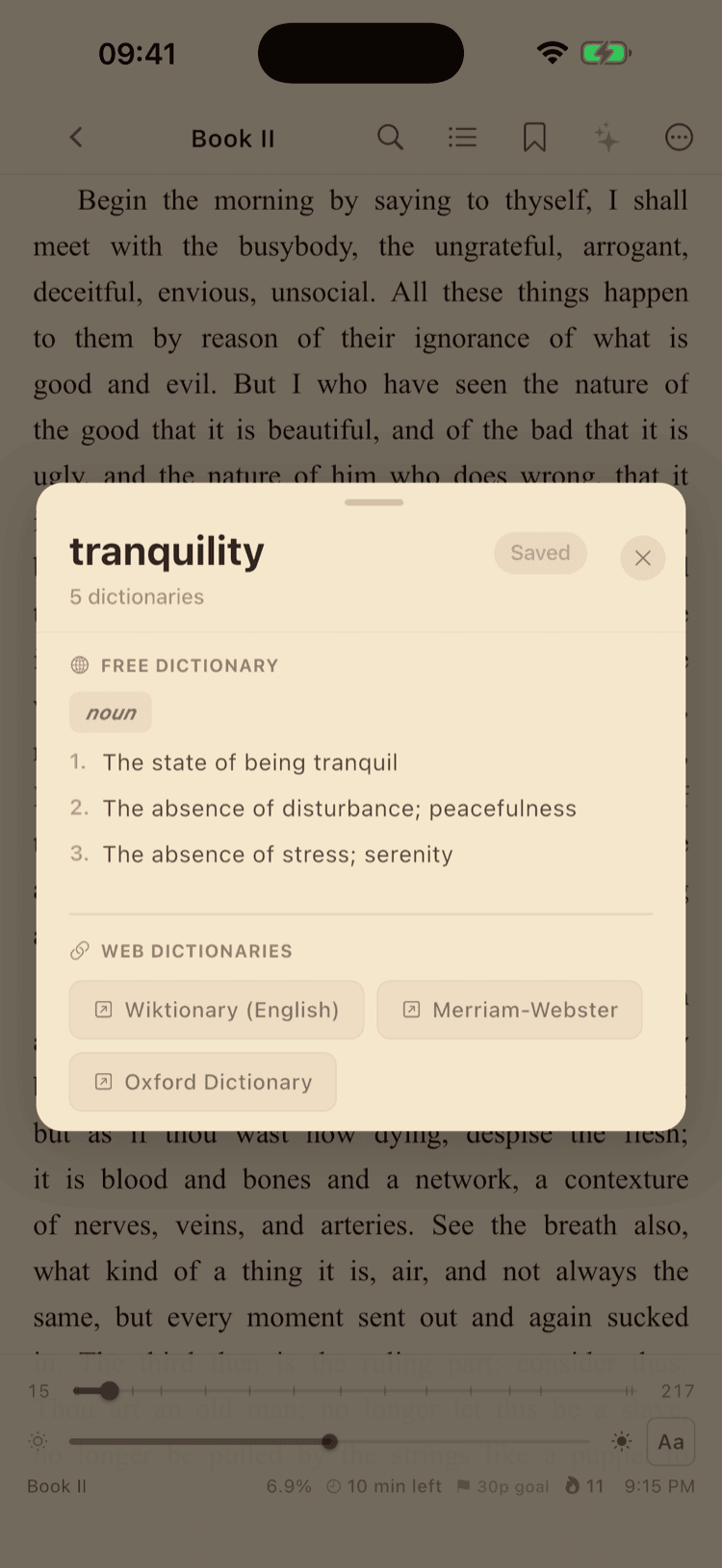
If you've already saved a word, the button shows "Saved" and is disabled. No accidental duplicates — the check is case-insensitive across your entire vocabulary, regardless of which book you're reading.
Browsing Your Saved Words
Every word you've saved, organized and waiting — your personal record of curiosity.
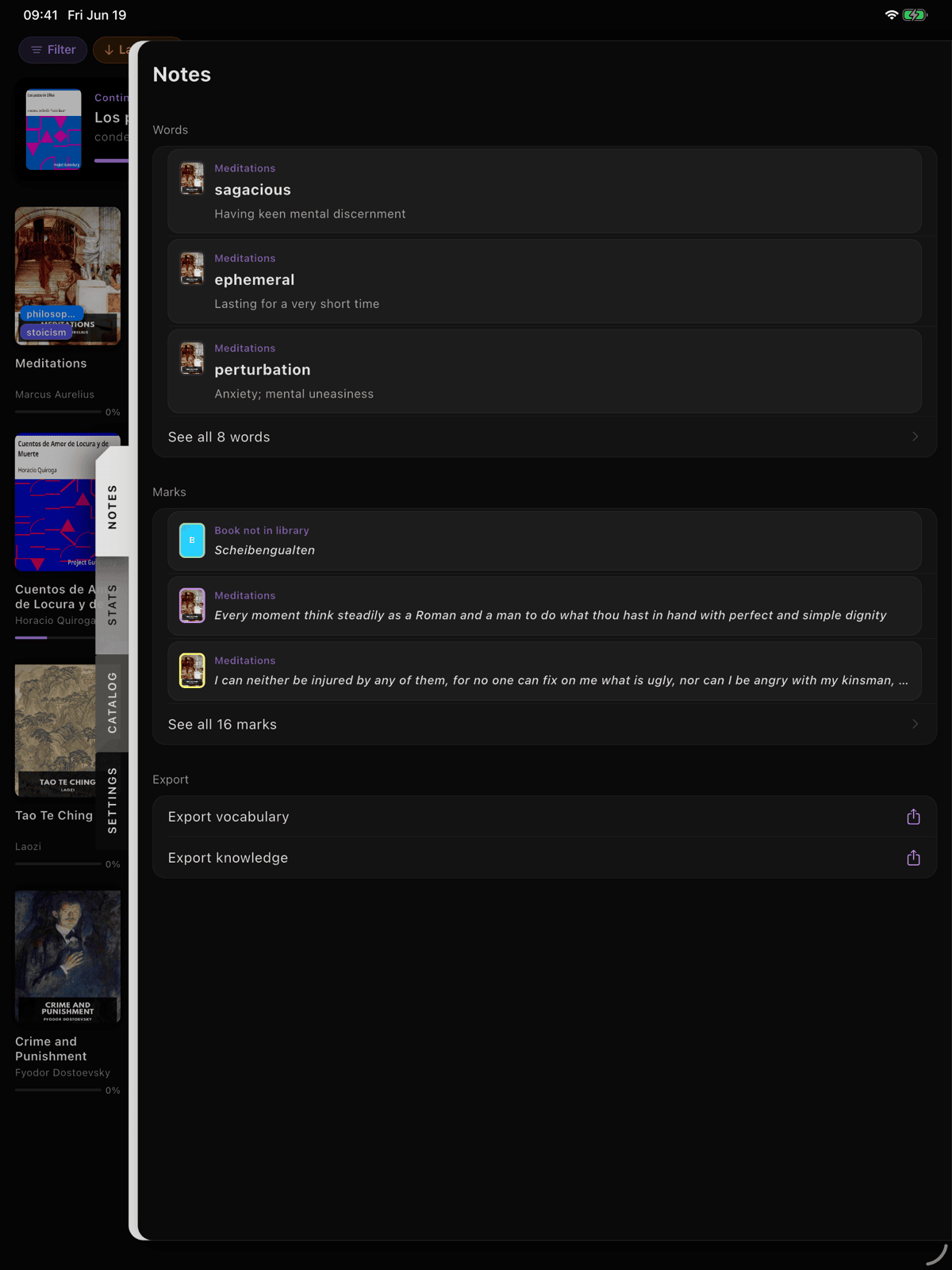
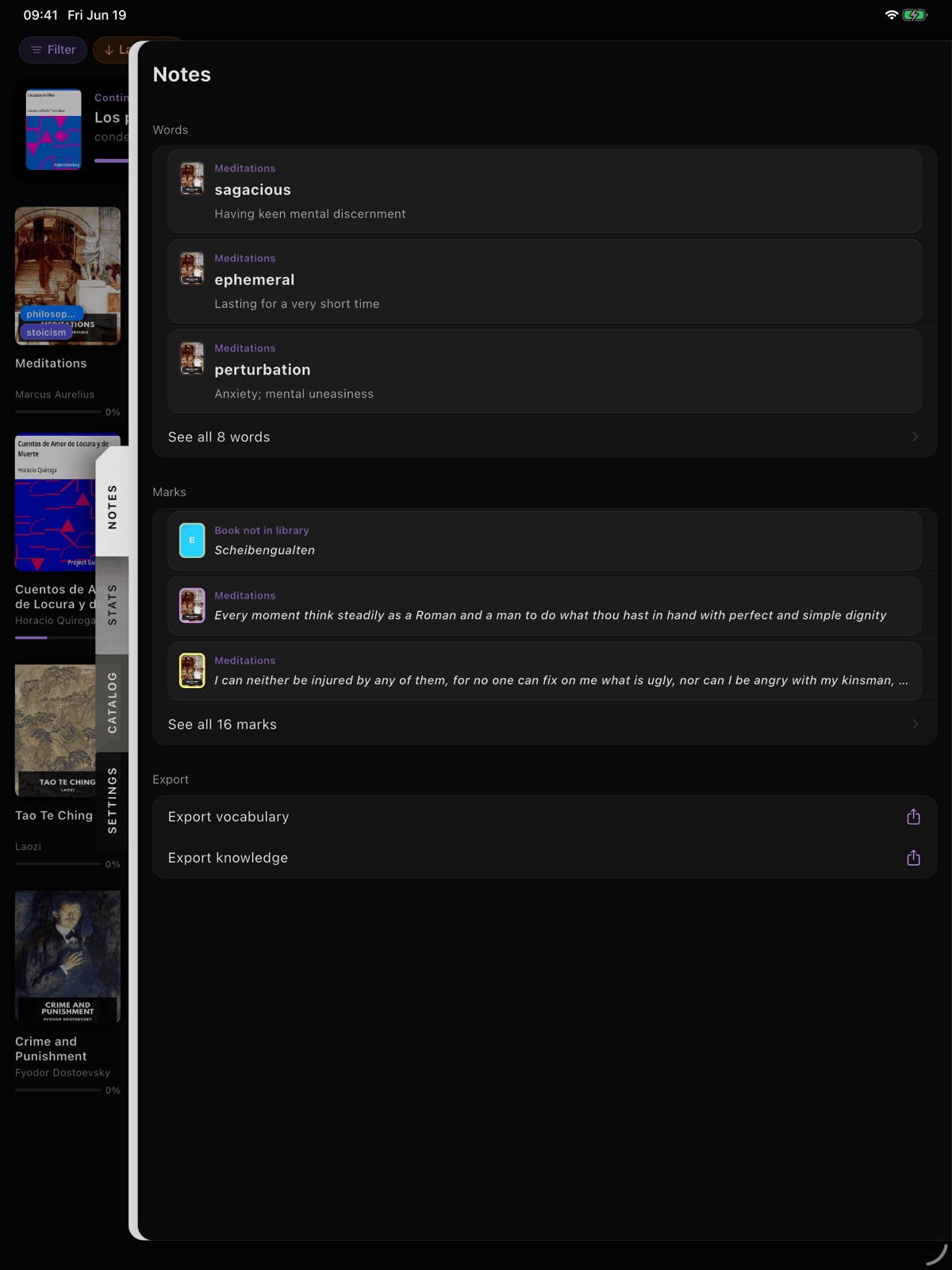
Your saved words live in the Notes panel. Swipe in from the right edge of the screen (or tap the right-edge affordance) to open the panel stack, land on Notes, and you'll see a Words section with your most recent saves. Tap See all to open the full Words view — every word you've kept, with a count at the top.
Each word appears as a card: the word in bold, phonetic pronunciation, part of speech badge, a two-line definition preview, the book it came from, and the date added. Tap any card to see the full definition, example sentence, and the original context from your book. Tap again to open the book at the place you found the word, if the book is still in your library.
Sort by newest, oldest, A—Z, or Z—A from the chip at the top of the list. Swipe a card to archive it; archived words move to a Recently Removed bin that auto-clears after 30 days, so a wrong swipe is recoverable.
Ten words you actually know are worth more than two hundred you crammed. Don't worry if your list feels small — every word on it came from real reading, attached to a real sentence, in a real book. That's a vocabulary list with roots.
Exporting Your Saved Words
Your saved words are yours — take them wherever you want them.
Tap the share button at the top of the Words view (or use Export vocabulary in the Notes panel) and choose a format:
Anki CSV (.txt)
Tab-separated, formatted for direct Anki import. Front: word with phonetic. Back: HTML-formatted definition with part of speech, example, and context. Tags: book::BookTitle for automatic per-book tag grouping in Anki. Import with "Fields separated by: Tab" and "Allow HTML in fields" checked.
TSV (.tsv)
Tab-separated with a header row. Open in any spreadsheet to filter, sort, or build your own study setup.
JSON (.json)
Complete export of every field. Best for backups, scripts, or any tool that reads JSON.
All formats use the system share sheet — save to Files, AirDrop to your Mac, or send to another app.
Dictionary Settings
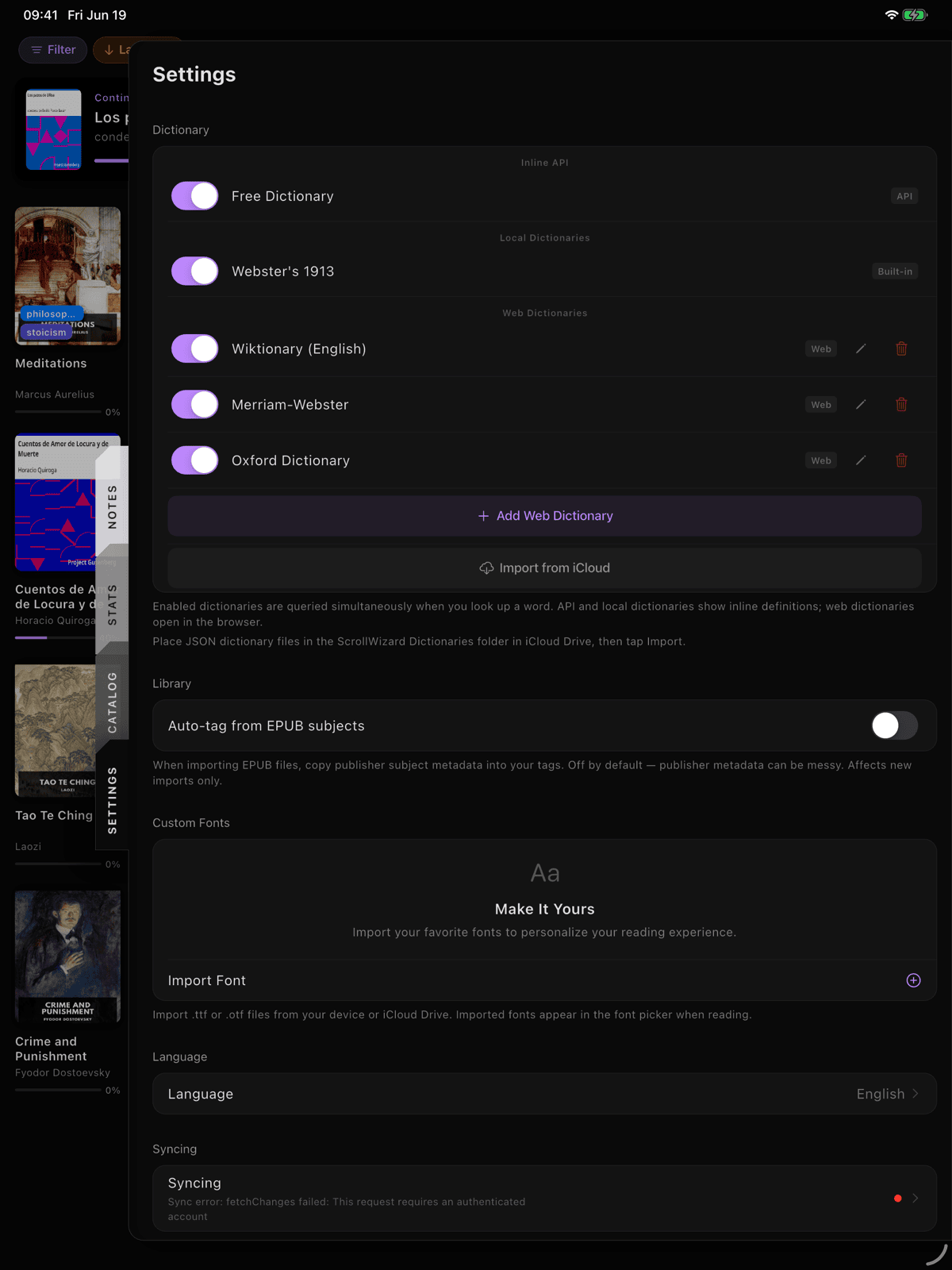
Dial in which dictionaries show up so lookups give you what you actually need.
Open Settings > Dictionary. Sources are grouped by type:
| Group | Sources |
|---|---|
| Inline API | Free Dictionary API |
| Local Dictionaries | Webster's 1913, plus any you've imported |
| Web Dictionaries | Wiktionary, Merriam-Webster, Oxford, plus custom |
Each source has an enable/disable toggle and a type badge. Disable what you don't use — if you never tap the web dictionary buttons, turn them off to declutter the popup. If you want offline-only definitions, disable the API and rely on Webster's 1913 and local dictionaries.
Webster's 1913 is worth keeping enabled. Even alongside the modern API, its literary definitions add depth. Seeing both a concise modern definition and a 19th-century etymological essay for the same word often deepens understanding more than either alone.
Custom Dictionaries
If the built-in options don't cover your language or field, bring your own.
Local JSON Dictionaries
Place dictionary files in your iCloud Drive > ScrollWizard > Dictionaries folder, then import them from Settings > Dictionary > Import from iCloud.
Every file needs a top-level name and an entries object — a bare {"word": "definition"} map won't load. Inside entries, each word can use either of two shapes:
Simple — one definition per word:
{
  "name": "My Glossary",
  "entries": {
    "ephemeral": "lasting for a very short time",
    "ubiquitous": "present, appearing, or found everywhere"
  }
}
Full — with phonetics and structured definitions:
{
  "name": "My Glossary",
  "entries": {
    "ephemeral": {
      "phonetic": "/ɪˈfɛm.ər.əl/",
      "definitions": [
        {
          "partOfSpeech": "adjective",
          "definition": "lasting for a very short time"
        }
      ]
    }
  }
}
Local dictionaries work offline and can be in any language. This is especially useful for language learners maintaining bilingual glossaries, specialized fields (medical, legal, technical), or even custom glossaries for a fantasy series you're reading.
Local dictionaries are cached in memory after first load. If you edit the file on your Mac and sync via iCloud, restart ScrollWizard to pick up changes.
Custom Web Dictionaries
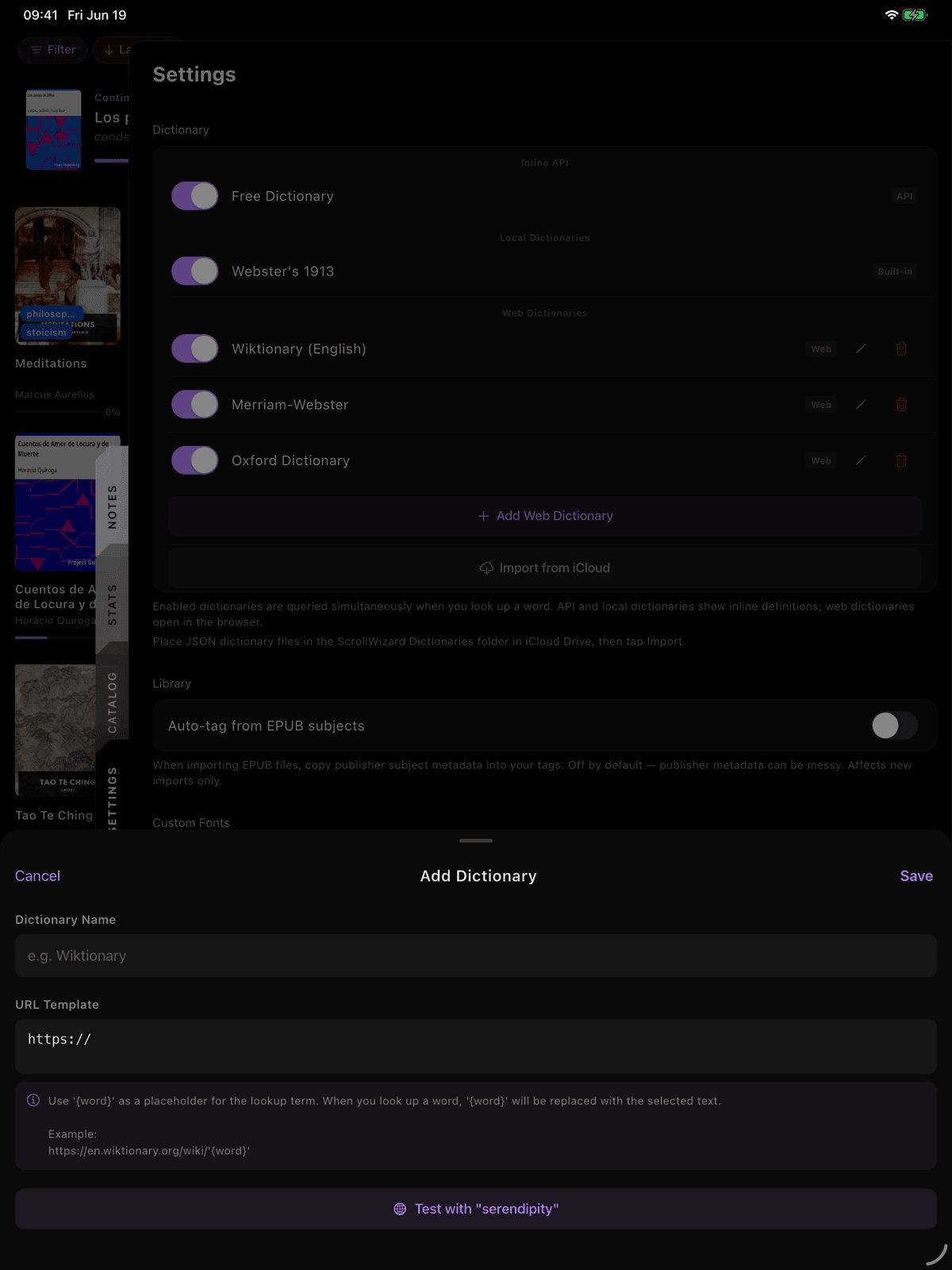
Add web dictionaries with a URL template containing a {word} placeholder:
- Settings > Dictionary > Add Web Dictionary.
- Enter a name (e.g., "Jisho Japanese") and a URL template (e.g.,
https://jisho.org/search/{word}). - Save. The new source appears as a button in the dictionary popup.
The Test button opens the URL with "serendipity" as a test word so you can verify it works before saving.
Tips & Tricks
Small habits that turn casual reading into a vocabulary list with actual reach.
Save generously. You can always archive later. You can't retroactively save a word you looked up three chapters ago. When in doubt, tap save.
Let the context do the work. ScrollWizard captures the sentence you found the word in. That sentence — your sentence, from the book you were actually reading — is what makes the word memorable later. Don't rewrite it. Don't summarise it. Leave it.
The API is English-only; custom dictionaries are not. The Free Dictionary API handles English. For other languages, add local JSON dictionaries or custom web dictionaries pointed at language-specific resources (Jisho, WordReference, Dict.cc).
Pair with the Split Reader. If you're reading in a second language, try opening the original in one pane and a translation in the other. Look up unfamiliar words, save them, glance at the translation for confirmation. See the Split Reader Guide for setup.
Export on your schedule. Take the list with you when you want to — not every session, not on a schedule. Each export is a snapshot; the next one picks up everything new.
What's Next
Your reading is already building your vocabulary — ScrollWizard just makes sure you keep what you find.
- Highlighting and annotating? The Annotations & Highlights Guide covers colors, notes, bookmarks, and export — highlights and word lookups share the same text selection menu and work beautifully side by side.
- Moving knowledge into your workflow? The Export Guide covers Obsidian, Notion, Logseq, and more.
- New to ScrollWizard? The Getting Started Guide covers the basics.
Happy reading.