Settings & Customization
You've been staring at a page that's almost right. The font is fine, but the line spacing feels a little cramped. The theme is close, but you wish the background were warmer. The margins are OK on your phone, but on your iPad they leave the text swimming in white space.
This is the guide where you fix all of that. ScrollWizard gives you deep control over how your books look and feel — typography, themes, layout, tap behavior, reading goals, dictionaries, and more. Every setting updates live, so you can see the result as you tweak. And every visual setting can be applied globally or per book, meaning your dense philosophy text and your beach novel don't have to look the same.
Let's walk through everything.
Two Places, One System
Settings in ScrollWizard live in two places, and it helps to understand why.
The Appearance Sheet (Visual Settings)
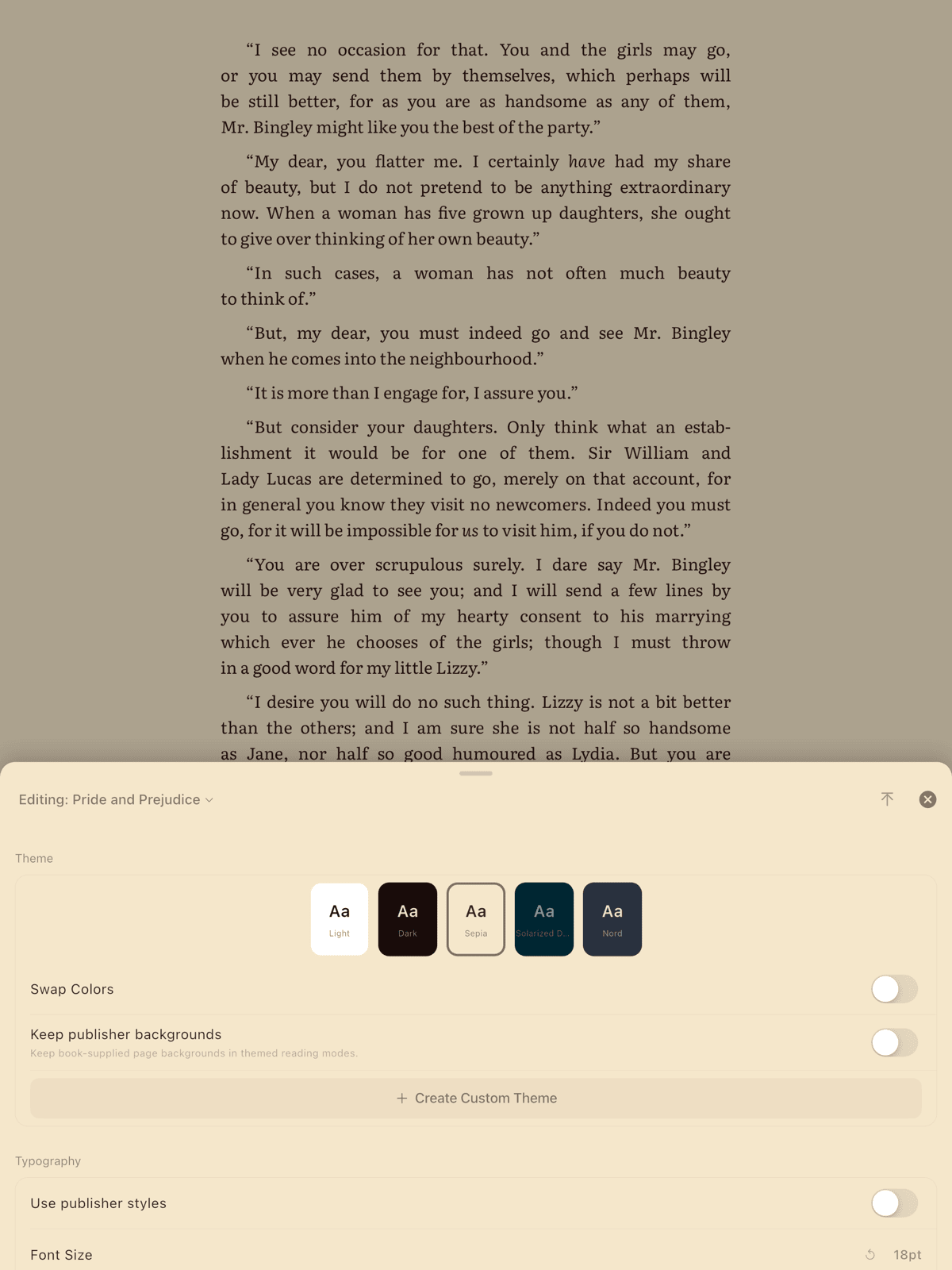
Open any book, tap the center of the screen to show the toolbar, then tap the Aa button (or "More Settings" in the quick panel). This is the Appearance Sheet — a draggable overlay that stays on top of your book so you can see changes in real time.
The Appearance Sheet contains:
- Typography — font, size, line height, spacing, alignment, hyphenation
- Layout — margins, page animation
- Theme — color scheme selection, custom theme creation, and color swap
- Display — hide status bar
You can drag the sheet up or down to resize it, or tap the arrow icon to flip it to the top of the screen if you want to see the bottom of the page while adjusting.
The Settings Screen (Everything Else)
From the library, tap the gear icon to open the full Settings screen. You can also reach it from the bottom of the Appearance Sheet via the "App Settings" link.
The Settings screen contains:
- Theme — same theme grid, accessible outside the reader
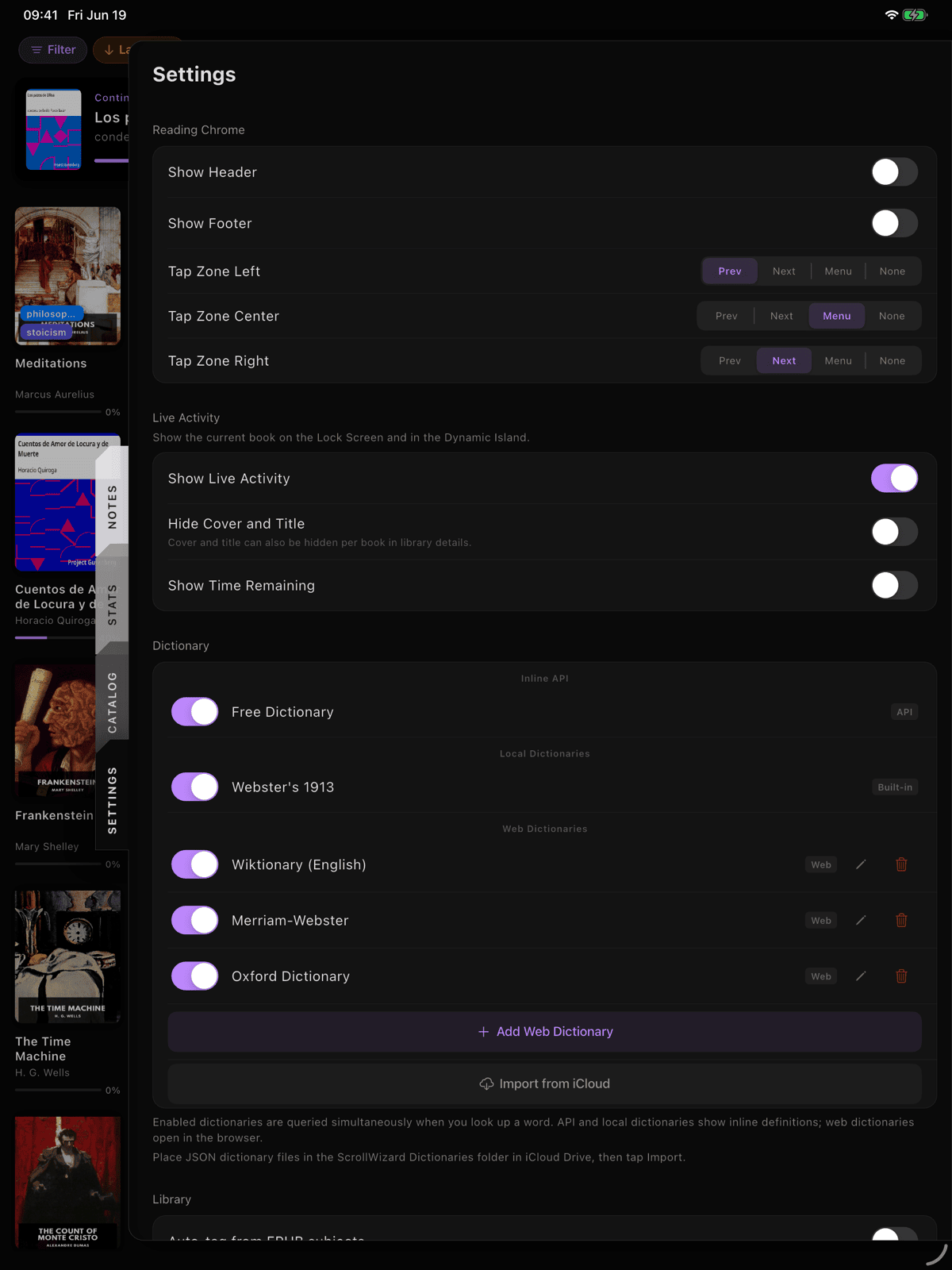
- Reading Chrome — header/footer content, tap zones
- Reading Goals — daily targets, reminders
- Dictionary — configure lookup sources
- Library — default sort
- Custom Fonts — import your own typefaces (Wizard Mode)
- Language — app language preference
- Data Management — export and import
- Privacy — crash reporting
- Advanced — Wizard Mode, split reader options
- About — version, licenses, tips reset
Global vs. Per-Book Settings
This is the single most powerful concept in ScrollWizard's settings. Every visual setting — font, size, theme, margins, line height, everything in the Appearance Sheet — can be set globally (for all books) or per book (just for this one).
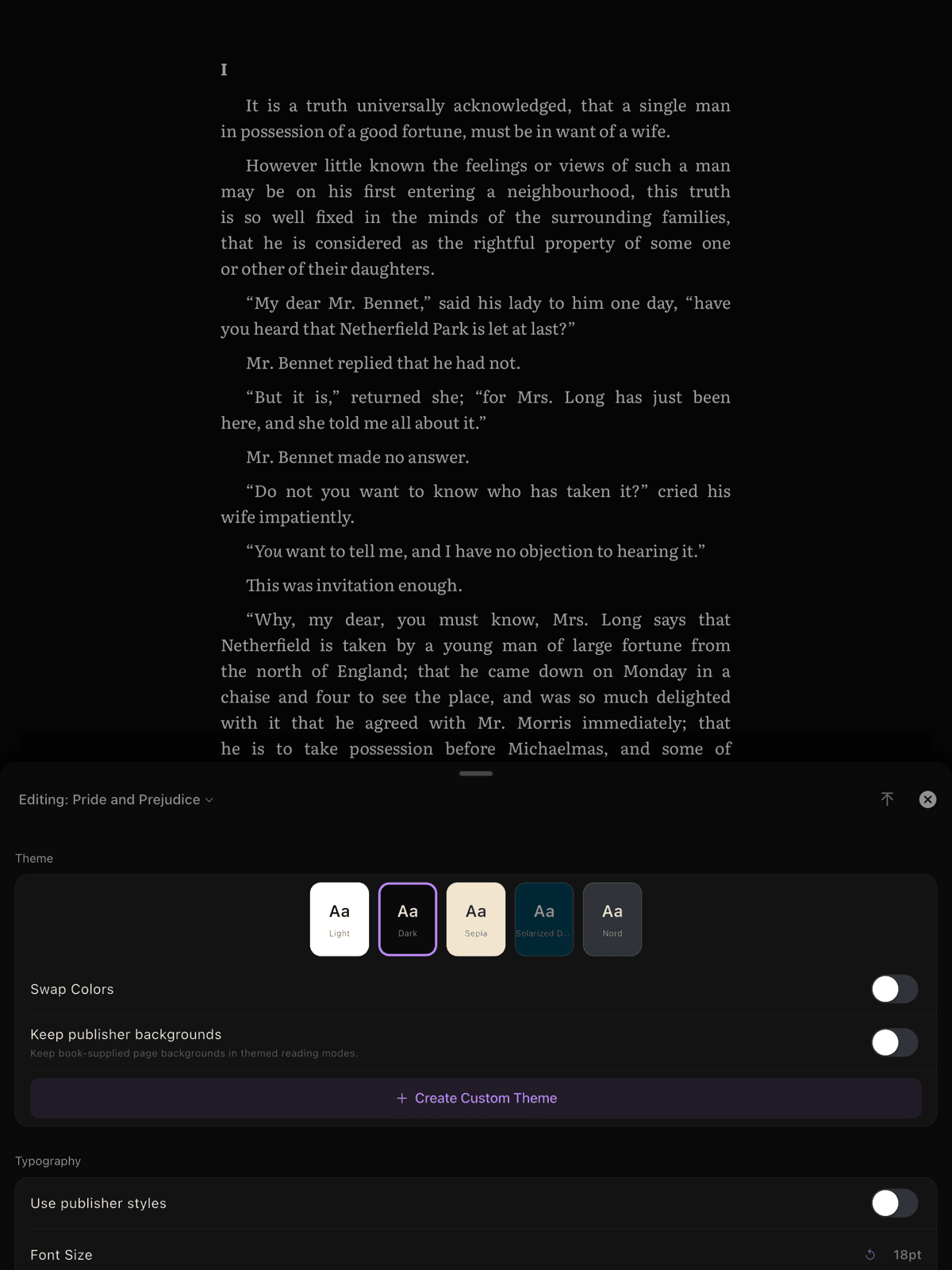
When you open the Appearance Sheet while reading a book, you'll see a toggle at the top: This Book and All Books.
- This Book — changes apply only to the book you're currently reading. Anything you don't override falls back to the global default.
- All Books — changes become the new global default for every book that doesn't have its own override.
Two extra buttons appear in "This Book" mode:
- Copy to Global — takes this book's current settings and makes them the global default
- Reset Book Settings — clears all per-book overrides so the book uses global defaults again
For the curious: per-book settings are stored as overrides. If you set only the font for a specific book, everything else (size, margins, theme) still comes from your global settings. Change your global font size later, and that book picks it up — unless it has its own font size override.
Typography
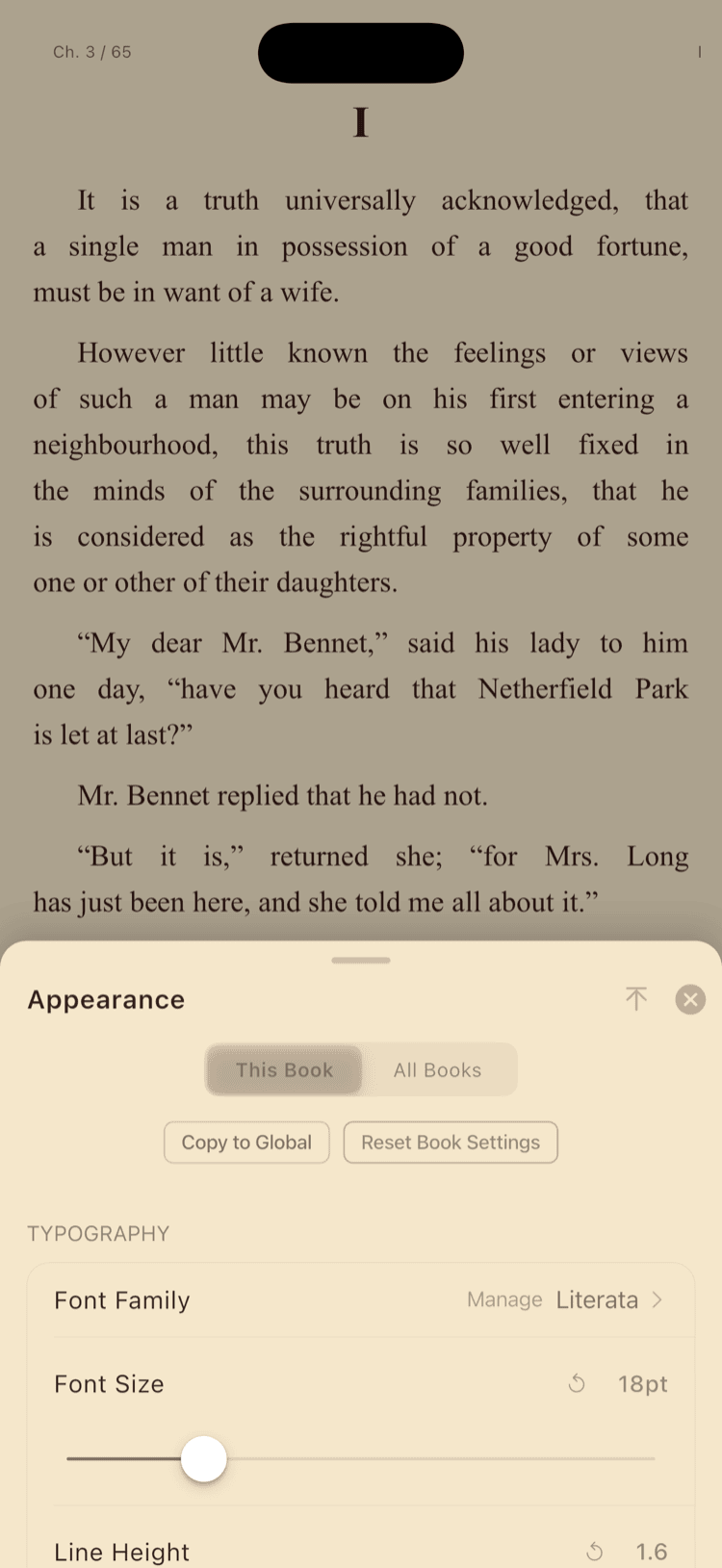
Open the Appearance Sheet and you'll find the Typography section first. These are the settings that determine how text looks on the page.
Font Family
ScrollWizard ships with 12 selectable fonts — three bundled (always available, always consistent) and nine system fonts (provided by iOS):
| Category | Fonts |
|---|---|
| Bundled | Literata, Source Serif, OpenDyslexic |
| System serif | Georgia, Palatino, Charter, Iowan Old Style, New York, Athelas |
| System sans-serif | Helvetica Neue, Seravek |
| System monospace | Menlo |
There's also a Publisher option at the top of the picker, which keeps the book's own embedded font when it has one and falls back to Literata when it doesn't.
The default is Literata — a variable serif designed specifically for long-form reading. It's excellent. But if you prefer sans-serif for non-fiction or a specific face for a language, the picker is a scroll wheel tap away.
OpenDyslexic is right there in the font list, not hidden in accessibility settings. If it helps you, use it. If it doesn't, skip it. No judgment either way.
With Wizard Mode unlocked, you can also import your own fonts (TTF or OTF) from the Settings screen under Custom Fonts. Imported fonts appear at the top of the font picker. More on that in the Custom Fonts section below.
Font Size
Adjustable from 10pt to 48pt with a slider. The default depends on your device:
| Device | Default size |
|---|---|
| iPhone | 18pt |
| iPad mini / iPad Air compact | 19pt |
| iPad 11" and larger | 20pt |
Tap the reset button on any slider to return to the default.
Line Height
Controls the spacing between lines of text. Range: 1.0 to 3.0, default 1.6. Lower values pack more text on screen; higher values give each line room to breathe. If you've increased the font size and the lines feel tight, nudge line height up a little to give them room.
Letter Spacing and Word Spacing
Fine-tune the space between individual characters (letter spacing: -2.0 to 5.0, default 0.0) and between words (word spacing: -2.0 to 10.0, default 0.0). Most people leave these at zero, but they're valuable for accessibility or for taming fonts that feel too tight or too loose.
Text Alignment
Four options, selected via icon buttons:
| Option | Description |
|---|---|
| Left | Ragged right edge, natural reading rhythm |
| Center | Centered text (mostly for poetry) |
| Right | Right-aligned (for RTL-adjacent layouts) |
| Justified | Even left and right edges (default) |
Justified text looks clean but can create uneven word spacing when the line length is short. If you notice "rivers" of white space, try switching to left-aligned — especially on phones.
Paragraph Indent and Spacing
- Paragraph Indent — first-line indent in em units (0.0 to 5.0, default 1.5). Set to 0 for block-style paragraphs.
- Paragraph Spacing — space between paragraphs in em units (0.0 to 3.0, default 0.5). Increase this if you set indent to 0, so paragraphs don't run together.
Hyphenation
On by default. Automatic hyphenation breaks long words at line ends to keep justified text looking even. Turn it off if you find the hyphens distracting — this is purely a preference.
Publisher Formatting
Off by default. When enabled, ScrollWizard respects the book's embedded CSS for paragraph styling (text-indent, margins, etc.) instead of applying your settings. Useful for books with intentional typographic design — poetry collections, textbooks with special layouts, or publisher ebooks that were carefully typeset.
Layout
Below Typography in the Appearance Sheet, the Layout section controls page structure.
Margins & Reading Width
Three controls here:
- Top Margin and Bottom Margin — two sliders, each adjustable from 0 to 80 logical pixels (both default to 24). They set the breathing room above and below the text on every page.
- Reading Width — a single slider that sets your target line length in characters per line, from 40 (Narrow) up to 110, with one extra notch at the very end labelled Full. The default is 66 characters — the classic comfy book line. There's a little haptic tick as you cross back over the default, so it's easy to find again.
The clever part: Reading Width is measured in characters, not pixels, so it travels with you. Set it once and the same comfortable line length follows you from iPhone to iPad without re-tuning. ScrollWizard aims for that target measure and then clamps to whatever your screen can actually fit — so on a narrow phone a wide setting simply fills the screen rather than overflowing. Slide all the way to Full to drop the cap entirely and let text run edge to edge. The readout under the slider shows roughly how many characters wide your lines currently are.
Page Turn Animation
Three styles:
| Animation | Description |
|---|---|
| None | Instant page change, no animation |
| Slide | Pages slide left/right (default) |
| Fade | Crossfade between pages |
Pick whichever feels natural. "None" is fastest for people who read quickly and don't want to wait for transitions.
Themes
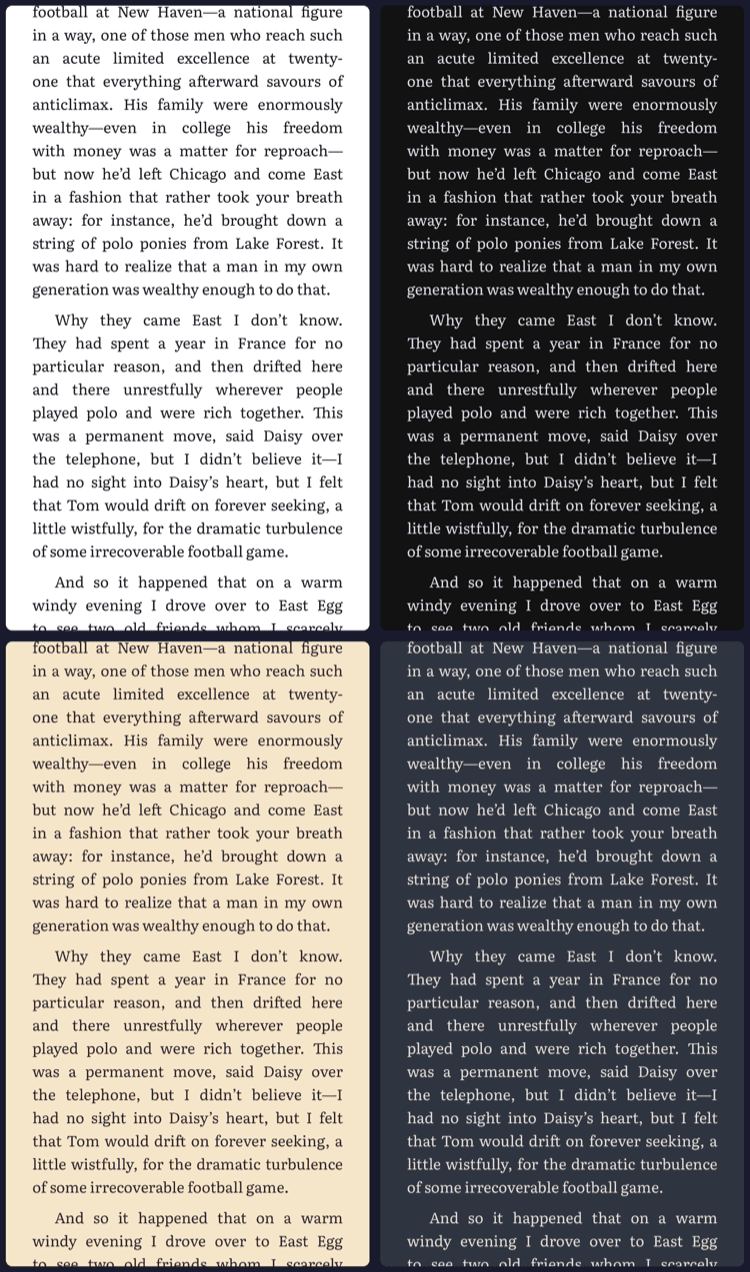
ScrollWizard comes with five built-in themes and lets you create unlimited custom themes.
Built-in Themes
| Theme | Background | Text | Mood |
|---|---|---|---|
| Light | White | Near-black | Clean, daytime reading |
| Dark | Near-black | Light gray | Easy on the eyes at night |
| Sepia | Warm beige | Dark brown | Paper-like warmth |
| Solarized Dark | Deep teal | Muted gray-green | The developer favorite |
| Nord | Slate blue | Pale blue-gray | Cool, arctic calm |
Switch themes from the Appearance Sheet's Theme section — just tap a theme swatch. You can also switch from the Settings screen if you're not currently in the reader.
Custom Themes
Tap Create Custom Theme to open the theme editor. You can set:
- Background color
- Text color
- Link color
- Accent color (used for UI elements like buttons and highlights)
- Selection color (used when selecting text)
There's no "this is a dark theme" switch to flip — ScrollWizard works it out for you from the background color's luminance. Pick a dark background and the theme behaves as a dark theme; pick a light one and it behaves as a light theme.
Custom themes appear alongside built-in ones in the theme grid. Long-press a custom theme to edit or delete it.
For the curious: each custom theme gets a unique ID. Per-book theme overrides reference this ID, so if you delete a custom theme that a book was using, that book reverts to the global default.
Per-Book Themes
In the Appearance Sheet, switch to "This Book" mode and select a different theme. That book will always open with its own theme, regardless of your global choice. A hint below the theme grid shows the global theme name for reference.
Display
The Display section controls screen-level settings that affect all themes.
Hide Status Bar
On by default. Hides the iOS status bar (time, battery, signal) while reading for a more immersive experience. The reading chrome (header/footer) provides a clock if you still want the time visible.
Quick brightness note: there's no brightness slider buried in Settings — screen brightness lives in the reader's quick controls, right next to the page you're reading, so you can nudge it without leaving the book.
Swap Colors
In the Theme section there's one more handy toggle: Swap Colors. It flips the text and background colors of your current theme — a quick one-tap way to get a dark look without switching themes entirely. The swap applies to the current theme and persists until you toggle it off, and like every visual setting it can be set per book.
Reading Chrome
In the Settings screen, the Reading Chrome section controls what information appears while you read.
Header and Footer
Both are off by default — ScrollWizard starts you with a clean, chrome-free page. Toggle each on independently when you want it. When enabled, you can configure which items appear:
| Available Item | Description |
|---|---|
| Chapter Title | Name of the current chapter |
| Book Title | Title of the book |
| Page in Chapter | Current page number within the chapter |
| Progress % | Overall reading progress as a percentage |
| Book Progress | Visual progress indicator for the whole book |
| Chapter Progress | Visual progress indicator for the current chapter |
| Time Remaining | Estimated time to finish (based on your reading speed) |
| Clock | Current time |
Default header items: Chapter Progress and Chapter Title. Default footer items: Page in Chapter, Progress %, and Clock.
Tap the items to open a picker where you can toggle each one on or off. On phones with a notch or Dynamic Island, the chrome tucks into the safe area, so it costs no reading space. On older flat-top devices it sits just below, taking about 24px.
Tap Zones
The screen is divided into three invisible zones — left, center, and right. Each can be assigned one of four actions:
| Action | What it does |
|---|---|
| Previous | Go to the previous page |
| Next | Go to the next page |
| Menu | Toggle the toolbar |
| None | Do nothing |
Defaults: left = previous, center = menu, right = next.
If you're a pure swiper, you might set all three to "none" or "menu." If you read left-to-right manga, you might flip left and right. The combinations are yours.
Haptic Feedback
Enabled by default. Provides a subtle vibration when you turn pages via tap. Disable it in Settings if you prefer silent page turns.
Reading Goals & Reminders
Set daily targets to build a reading habit — or don't. Goals are entirely optional and off by default.
Daily Page Goal
Preset options: Off, 10, 20, 30, 50, 75 pages. A custom value up to 500 can be entered. Since EPUBs don't have fixed page numbers, ScrollWizard estimates from your reading time at roughly 0.75 minute per page. Think of it as a "read for about this long" target.
Daily Time Goal
Preset options: Off, 15, 20, 30, 45, 60 minutes. A custom value up to 180 can be entered. This one is precise — it measures your actual reading duration.
If you're starting fresh, 15 or 30 minutes is a solid first goal. Something you'll actually hit. You can always raise it later.
Reading Reminder
Toggle on to receive a daily notification nudging you to read. Set the time with a picker (default: 8:00 PM). The notification is local — no server, no internet required. Toggle off and it stops immediately.
Annual Book Goal
Set from the Stats panel (swipe in from the right edge) or from Settings. Choose how many books you want to finish this year. ScrollWizard tracks completions and shows pace projections. Set to 0 to disable.
For more on goals and statistics, see the Track Your Reading Guide.
Dictionary
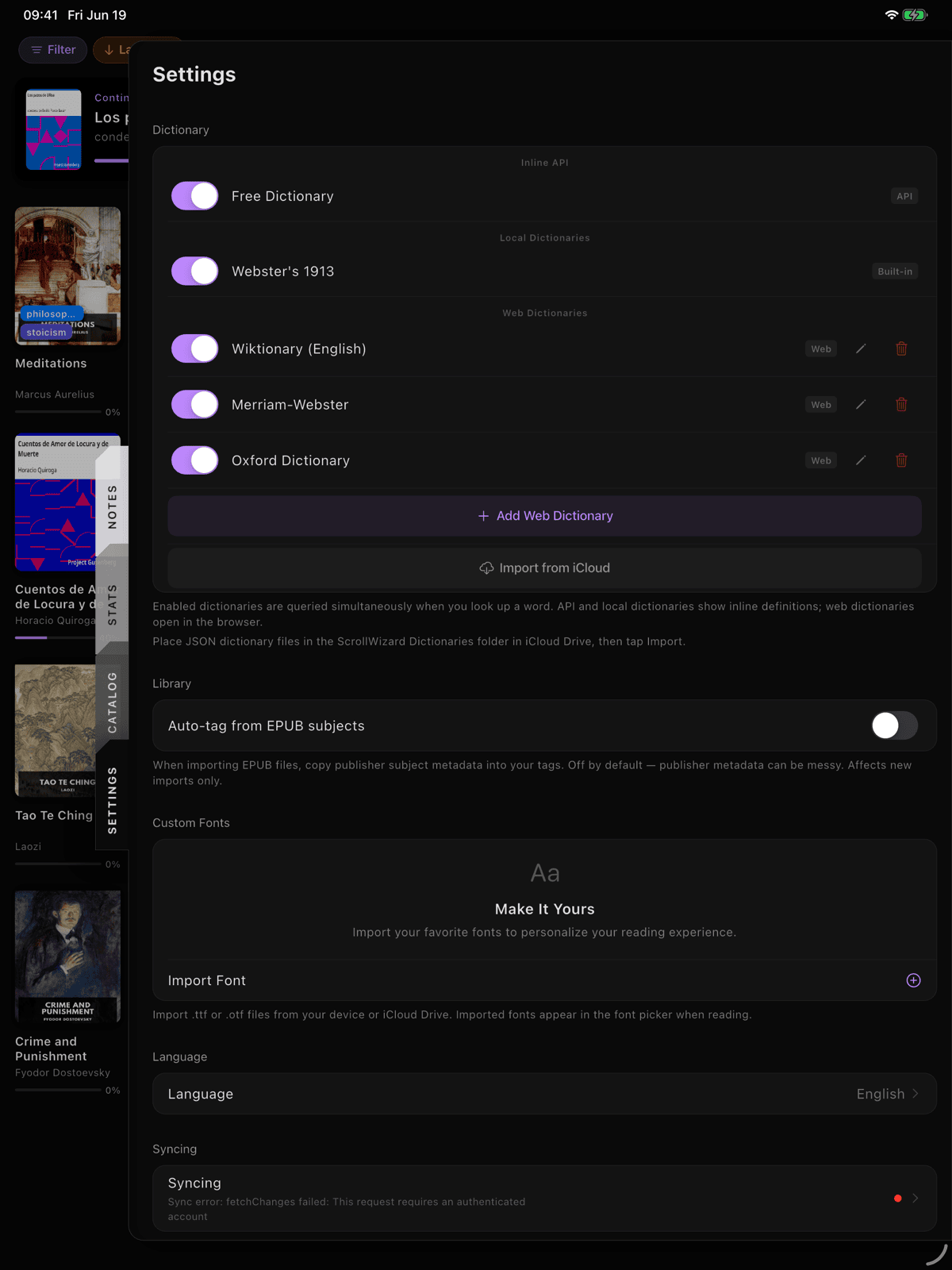
The Dictionary section in Settings controls where ScrollWizard looks up word definitions when you select a word and tap "Look Up."
Default Sources
Four dictionaries come pre-configured:
| Source | Type | Description |
|---|---|---|
| Free Dictionary | Inline API | Shows definitions directly in a popup, no browser needed |
| Wiktionary | Web | Opens in a browser view |
| Merriam-Webster | Web | Opens in a browser view |
| Oxford Dictionary | Web | Opens in a browser view |
Each source has a toggle to enable or disable it. The Free Dictionary API is the default — it provides inline definitions without leaving the reader.
Adding Custom Dictionaries
Tap Add Web Dictionary to add any dictionary that uses a URL pattern. Enter a name and a URL template with {word} as the placeholder (e.g., https://dictionary.example.com/search?q={word}). ScrollWizard replaces {word} with the looked-up term.
Web dictionaries can be edited or deleted. The built-in Free Dictionary API cannot be removed.
Local Dictionaries
Tap Import from iCloud to scan your iCloud Drive for local dictionary files (JSON format). ScrollWizard detects dictionary files and adds them as offline lookup sources — no internet required for definitions.
Local dictionaries appear with a "Local" badge. They're especially useful for specialized vocabulary, languages not covered by the default sources, or reading on planes.
Custom Fonts
This feature requires Wizard Mode (a one-time purchase).
Import your own TTF or OTF font files and use them as the reader font. Imported fonts appear at the top of the font picker alongside the built-in options.
Importing Fonts
- Open Settings > Custom Fonts.
- Tap Import Font.
- Select one or more TTF/OTF files from the iOS file picker.
- Each font appears with a preview showing the font name rendered in itself, file size, and the date it was added.
Managing Fonts
Swipe left on any imported font to delete it. A confirmation dialog appears — deleting a font that a book is using will cause that book to fall back to the global default font.
Tip: Look for free, high-quality fonts on Google Fonts or Font Squirrel. Fonts with good Unicode coverage work best for multilingual reading.
If Wizard Mode isn't unlocked, the Custom Fonts section shows a teaser with a tap-to-unlock prompt.
Library Settings
Default Sort
The library remembers how you like your books ordered. The options are:
- Last Read (default) — most recently opened books first
- Date Added — newest imports first
- Title — alphabetical by title
- Author — alphabetical by author
- Progress — by how far through you are
You change the sort from the left sidebar (filtering and sorting both live in the sidebar — there's no top filter bar), and ScrollWizard keeps your choice for next time.
Language
ScrollWizard supports 12 languages: Arabic, German, English, Spanish, French, Italian, Japanese, Korean, Dutch, Portuguese, Russian, and Chinese.
By default, ScrollWizard follows your device's system language. To override this:
- Open Settings > Language.
- Tap Language.
- Choose a language from the list (shown in native script for easy identification), or select System Default to follow iOS again.
The language setting affects the app's interface, not the content of your books.
Privacy
Crash Reporting
Off by default. When enabled, ScrollWizard sends anonymous crash reports via Sentry to help identify and fix bugs. No personal data, no reading history, no book content — just stack traces and device info.
Disabling crash reporting closes the connection immediately. Re-enabling takes effect on the next app launch.
Privacy Policy
A link to the ScrollWizard privacy policy at scrollwizard.com/privacy.
Data Management
Tap Export / Import Data in Settings to open the Data Management sheet.
Export Options
| Format | What's Included |
|---|---|
| Full Backup (JSON) | Everything — books, settings, smart collections, tags, highlights, bookmarks, reading sessions, vocabulary words, yearly goals, RSVP sessions |
| Annotations (Markdown) | All your highlights and notes across your whole library, formatted for Obsidian/Logseq |
Annotation export is library-wide and Markdown-only — it produces a single .md file. Both exports use the iOS share sheet, so you can save to Files, AirDrop, email, or any other destination.
Note: there's no "export from the reader" action. Annotation export lives here, in Data Management. If you want richer, structured exports to Obsidian, Notion, or Logseq — per book or whole library — that's the Knowledge Export feature, covered in the Export Guide.
Import
Import from a previously exported JSON backup to restore your data. Exporting a backup before any destructive action is always a good idea.
Delete All Data
A danger-zone option that wipes everything — books, settings, highlights, bookmarks, reading history, passwords, and iCloud sync data. Two confirmation dialogs stand between you and a blank slate. This cannot be undone.
Advanced (Wizard Mode)
The Advanced section shows Wizard Mode status and related settings.
- Wizard Mode — tap to unlock (a one-time purchase). Once unlocked, a checkmark appears.
- Open Footnotes in Reference Pane (Wizard Mode) — when in split mode, footnote links open in the side pane instead of a popup. Off by default.
- Restore Purchase — visible when Wizard Mode isn't unlocked. Tap to check for a previous purchase.
About
- Version — the current app version. (If you tap it 42 times, something happens. We won't spoil it.)
- Open Source Licenses — full list of the open-source libraries ScrollWizard uses.
Default Settings Reference
Here's a quick-reference table of every key setting, its default value, and its range. Useful when you've tweaked everything and want to know what "factory settings" looks like.
| Setting | Default | Range |
|---|---|---|
| Font Family | Literata | 12 selectable + custom |
| Font Size | 18pt (phone) | 10—48pt |
| Line Height | 1.6 | 1.0—3.0 |
| Letter Spacing | 0.0 | -2.0—5.0 |
| Word Spacing | 0.0 | -2.0—10.0 |
| Text Alignment | Justified | Left, Center, Right, Justified |
| Paragraph Indent | 1.5 em | 0.0—5.0 em |
| Paragraph Spacing | 0.5 em | 0.0—3.0 em |
| Hyphenation | On | On/Off |
| Publisher Formatting | Off | On/Off |
| Top / Bottom Margin | 24 / 24 | 0—80 each |
| Reading Width | 66 characters | 40—110 chars, or Full |
| Page Turn Animation | Slide | None, Slide, Fade |
| Theme | Light | 5 built-in + custom |
| Hide Status Bar | On | On/Off |
| Tap Zone Left | Previous | Previous, Next, Menu, None |
| Tap Zone Center | Menu | Previous, Next, Menu, None |
| Tap Zone Right | Next | Previous, Next, Menu, None |
| Haptic Feedback | On | On/Off |
| Show Header | Off | On/Off |
| Show Footer | Off | On/Off |
| Daily Page Goal | Off | Off, 10—75 |
| Daily Time Goal | Off | Off, 15—60 min |
| Reading Reminder | Off | On/Off |
| Reminder Time | 8:00 PM | Any time |
| Library Sort | Last Read | Last Read, Date Added, Title, Author, Progress |
| Crash Reporting | Off | On/Off |
Tips & Tricks
Start with font and size, then stop. Most people only need to change two or three settings. Literata at 18pt with justified text and the default line height works wonderfully for the vast majority of books. Only dig into the advanced controls when something feels off.
Use per-book settings for outliers. If one book has unusual formatting or you want a different mood for a specific genre, set overrides for that book and leave your global settings alone. It's the best of both worlds.
The reset button is your friend. Every slider in the Appearance Sheet has a reset button that returns it to the default value. If you've gotten lost in the weeds, tap reset and start over. No harm done.
Custom themes for reading contexts. Create a "Night" theme with very dark gray (not pure black) and slightly warm text. Create a "Focus" theme with your favorite bold accent color. Create an "Old Paper" theme that looks like aged parchment. The editor lets you pick any color.
Export before experimenting. If you're about to make big changes to your data or settings, export a backup first via Settings > Data Management. It takes five seconds and can save you from regret.
Swipe gestures are configurable. Vertical swipe up and swipe down can be mapped to brightness control, font size adjustment, or RSVP speed reading (Wizard Mode). The default is "none" for both — assign them if you want quick in-reader adjustments without opening any menus.
Language doesn't affect your books. Changing the app language only changes ScrollWizard's interface. Your books display in whatever language they were written in.
What's Next
You've made ScrollWizard yours. Now put it to use.
- New to the app? The Getting Started Guide covers importing books, navigation, and the basics.
- Tracking your reading habit? The Track Your Reading Guide covers goals, statistics, and reminders in depth.
- Highlighting and annotating? The Annotations & Highlights Guide covers five-color highlights, notes, and the annotation timeline.
- Saving words from your reading? The Save Words guide covers the dictionary, your saved-word list, and export.
- Exporting to your knowledge tools? The Export Guide covers Obsidian, Notion, Logseq, and more.
- Using the speed reader or split view? The RSVP Speed Reader Guide and Split Reader Guide cover Wizard Mode's advanced tools.
Every setting exists so the app gets out of your way and the book takes over. Once you've dialed in your setup, you'll forget the settings are even there.
Happy reading.