Track Your Reading
You've been reading more than you think. ScrollWizard tracks your time automatically — no timers to start, no logs to fill in. Open the Stats panel — swipe in from the right edge of the screen (or tap the right-edge affordance) to slide open the panel stack, then choose Stats — and there it is: a quiet record of every session and every book you've finished. Not a report card. A mirror.
Everything here — time tracking, goals, charts, completion history, reminders — is free. No premium analytics tier, no paywall. Your reading data is yours from day one.
How Tracking Works
You don't need to do anything. ScrollWizard creates a reading session the moment you open a book and updates it when you close the reader. Each session records your start time, end time, pages read, chapters covered, and progress percentage.
If the app force-closes mid-session (battery dies, iOS reclaims memory), your start time is preserved and the end time defaults to the moment the session was interrupted. No reading time is lost.
Sessions are bucketed by the day they started, not ended. A late-night session that begins at 11:45 PM counts toward that day, even if you read past midnight. The rules are consistent and predictable.
Five minutes with a book counts. It always counted.
The Stats Panel
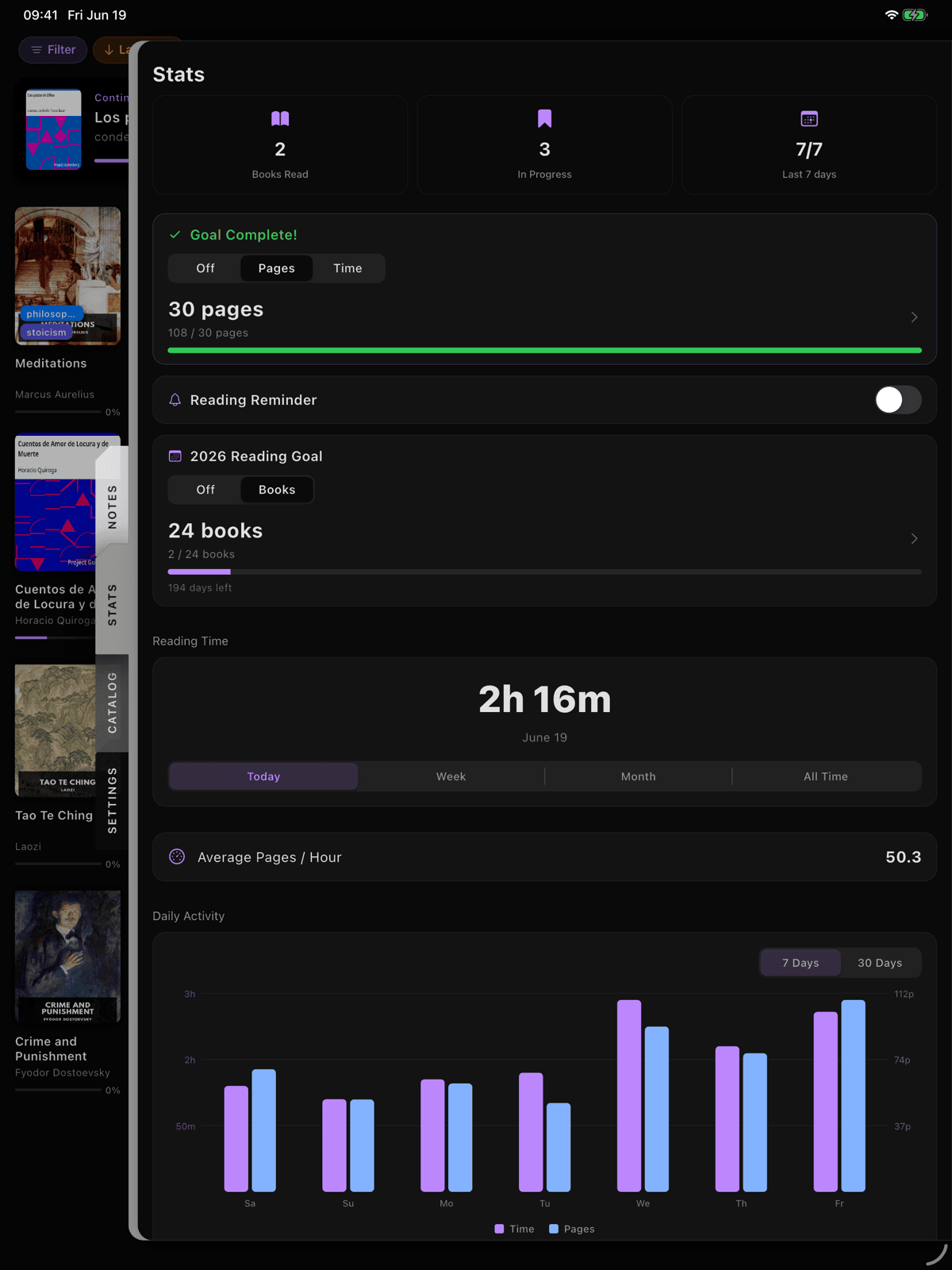
Your reading life at a glance — time spent today, how many of the last seven days you've read, and a chart that shows patterns you didn't know you had. There's no separate "Statistics" screen; it all lives in this one panel.
To open it, swipe in from the right edge of the screen (or tap the right-edge affordance) to slide open the panel stack, then choose Stats.
The Stats panel assembles itself as you read. Before your first session it simply says "Nothing to report yet — your reading stats will appear once you start a book." After that, the cards fill in. No zeroes staring at you, no empty charts making you feel guilty. Features surface as they become relevant.
Looking for the book you most recently had open? That's the Continue Reading card on the Library screen — a hero card with cover, title, and a progress bar. Tap it to jump straight back into the reader.
The Three Summary Cards
Across the top, three at-a-glance cards:
| Card | Shows |
|---|---|
| Books Read | Total completed books (all time) |
| In Progress | Books you've started but not finished |
| Last 7 days | How many of the last seven days you read, as X/7 |
That last card is the gentle heartbeat of the panel. Read on five of the last seven days and it shows 5/7 — a rolling count that always includes today and the six days before it. No streaks to break, no flame to keep alive: miss a day and the number just reflects the window. Read again and it ticks back up. A pattern, not a promise.
Today's Stats
A daily-goal card with:
- Today's reading time — large, bold, hard to miss
- Goal ring / progress bar — visible only if you've set a daily goal. Green with a checkmark when complete, accent-colored while in progress.
With no daily goal set, this slot still earns its space with a quiet three-line summary: how many books you're currently reading, how many of the last seven days you read, and how many you've finished this year.
Reading Time
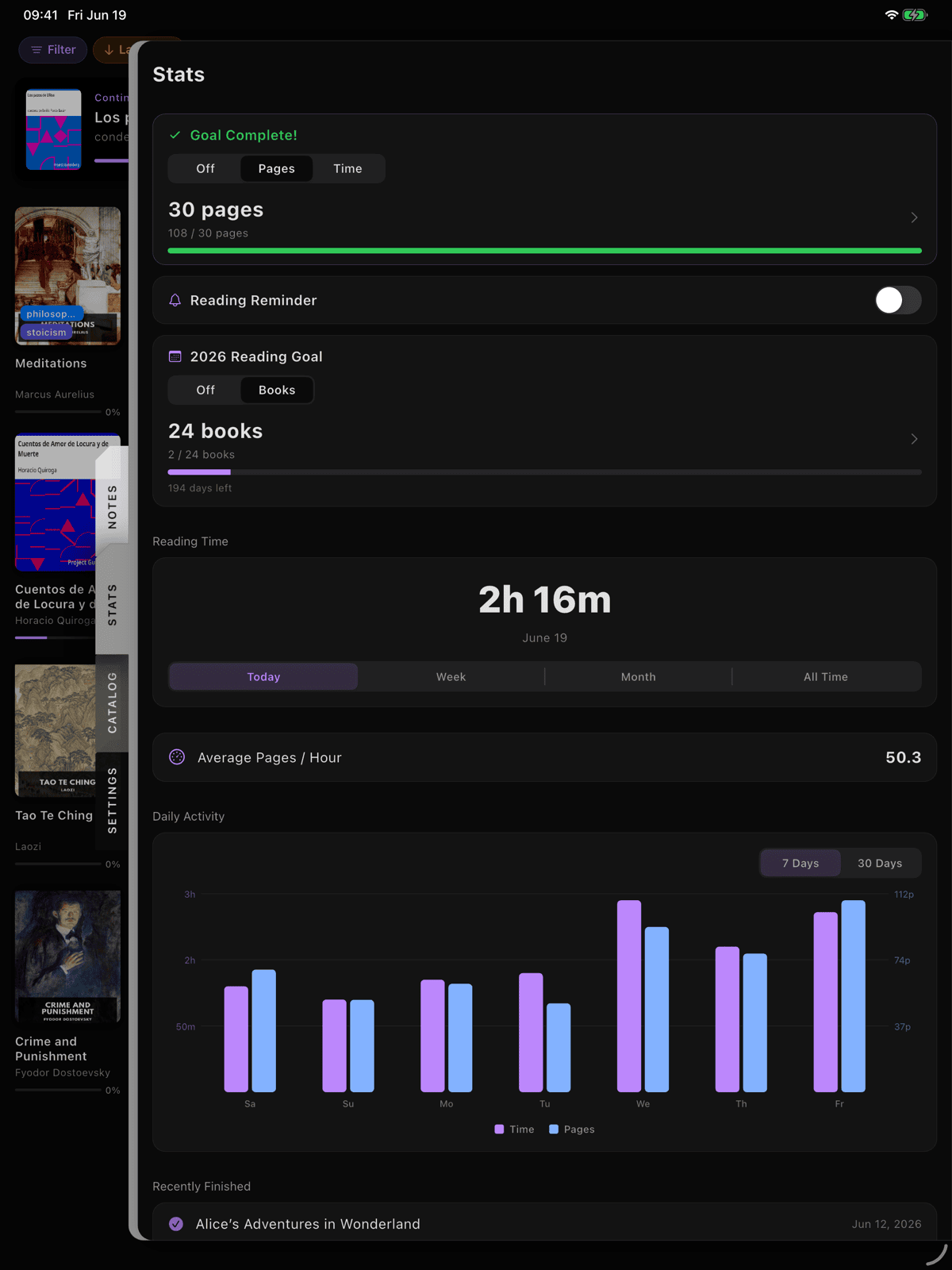
A Reading Time section with a segmented control:
| Segment | Time Range |
|---|---|
| Today | Current calendar day |
| This Week | Monday through Sunday |
| This Month | Current calendar month |
| All Time | Every session since you started |
Tap a segment and the time display updates. The number comes from your actual reading sessions — no approximations.
Daily Activity Chart (7-Day and 30-Day)
Seven bars. Seven days. Sometimes the story they tell is more interesting than the numbers themselves.
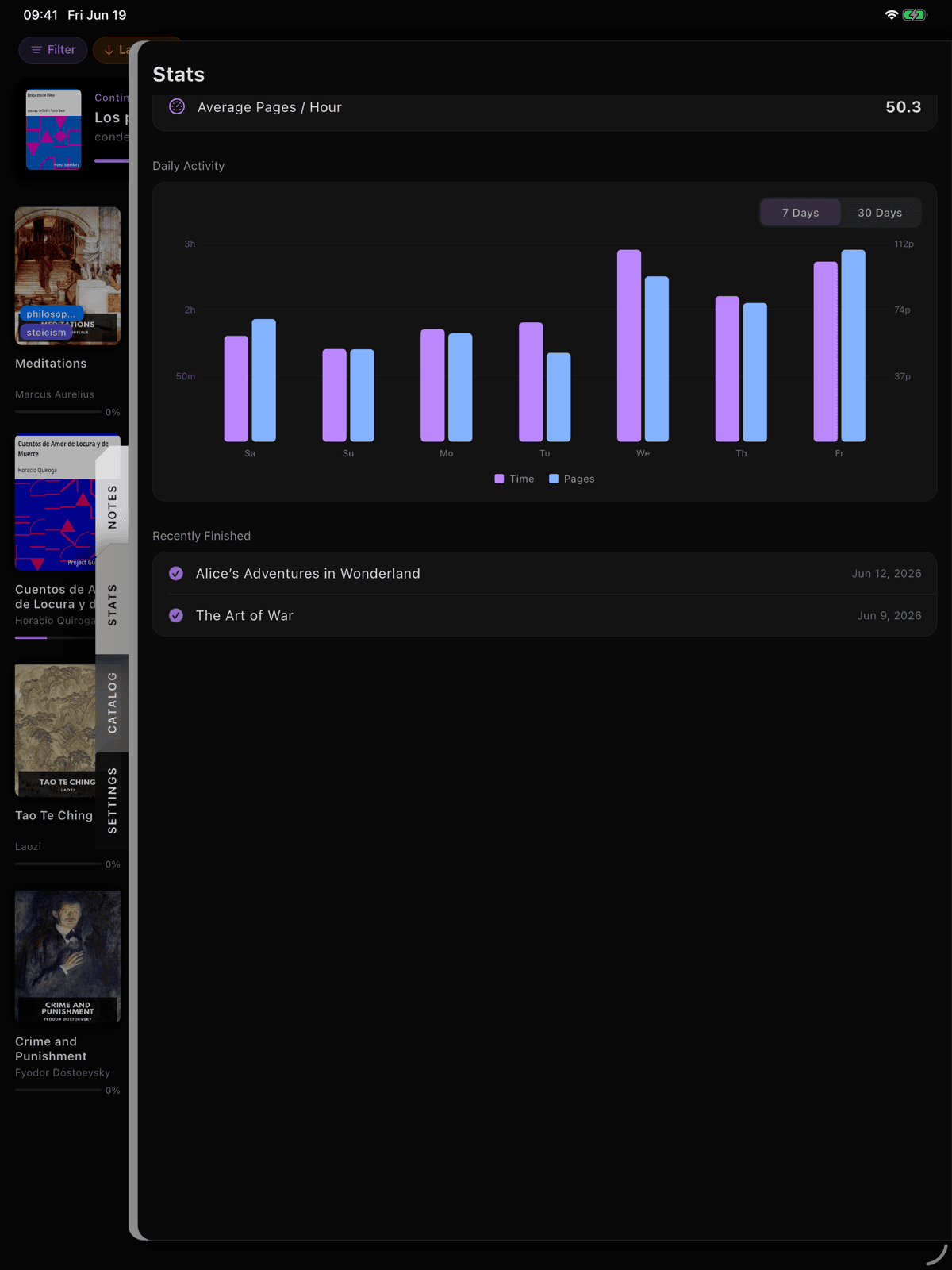
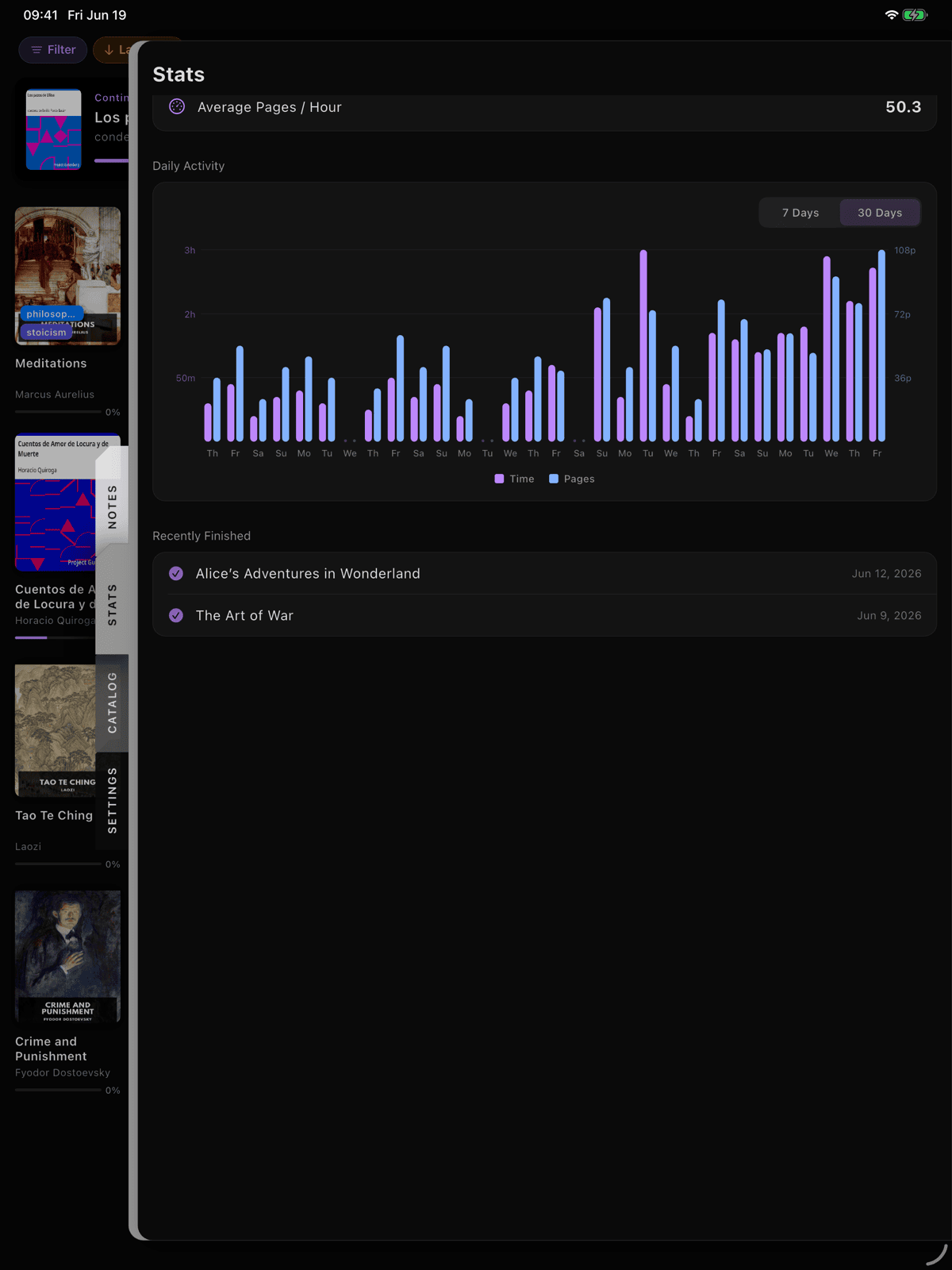
A bar chart of daily reading time, with a toggle for a 7-day or 30-day window. Bars use your theme's accent color and auto-scale. Tap any bar for a tooltip with the exact time ("Apr 2: 1h 15m"). Days with no reading show as small dots rather than invisible gaps — you can see the shape of your week at a glance.
The chart doesn't judge your Tuesday. Neither do we.
Reading the chart:
- Y-axis: Auto-scaled, formatted as "1h" or "30m" depending on volume. Clean divisions — no awkward labels.
- X-axis: Two-letter day abbreviations.
- Bars: Rounded rectangles in accent color. Tap for a tooltip with exact time.
- Empty days: Small dots at low opacity. The chart never looks completely blank.
The 30-day window: bars become thinner, but the interaction is the same. Useful for spotting weekly rhythms (weekends vs. weekdays) and tracking consistency over a longer window. Missing days are filled with zero-duration entries for a complete, unbroken timeline.
Setting Goals
A daily goal is a gentle nudge, not a contract. All goals are optional, off by default, and configurable from Settings > Reading Goals.
Daily Page Goal
Pick a preset — Off, 10, 20, 30, 50, or 75 pages per day — or tap Custom to dial in your own value.
When real page counts are available, ScrollWizard uses them. Otherwise — and EPUBs don't have fixed page numbers — it estimates pages from your reading time at roughly 0.75 minute per page (about 250 words a minute over a typical page). Think of it as a "read for about this long" proxy rather than an exact page tally.
Daily Time Goal
Pick a preset — Off, 15, 20, 30, 45, or 60 minutes per day — or tap Custom for any value up to 180 minutes.
Time goals use your actual reading duration — no estimation. Set 30 minutes, read 30 minutes, done.
One Goal, Not Two
Page and time goals are mutually exclusive — setting one clears the other. This keeps the panel clean: one progress measure, one thing to aim for.
If you're new to reading goals, start with 15 or 30 minutes. It's concrete, measurable, and doesn't depend on page-count estimation. The best daily goal is the one you'll actually hit tomorrow.
You can change your goal at any time — mid-week, mid-day, mid-chapter. Lowering it isn't failure. It's calibration. A goal you consistently hit does more for your habit than an aspirational number you consistently miss.
Goal Progress Ring
When a daily goal is active, a progress ring fills in the Stats panel as you read. Before completion: accent color. Complete: green with a checkmark. Simple, satisfying, done.
Annual Book Goal
Separate from daily goals. Choose how many books you want to finish this year from the preset chips — 12, 24, 36, or 52 — or tap Custom for your own number (up to 150).
A book counts as "read" when you reach 100% progress. The card shows a linear progress bar and "X of Y books."
Pace projection: ScrollWizard calculates your projected year-end total. When ahead of pace, the card adds "On pace for Z books this year." When behind pace, nothing extra — just the count and bar. Encouragement without pressure.
Setting the goal to 0 disables it entirely.
You don't have to set a daily goal or an annual target. The Stats panel works fine without them. Time tracking and charts run regardless. Goals are there when you want structure, invisible when you don't.
Book Completion
Finishing a book deserves a moment. ScrollWizard gives you a record.
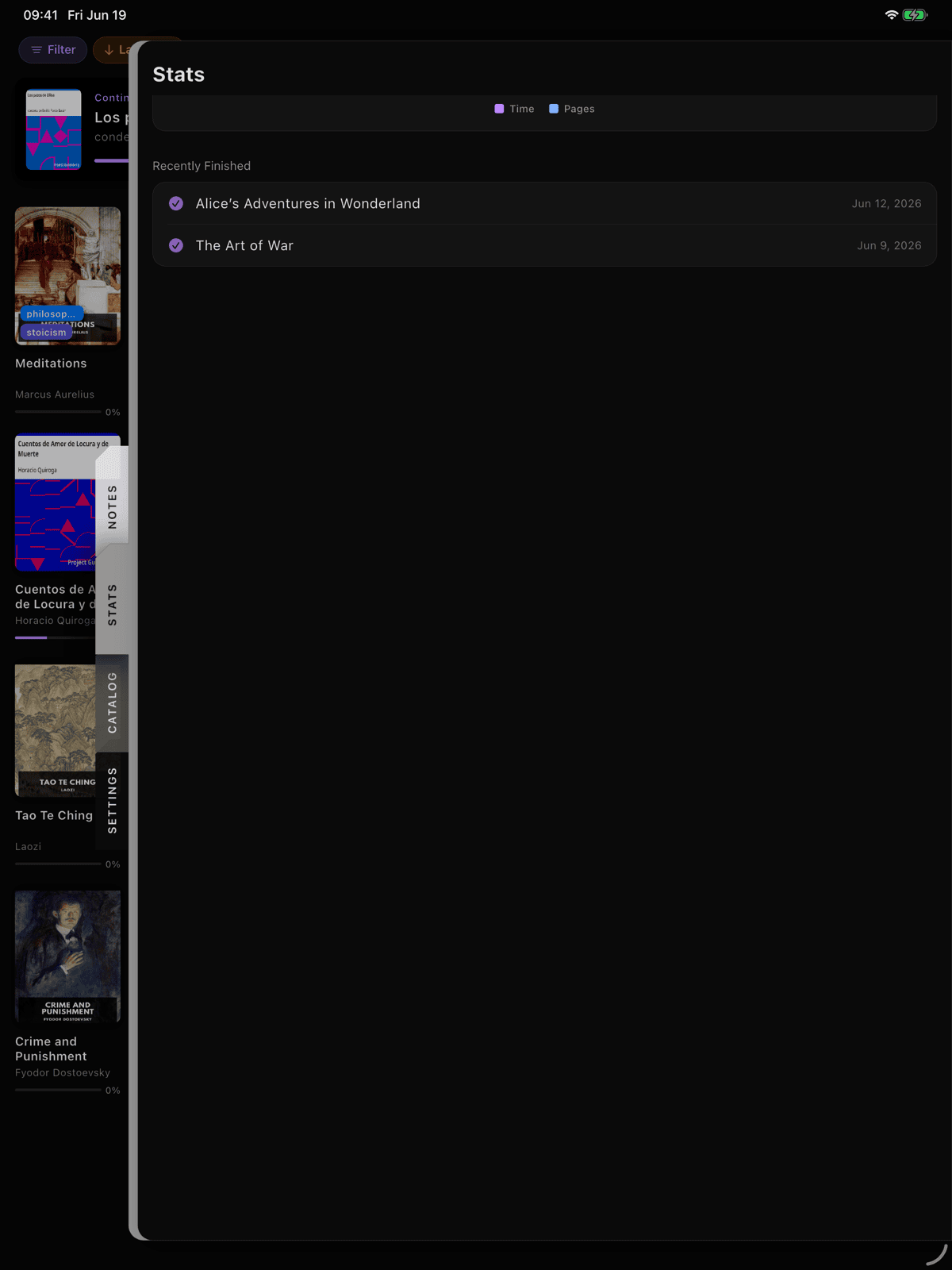
A book is "completed" when your reading progress reaches 100%. The Stats panel includes a Recently Finished section: a vertical list of completed books with checkmark icons and dates.
If you haven't finished any books yet, a gentle "No books finished yet" message appears. No countdown, no target. It's a record, not a leaderboard.
Reading Reminders
A notification at the time you choose — because the hardest part of reading is remembering to start.
- Settings > Reading Goals > toggle Reading Reminder on.
- Tap Reminder Time to set the hour (default: 8:00 PM).
- You'll get a daily local notification. Tap to open ScrollWizard.
No internet needed, no server involved. Turn off the toggle and notifications stop immediately.
Tips & Tricks
Stats appear gradually. The activity chart shows up after your first session. The annual goal card appears when you set a goal. Nothing is hidden — it just waits until it has something to say.
The last-7-days count is forgiving. It's a rolling window, not a streak. Miss a day and there's nothing to "break" — the number simply reflects how many of the last seven days you read, and it climbs again the next time you open a book.
Reading time is session time. ScrollWizard measures from opening a book to closing the reader. If you leave it open while making dinner, that counts. Close the reader when you stop for the most accurate stats.
Pages-read prefers the real count. When ScrollWizard knows a book's page count it tracks pages directly; otherwise it estimates from time at about 0.75 minute per page. Either way, page goals are a "read for about this long" proxy, not an exact tally.
iCloud syncs sessions. Read on your iPhone during lunch and your iPad in the evening — both sessions appear in your statistics everywhere.
Everyone's first week looks sparse. That's not a reflection of you as a reader. Give it two weeks. The charts fill in, the patterns emerge, and the numbers start to feel like yours.
Back up your data. Settings > Data Management > Export All Data creates a full backup of everything, including all reading sessions and statistics.
What's Next
Reading is the point. The statistics are just a mirror — a way to see the habit you're already building, reflected back in a form that's occasionally surprising and almost always encouraging.
- Highlighting passages as you read? The Annotations & Highlights Guide covers colors, notes, bookmarks, and export.
- Saving words from your reading? The Save Words guide covers the dictionary, your saved-word list, and export.
- Moving knowledge into your workflow? The Export Guide covers Obsidian, Notion, Logseq, and more.
- New to ScrollWizard? The Getting Started Guide covers the basics.
A handful of short sessions across the week matters more than one heroic marathon. Open a book tonight. Happy reading.