Split Reader: Two Books Side by Side on iPad
Part of Advanced Wizard Mode (a one-time purchase)
The Problem You Already Know
You're reading a novel in French. You hit a passage that's beautiful but dense, and you want to glance at the English translation — just for a moment. So you close the book, open the other one, scrub to find the right chapter, lose your place, and by the time you get back, the magic is gone.
Or you're studying. You're deep in Chapter 12 of a textbook and need to cross-reference the glossary in the back. Tap, scroll, scroll, find the term, try to hold it in your head, tap back, scroll, scroll — where were you again?
Split Reader fixes this. Permanently.
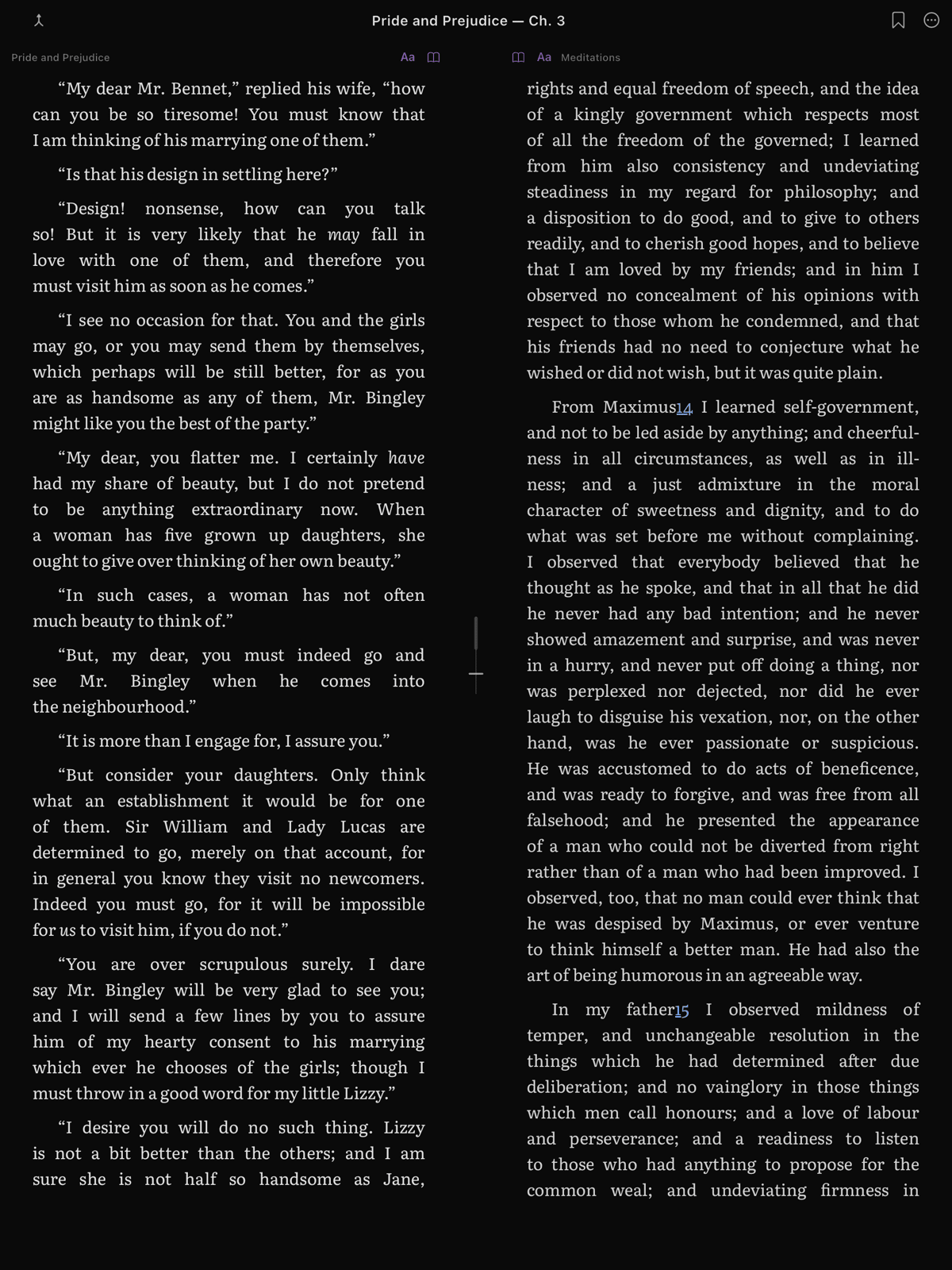
Split Reader works with EPUB books only — when you pick a second book, PDFs are left out of the list. (The dual-pane environment is built around reflowable EPUB text.)
Two books, side by side, on one screen. A draggable divider lets you control how much space each pane gets. Drag it wherever you want, or let it snap to the sweet spots (50/50, 67/33, 33/67). It feels like it was always supposed to be there.
Opening Split Reader
- Open any book and start reading.
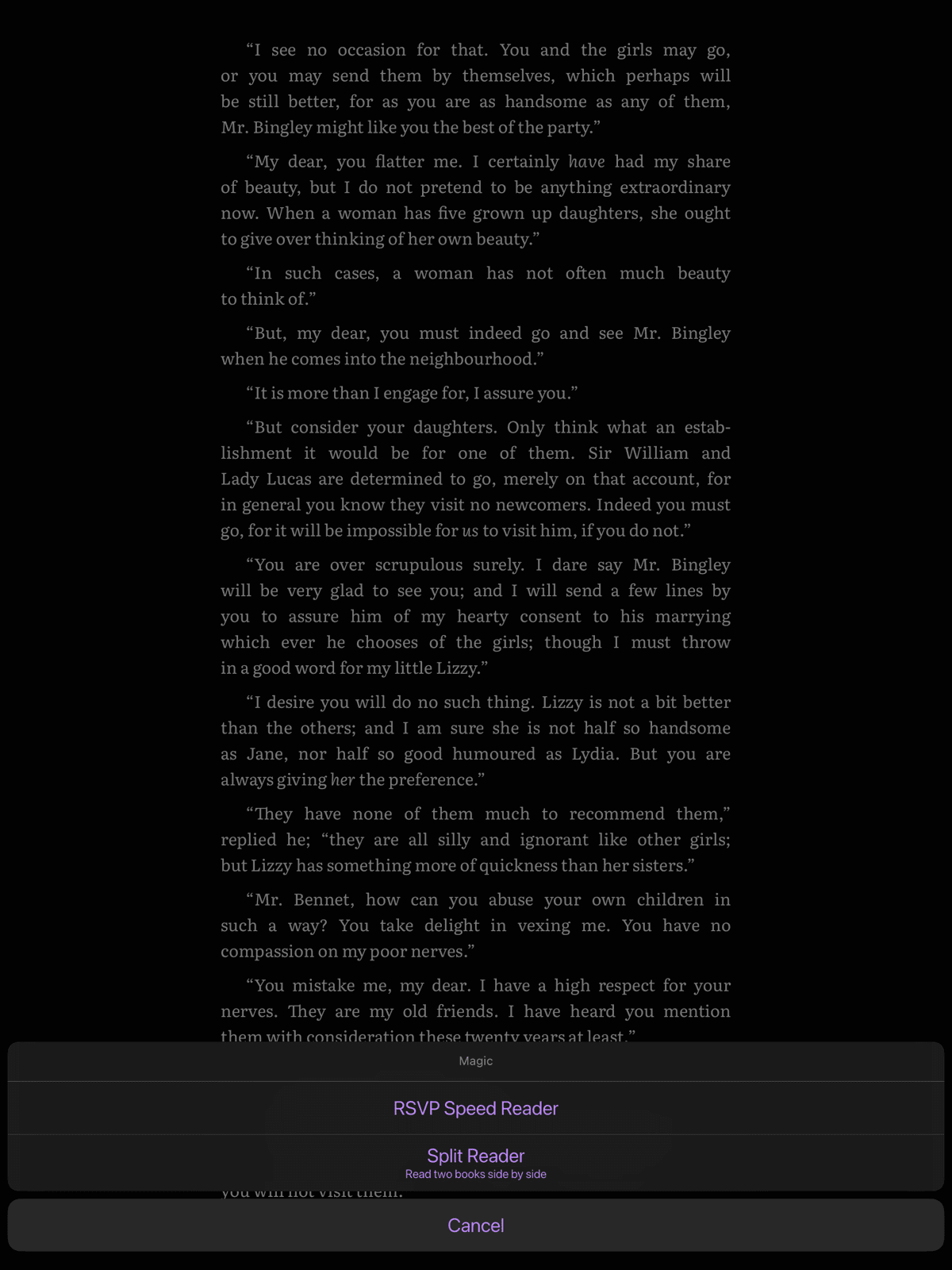
- Tap the wand icon (Magic Menu) in the toolbar.
- Tap "Split Reader".
- Your current book smoothly compresses to the left. A divider draws itself in the center, and the right pane opens with a library picker.
- Choose a book from your library — or tap "This book, different position" to open a reference pane.
That's it. Two independent reading sessions, running at the same time.
Reading Two Different Books
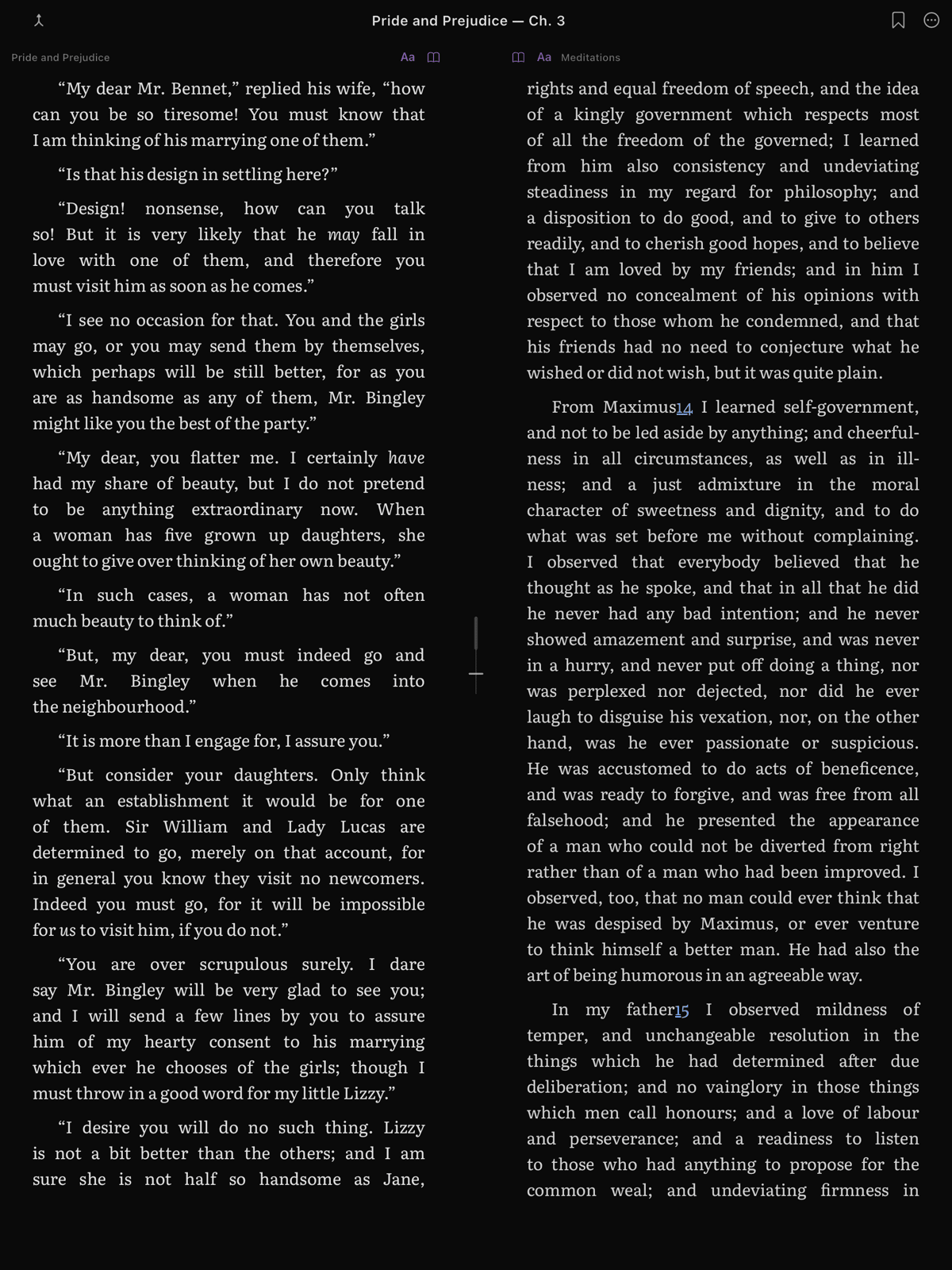
Once you've selected a second book, both panes behave as full reading sessions. Each pane has its own:
- Scroll position and pagination — scroll or page through each book independently
- Tap zones — tap left or right within a pane to turn pages
- Dictionary lookup — long-press a word in either pane
- Table of contents drawer — access the TOC for whichever pane is active
Which pane is active? The active pane displays at full brightness. The inactive pane dims very slightly (to 93% opacity) — just enough to show which pane is active. Tap anywhere in the inactive pane to make it active.
When you have two different books open, the shared toolbar shows just the active pane's title and chapter:
The Great Gatsby — Ch 5
Tap into the other pane and the toolbar updates to that book. (A dual "Book A | Book B" title only shows in Reference Mode, where both panes are the same book — see below.)
Both reading positions are saved. Close Split Reader and reopen it later, and both books pick up right where you left off.
Reference Mode
Sometimes you don't need a second book — you need a second view of the same book.
Reference Mode is perfect for: - Checking a footnote without losing your place - Reading a chapter while referring to the glossary or appendix - Comparing two chapters of the same novel
To open Reference Mode:
- Open Split Reader from the Magic Menu.
- In the library picker, tap "This book, different position".
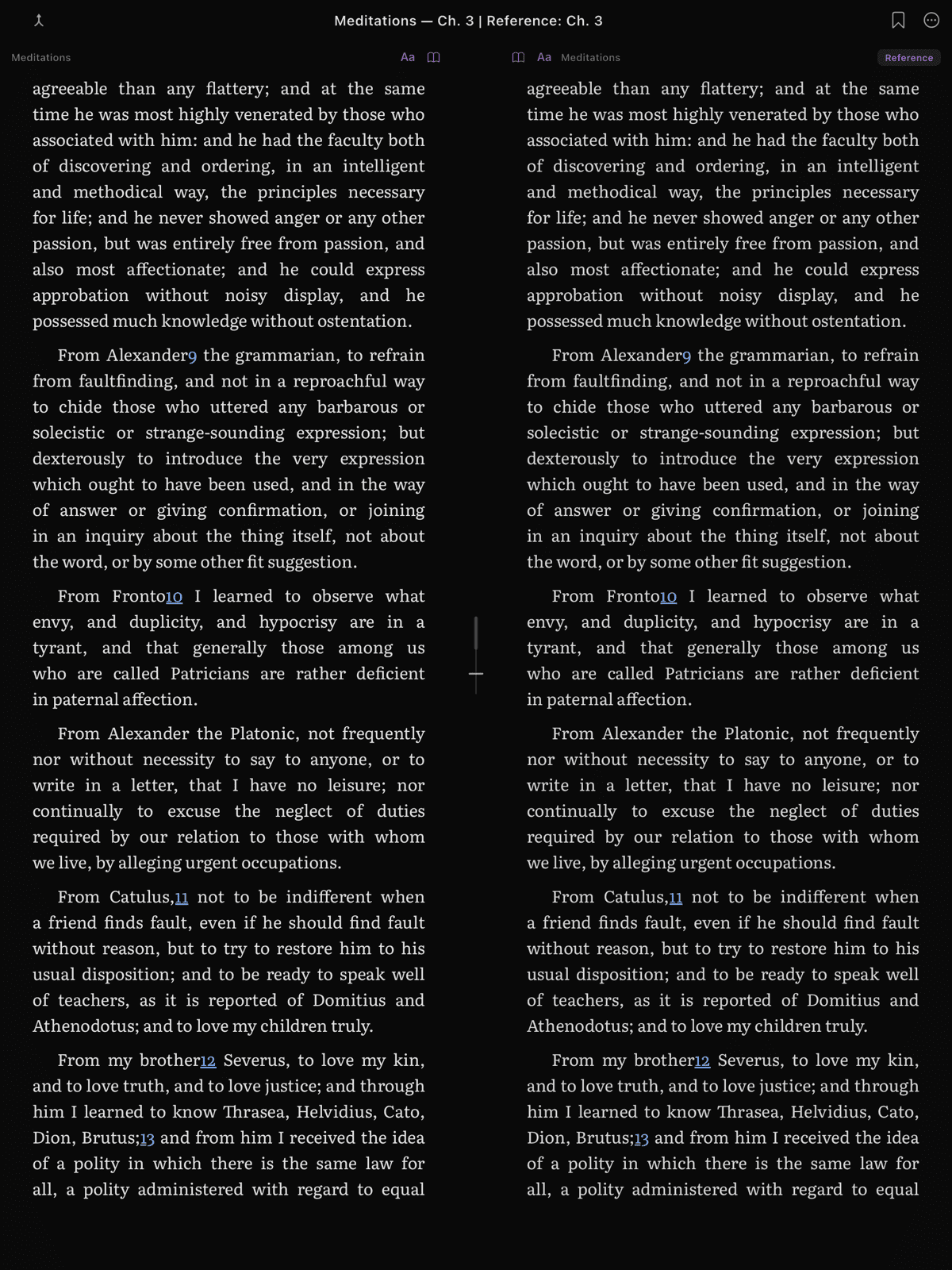
- The right pane opens a second copy of the same book. Open its table of contents and jump to whatever section you need — a footnote, the glossary, an earlier chapter.
The toolbar makes it clear which pane is which:
Moby-Dick — Ch 3 | Reference: Ch 42
One important detail: the reference pane doesn't save its reading position. Your primary pane (left side) is your "real" reading session and always remembers where you are. The reference pane is a temporary window — close Split Reader, and it resets.
Tapping a Footnote or Link Sends It to the Reference Pane
Here's the part that makes Reference Mode click. When both panes hold the same book, tapping a footnote or an internal cross-chapter link in the left (primary) pane doesn't move the left pane at all. Instead, the right (reference) pane jumps to that target. Your reading spot on the left stays exactly where it was — you just glance right to read the note, then keep going.
No popup appears for these; the reference pane simply becomes the place where notes and references land. (A plain in-page anchor that points to the same chapter you're reading is handled in place and still scrolls the left pane locally — only footnotes and cross-chapter jumps get routed to the right.)
If you'd rather not even open Split Reader by hand first, there's a setting for that. When "Open footnotes in the reference pane" is turned on (it's off by default), tapping a footnote in a normal full-screen reading session automatically opens a reference split on that note. In that case the reference pane shows a small "Back to main text" pill at the bottom; tap it to return focus to your reading. The pill clears itself once you navigate the reference pane somewhere else on your own.
Turn reference mode on once and you'll wonder why every reading app doesn't work this way.
Sync Modes for Translations
This is where Split Reader becomes truly special for language learners.
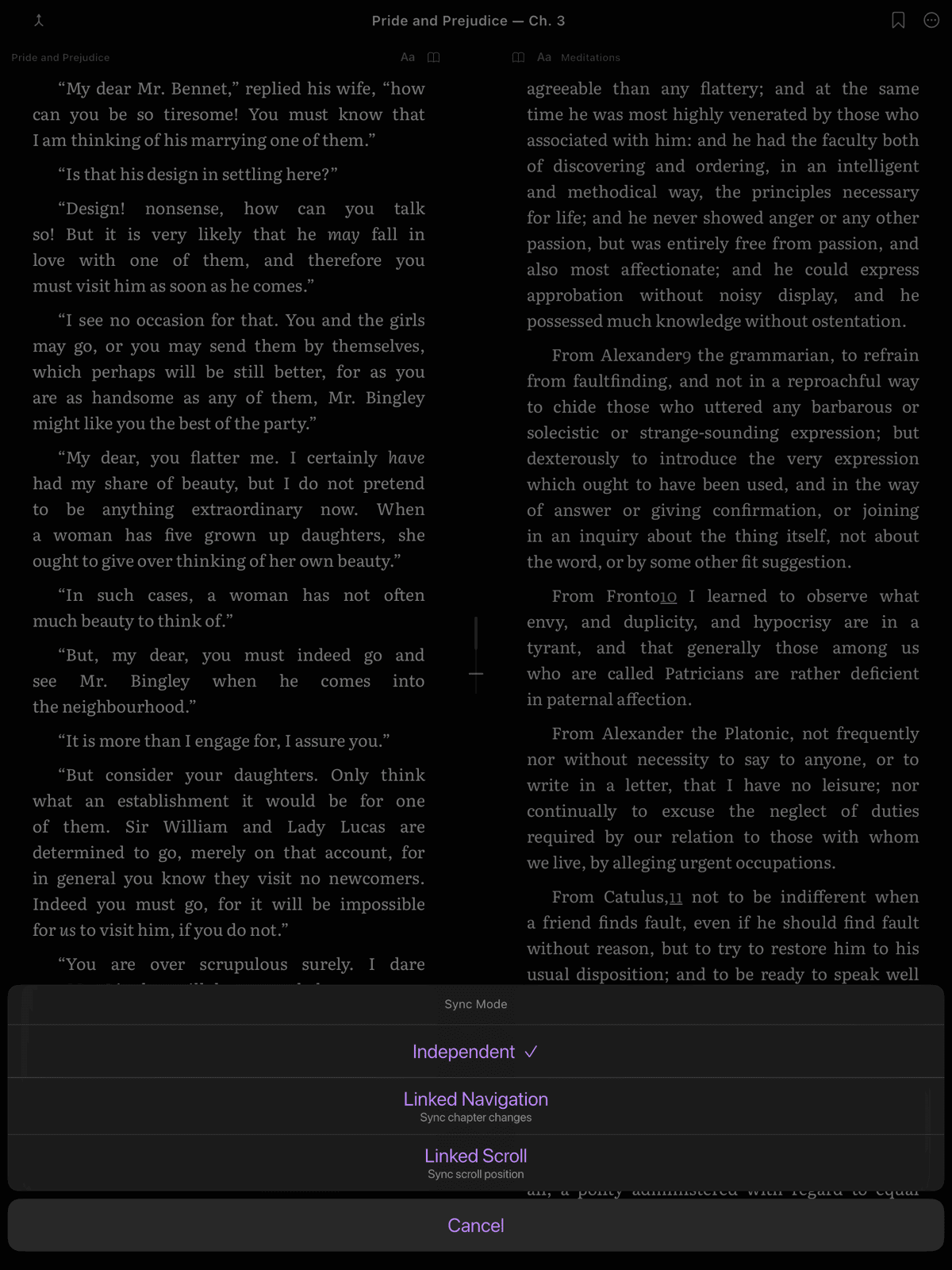
When you have two books open — say, a French and English edition of Le Petit Prince — you can link their scrolling so they stay aligned. Tap the chain-link icon on the divider to open the sync mode picker.
Three Sync Modes
| Mode | What it does | Best for |
|---|---|---|
| Independent (default) | No sync. Each pane scrolls on its own. | Unrelated books, casual reference |
| Linked Scroll | Paragraph-level sync. Scrolling one pane moves the other proportionally. | Translations, parallel texts |
| Linked Navigation | Chapter-level sync. Advancing a chapter in one pane advances the other. | Editions with different formatting |
How Linked Scroll Works
ScrollWizard counts the paragraphs in each chapter of both books and maps them by ratio. If the French chapter has 40 paragraphs and the English has 36, it calculates the proportional position and keeps both panes aligned. It's not word-for-word perfect — translation means paragraphs won't always match one-to-one — but it's remarkably close, and far better than percentage-based sync.
Auto-Detection
When you enable a linked mode, ScrollWizard compares chapter counts, paragraph counts, and performs fuzzy matching on both tables of contents to determine how well the two books correspond. If the structure is clearly similar, sync works seamlessly. If it's very different, you'll get a heads-up that sync may be approximate.
Divider Controls (iPad)
On iPad, the divider is a powerful control surface.
Drag to Resize
Grab the divider and drag left or right. The grab target is generous (40pt wide), so it's easy to catch. Three snap points: 50/50, 67/33, and 33/67. When you drag near one, the divider gently snaps into place.
If you try to make a pane narrower than 320pt, you'll feel a rubber-band effect pulling back — preventing either pane from becoming too small to read.
Double-Tap to Cycle
Don't want to drag? Double-tap the divider to cycle through snap points: 50/50 -> 67/33 -> 33/67 -> 50/50. Each transition includes a satisfying haptic tap.
Give one book 67% when you want to focus on it, then double-tap back to 50/50.
Long-Press for Options
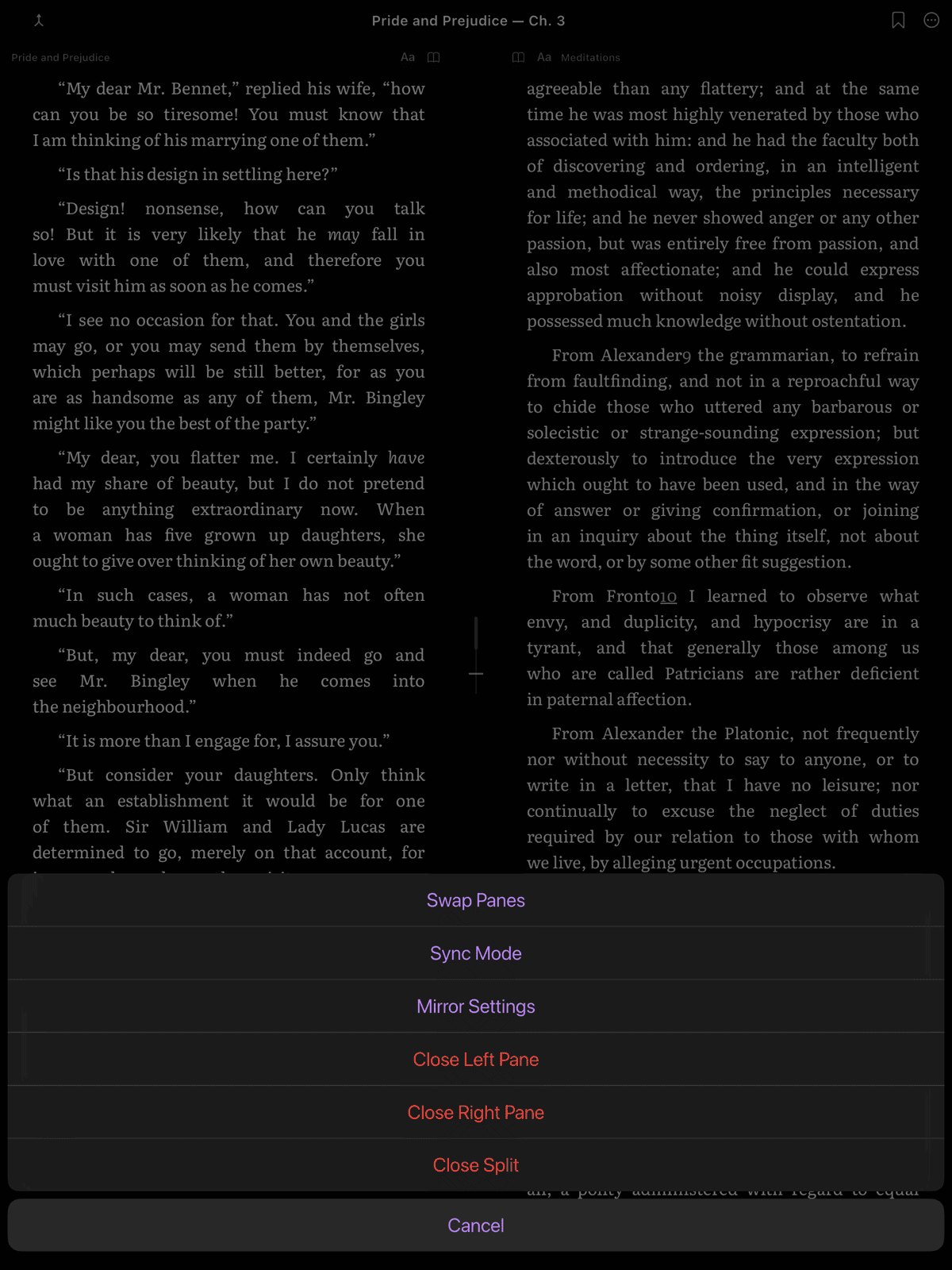
Long-press the divider (about half a second) for a context menu with six items:
- Swap panes — moves left book to right and vice versa
- Sync mode — opens the sync picker
- Mirror Settings — copies the active pane's reading settings (font, theme, size, and so on) over to the other pane, so both look the same
- Close Left Pane
- Close Right Pane
- Close Split
A note on the three "close" actions: in this first version, all three exit Split Reader entirely and drop you back to a single full-screen book. Closing one pane doesn't leave the other open on its own (yet) — it ends the split.
The same six actions are also reachable from the (...) button in the split toolbar, if you'd rather not long-press.
Keyboard Shortcuts (iPad)
If you use an external keyboard, Split Reader has a full set of shortcuts:
| Shortcut | Action |
|---|---|
| Cmd + Shift + S | Toggle Split Reader on/off |
| Tab | Switch active pane |
| Cmd + [ | Resize to 67/33 (left pane larger) |
| Cmd + ] | Resize to 33/67 (right pane larger) |
| Cmd + \ | Reset to 50/50 |
| Cmd + Shift + X | Swap panes |
| Cmd + W | Close split |
Tab to switch panes becomes second nature within minutes. Learn that and Cmd+Shift+S and you're covered for 90% of use cases.
Tips for Getting the Most Out of Split Reader
Start with 50/50 and adjust. The default even split works well for most use cases. If one book has denser text, give it more space with a double-tap on the divider.
Use Reference Mode for non-fiction. Open a reference pane to the index or glossary. It saves an enormous amount of back-and-forth, and the reference pane won't interfere with your bookmarks.
Try Linked Scroll with translations before committing. Open both books, enable Linked Scroll, and page through a chapter. If sync feels off, try Linked Navigation — chapter-level sync is less precise but more reliable across differently formatted editions.
Great pairings to try:
- A novel in your target language + the same novel in your native language (Linked Scroll)
- A textbook chapter + a separate EPUB of its source readings
- A primary source + a commentary or study guide
- Poetry in the original language + a literal translation
- A textbook + a separate EPUB of supplementary readings
Exiting Split Reader
Several ways to close — use whichever feels natural: - "Unsplit" button in the toolbar (two inward arrows) - Long-press the divider > "Close split" - Drag the divider all the way to the screen edge - Cmd + W on a keyboard
Your reading position in both books is saved (except the reference pane).
On the Subject of Price
Split Reader is part of Advanced Wizard Mode. Not a subscription. Not per month. Not per book. A single one-time purchase — once, forever, yours.
Split Reader gives you a genuine dual-pane reading environment with three sync modes, reference mode, gesture controls, and keyboard shortcuts. A professional-grade tool at an indie-app price. No subscription growing underneath it.
The other half of Advanced Wizard Mode is the RSVP Speed Reader — word-at-a-time presentation at 100-1500 WPM. Per-pane typography follows from the same per-book settings as solo reading — see Settings and Customization.
Split Reader. Two books. One screen. Once you've read this way, the old way feels like reading with one eye closed.
Happy reading — times two.