RSVP Speed Reading
Part of Advanced Wizard Mode (a one-time purchase)
You Read Slower Than You Need To
Let's get the uncomfortable truth out of the way: most "speed reading" claims are nonsense. Nobody is absorbing War and Peace at 2,000 words per minute. Anyone selling you that fantasy is selling snake oil.
Here's what is real: the average adult reads at 200-250 WPM. Not because that's a biological limit, but because of habits. Subvocalization. Re-reading. Losing focus mid-paragraph. Your eyes don't glide smoothly across text — they jump in quick, jerky movements called saccades, landing on a word for 200-250 milliseconds before hopping to the next fixation point. Roughly 10-15% of your reading time is spent on these jumps alone, and even more is lost to regressions — involuntary backward glances at words you already read.
RSVP (Rapid Serial Visual Presentation) strips away the inefficiencies by presenting words one at a time, at a fixed point on screen. Your eyes stay still. Your attention locks in. No saccades, no regressions, no scanning.
Most people who train with RSVP settle comfortably at 350-500 WPM with good comprehension. That means finishing a 300-page novel in 3-4 hours instead of 7-8. That's not a gimmick. That's Tuesday evening with a cup of tea and a finished book.

Getting Started
Opening the Speed Reader
From any book, open the Magic Menu (wand icon) and tap Speed Reader. The RSVP reader launches full-screen, paused at a word near your current reading position. It works on EPUBs and on PDFs that carry real, selectable text (scanned-image PDFs have nothing to extract).
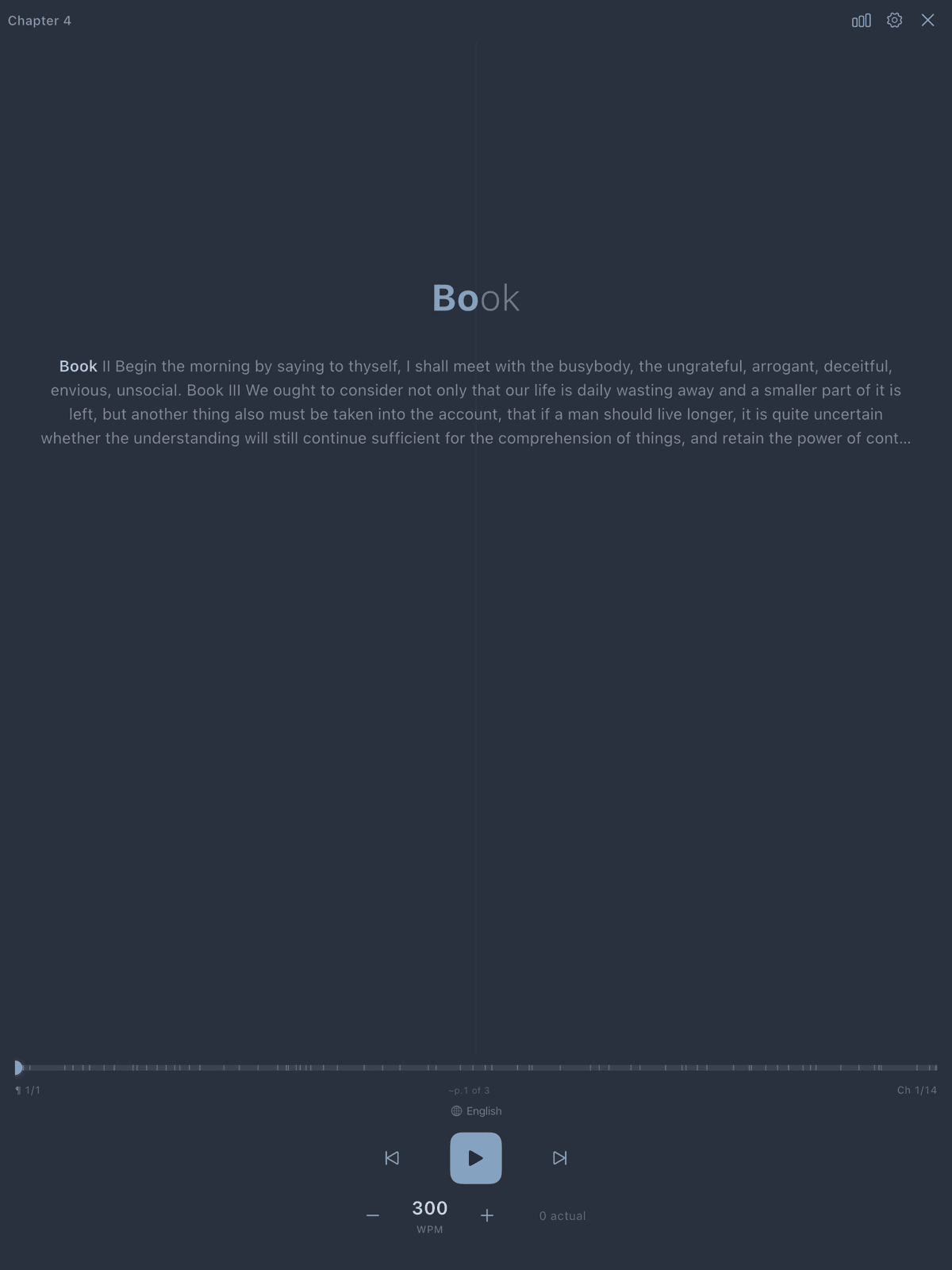
Take a moment to orient yourself. The current word is displayed large and centered. Below it, a faint line of text shows the rest of the current sentence for context. At the bottom are the playback controls.
Speed-Reading the Web
RSVP isn't just for books. ScrollWizard ships a Safari extension (part of Advanced Wizard Mode) that lifts the article body off any web page — stripping menus, ads, and sidebars — and hands it straight to the RSVP reader. A long read on your phone becomes a few focused minutes.
Switch it on once. Like every Safari extension, iOS keeps it off until you allow it. Open Settings → Safari → Extensions → ScrollWizard and turn it on; while you're there, let it run on every website so you're not re-granting permission page by page. You only do this once.
Then, on any article, tap the ScrollWizard icon in Safari's toolbar (it tucks under the ᴀA menu in the address bar until you pin it). The extension reads the page and shows you the title, word count, and an estimated time, with a single Speed Read button. Tap it and ScrollWizard opens straight into the RSVP reader, article already loaded.
From other apps. There's a share-sheet route too. Select text in Mail, Notes, or anywhere else, tap Share, and pick Speed Read — the selection drops into the RSVP reader the same way. (For a whole web article, reach for the Safari extension above; it does the page cleanup the share sheet can't.)
Two honest caveats. The extension reads what's actually rendered, so a hard paywall that hides the article leaves nothing to extract, and a few aggressively script-driven pages won't cooperate. And a web read is a one-off focused session — it isn't filed into your library, so enjoy it while you're there.
Your First Play
Tap the word display or the play button to start. Words begin appearing at your configured speed — 300 WPM by default.
To pause, tap again. Tap to play, tap to pause. That's the core interaction. Everything else builds on it.
Start somewhere comfortable — 250-300 WPM. This is not the time to prove anything. Let your brain calibrate. Read a chapter of something familiar. The goal of your first session isn't speed — it's comfort.
It's okay if some speeds feel too fast. That's not failure; that's the edge of your current ability. Back off, read at a comfortable pace, try again tomorrow. Your brain adapts faster than you think.

Finding Your Speed
The WPM readout sits at the center of the bottom controls, flanked by - and + buttons.
Speed Adjustment
- Each tap adjusts by 25 WPM
- Above 400 WPM, the step size automatically increases to 50 WPM (because the difference between 400 and 425 is subtle, but you'll feel 700 to 750)
- The range spans 100 to 1500 WPM
A Practical Progression
- Week 1: Read at 250-300 WPM. Get used to the word-at-a-time format. Don't worry about speed.
- Week 2: Bump to 325-350 WPM. You should feel a comfortable rhythm.
- Week 3+: Increase by 25 WPM every few sessions. If comprehension drops, dial it back.
After a few sessions, you'll find a point where words arrive just fast enough that your inner monologue can't keep up — and that's where RSVP gets interesting. Your brain stops sounding out each word and starts recognizing them. It feels like switching gears.
A Note on Speed Goals
A reader who sustains 350 WPM with good comprehension is doing great — roughly 40% faster than average. If you hit 500+, excellent. But there's no magic threshold. The best reading speed is the fastest one where you still enjoy and understand what you're reading.
The actual WPM readout during playback shows your real speed, accounting for pause timing at punctuation and paragraph breaks. Your actual WPM will be somewhat lower than configured, and that's by design — those pauses help comprehension.
Navigation
All navigation actions automatically pause playback, so you can reorient before continuing.
Sentence Navigation (Swipe)
- Swipe left: Jump to the start of the current sentence. If you're already near the start, it jumps to the previous sentence (like the iPod "previous track" pattern).
- Swipe right: Jump to the next sentence.
Missed something? Swipe left to replay. Want to skip ahead? Swipe right.
Paragraph Navigation (Buttons)
The outermost buttons on the control bar:
- [⏮¶] Previous paragraph
- [⏭¶] Next paragraph
Use these for bigger jumps — skipping a paragraph you've read, or backing up to a section start.
The Progress Scrubber
A thin 3px progress bar runs across the screen showing your chapter position. On pause or touch, it expands to 6px and becomes interactive. Drag to scrub through the chapter. Small tick marks indicate sentence boundaries, giving you a structural overview at a glance.
Flanking the scrubber: a paragraph count (¶ X/Y) and chapter progress (Ch X/Y).
Post-Navigation Ramp-Up
After any navigation action, playback eases back up to speed rather than snapping straight to full pace. It starts at roughly 50% of your configured WPM and ramps continuously up to 100% over the first handful of words, after a brief extra hold on the first word. This running start gives your brain a moment to re-anchor before full-speed playback. Trust it — it's doing its job.
Highlighting Modes
Four highlighting modes help your eyes find the right fixation point faster. Switch between them in Settings (gear icon) within the RSVP reader.
ORP (Optimal Recognition Point)
The default. Eye tracking research shows readers don't fixate on word centers — they land slightly left, at the "optimal recognition point." This mode renders the ORP letter in bold/dark, surrounding letters lighter.
Subtle but powerful: your eye is drawn to the ORP automatically, reducing identification time. This is what most readers prefer at higher speeds.
Bionic Reading
The first few letters of each word are bold, the rest in regular weight. Your brain predicts the rest from the opening letters, allowing faster pattern recognition.
Many readers find Bionic highlighting especially helpful when first adapting to RSVP — the bold anchors give each word a clear visual "hook." Try it for a full chapter before deciding; it often takes 10-15 minutes to click.
Morphological
Language-aware highlighting that identifies morphemes — the meaningful building blocks within words. Prefixes, roots, and suffixes are visually distinguished. Unbelievable becomes un-believe-able.
Especially useful for academic texts, technical vocabulary, or second-language reading.
None
Clean, unstyled text. Some experienced readers prefer the simplicity at moderate speeds.
Customizing Pause Timing
Not all punctuation is equal. A comma is a brief breath; a period is a full stop; a paragraph break is a scene change.
Default Pauses
| Punctuation | Default Pause |
|---|---|
| Comma, semicolon | 100 ms |
| Period, sentence end | 300 ms |
| Paragraph break | 500 ms |
Why It Matters
These pauses are critical for comprehension. Without them, text flies by as an undifferentiated stream and your brain never gets the micro-breaks it needs to process sentence structure.
Adjusting
If comprehension slips at higher speeds, try increasing the sentence-end pause before reducing WPM. Often a 50-100ms bump on period pauses is enough to restore understanding without noticeably slowing your pace.
Experienced speed readers sometimes reduce comma pauses to 50ms or 0ms while keeping sentence pauses intact. Experiment to find what works.
The Word-Length Pause Curve
Punctuation pauses handle the gaps between sentences. The word-length pause handles the words themselves. A three-letter word and a thirteen-letter word both flash for the same instant by default — but the long one carries more to take in. The pause curve gives longer words proportionally more time on screen, so the stream breathes instead of machine-gunning every word at an identical beat.
In the RSVP settings panel, find Word-length pause ("Give longer words more time on screen"). It's a draggable curve with four presets:
- Off — flat timing. Every word, short or long, gets exactly the same flash. This is the old, even-beat behaviour.
- Natural — a gentle slope. Long words get a modest amount of extra time.
- Breathe — the default, and a more pronounced slope: long words get markedly more breathing room.
- Custom — shape the curve yourself.
The curve is plotted with word length along the bottom and the pause multiplier ("Pause ×") up the side. In Custom mode, drag any of the control dots up or down to dial in exactly how much extra time each word length earns — pull the right side up for more generous long-word pauses, flatten the left for snappier short words. Touch a named preset and the curve snaps to it; touch and drag a dot and you're in Custom.
Two companions appear once the curve is on (anything but Off):
- Keep average speed — on by default. Long words borrow their extra time from short ones, so your words-per-minute stays where you set it. The rhythm changes; the overall pace doesn't.
- Complexity boost — a little extra time for words that pack more syllables than their length alone would predict. A dense word like "rhythm" gets a touch more room than a long-but-airy one like "remembering."
If RSVP has ever felt relentless at speed, turn the curve up before you turn the speed down. Letting the long words land often restores comprehension without costing you much pace at all.
Language Mode & L2 Reading
Language Packs
ScrollWizard ships six built-in language packs: English, Dutch, German, French, Spanish, and a general Other (Latin-script) pack that covers everything else written in the Latin alphabet. Each pack tunes morphological analysis, ORP positioning, and punctuation rules for that language.
Auto-Detection
ScrollWizard reads language metadata from your EPUB and picks the matching pack automatically. Set it manually in settings if auto-detection gets it wrong.
L2 (Second Language) Mode
Reading in a language you're still learning? Toggle L2 Mode for three automatic adjustments:
- WPM reduced by 30% — 300 WPM becomes 210 WPM
- Longer pauses — extended processing time at clause and sentence boundaries
- No ramp-up — steady, predictable pace after navigation
This turns RSVP from a speed tool into a comprehension tool. Language learners report that the forced sequential attention helps them stop translating in their heads and start reading directly in the target language.
L2 Mode pairs especially well with Morphological highlighting, which helps break unfamiliar words into recognizable parts. The per-book language setting means ScrollWizard remembers which books get L2 treatment automatically.
Tracking Your Progress
Session Recording
Every RSVP session is automatically logged:
- Words read in the session
- Average WPM (actual, accounting for pauses)
- Session duration
Resume Position
Re-enter the RSVP reader for the same book and you'll see "Continue Speed Reading" — dropping you right back where you left off.
WPM History
Over time, your session history becomes proof of progress. Watching your comfortable WPM climb from 250 to 350 to 400 over weeks of practice is genuinely satisfying — and a concrete reminder that the training is working.
Seeing "Day 1: 220 WPM, Day 7: 310 WPM" is viscerally satisfying in a way no motivational quote can match. Seven sessions in a row matters more than one session at 600 WPM.
Advanced Settings
These features live in the RSVP settings panel. You don't need any of them to get started, but they let you fine-tune the experience as you develop.
Chunk Size (1-5 Words)
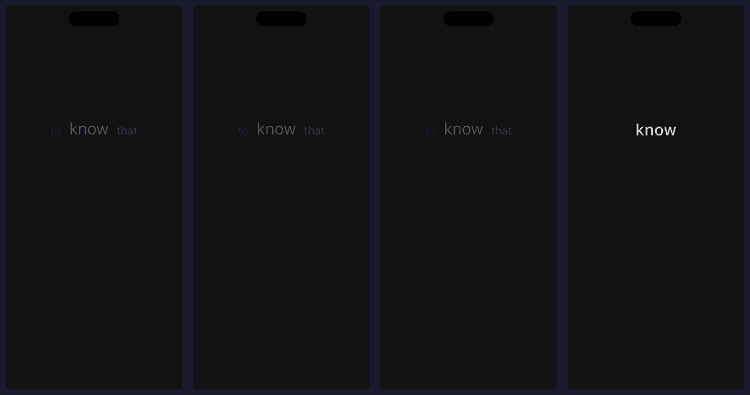
Display chunks of up to 5 words instead of one at a time. This mimics natural reading where your eye takes in word groups at each fixation. ScrollWizard supports randomized chunk sizes (varying between, say, 1-4 words per flash) for a more natural rhythm.
Start with single words. Once you're comfortable above 300 WPM, try chunks of 2. Some readers prefer chunks for fiction (flowing text) and single words for dense non-fiction.
Focal Guide Line
A subtle vertical 1px line running down the centre of the display, behind the word, giving your eye a fixed anchor to return to. Configurable from 0.0 (invisible) to 0.5 opacity. Most readers who use it prefer 0.1-0.15 — just enough to sense without consciously noticing.
Perceptual Span
When enabled, adjacent words appear at reduced opacity in their natural positions, providing peripheral context. Can help comprehension at higher speeds, especially for complex sentence structures.
Punctuation Repair
Cleans up inconsistent punctuation from poor EPUB conversion — missing periods, extra spaces, garbled characters — so pause timing works correctly.
Word Position
The flashing word sits a little above centre by default — comfortable for most, but not everyone holds a phone at the same angle or reads with the same neck. Drag the word up or down in the reader to move it wherever it sits easiest for you. It works whether you're paused or mid-stream, so you can nudge it without breaking your flow.
Your chosen position is remembered. It's stored on this device and isn't synced across your other devices, so each one keeps the position that suits how you hold it. To put the word back at its default spot, open the RSVP settings panel and tap Reset on the Word position row (disabled when you're already at the default).
The reader's everyday controls all live in the bottom bar so there's one place to look. Across the top row: the settings gear (left edge), previous-paragraph and next-paragraph skips flanking the large play/pause button in the middle, and the session history chart (right edge). Below them, the speed row: − and + around the WPM readout, with your live actual speed alongside during playback.
What RSVP Is Good At (and What It Isn't)
RSVP shines with: - Novels and narrative fiction — linear text that flows forward - Articles, essays, and longform journalism - Light non-fiction and memoir - Language learning texts (with L2 mode)
RSVP is less ideal for: - Dense technical material with formulas or code - Reference texts you need to scan and skip around in - Poetry (the line breaks matter) - Anything with heavy footnotes or figures
This isn't a limitation of ScrollWizard — it's a limitation of sequential presentation. For everything else, the standard reader is right there.
Tips for Effective Speed Reading
Resist subvocalization. When you read traditionally, you probably "hear" words in your head. This caps your speed at roughly speaking pace — around 250-300 WPM for most people. RSVP helps break this habit because words move faster than you can subvocalize — but it takes conscious effort at first. Let the words wash over you visually.
Comprehension is non-negotiable. If you can't summarize what you just read, you're going too fast. Drop WPM by 25-50 and rebuild. Reading fast without understanding is just watching words go by.
Use the sentence context subtitle. The faint text below the main word (40% opacity) shows the current sentence. If you lose the thread, glance down. Faster than rewinding.
Long-press for full context. Hold the display for half a second for a full-screen sentence overlay. Useful when you hit a complex sentence and need to see it whole.
Take breaks. RSVP is more demanding than traditional reading. Twenty to thirty minutes is a solid session. Two focused 20-minute sessions beat one fatigued 60-minute session.
Match mode to material. Light fiction at 400+ WPM with chunks of 3? Great. Dense philosophy at 250 WPM with morphological highlighting and extended pauses? Also great. Adjust to what you're reading.
Pay attention to haptics. The RSVP reader uses your device's haptic engine as feedback: - Light tap: Play/pause toggled - Medium tap: Sentence navigation - Heavy tap: Paragraph skip - Double heavy: Reached end of content
Chrome fades for a reason. After 2 seconds of playback, controls fade to near-transparency (20-30% opacity). Your focus should be on the words. Controls reappear instantly on pause.
The Math on Value
Speed reading courses run hundreds of dollars. Speed reading apps with less functionality charge a monthly subscription. Advanced Wizard Mode is a one-time purchase — once, forever. No subscription. No expiration.
A speed reading tool for less than the price of a coffee. You'll use it with every book you open.
And RSVP is only one of the things Advanced Wizard Mode unlocks. It also includes the Split Reader (two books side by side on iPad with paragraph-proportional sync — see the Split Reader guide) and Custom Fonts. One purchase, the whole wizard's toolkit.
Start Here
- Open any book in ScrollWizard.
- Tap the wand icon and select the Speed Reader.
- Leave the speed at the 300 WPM default.
- Read for five minutes.
- That's it. You just started.
The gap between "I've always wanted to read faster" and "I just finished a book in two evenings" is smaller than you think. It's not talent. It's not a special brain. It's a tool and a little bit of practice. You've got the tool.
Happy speed reading.