Getting Started with ScrollWizard
Welcome. Here's what to do in the first ten minutes — and what to ignore until later.
ScrollWizard is a free EPUB and PDF reader for iPhone and iPad that puts you in complete control of your reading experience. Whether you're tearing through novels, studying textbooks, or browsing free classics from Project Gutenberg, ScrollWizard gives you the tools to read comfortably for hours: beautiful themes, fine-grained typography, built-in dictionaries, highlights with notes, and iCloud sync across all your devices.
No sign-up. No sign-in. Just open a book.
Getting Your First Book
Got an EPUB or PDF? You're ten seconds away from reading it.
Importing from Files
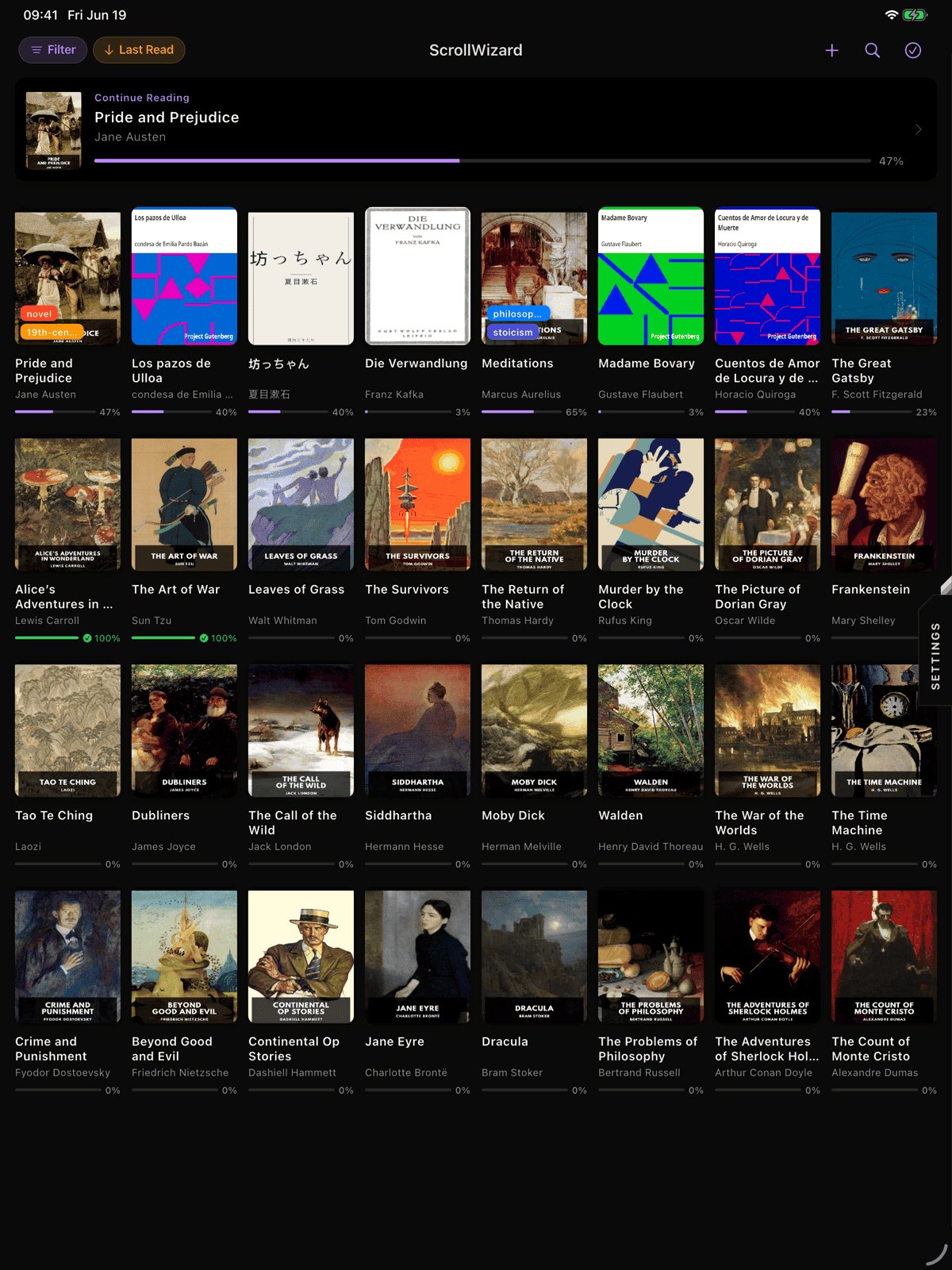
- Open ScrollWizard. It opens straight to your Library — the one screen where all your books live. There's no row of tabs along the bottom; everything reaches out from here.
- Tap the + button in the top-right corner. This opens the iOS file picker directly.
- Navigate to your EPUB or PDF file — it can be in iCloud Drive, On My iPhone, or any connected cloud storage.
- Select the file and ScrollWizard imports it. You'll see a progress indicator for larger files.
- Your book appears in the library, ready to read.
ScrollWizard supports EPUB and PDF files up to 500 MB. You can select multiple files at once for batch import.
Tip: If someone sends you an EPUB via Messages, Mail, or AirDrop, use the iOS share sheet and choose "Open in ScrollWizard" to import it directly.
Reading Basics
Tap any book in your library to start reading. Swipe or tap to turn pages. That's the entire tutorial. But if you want to know every shortcut hiding in plain sight, read on.
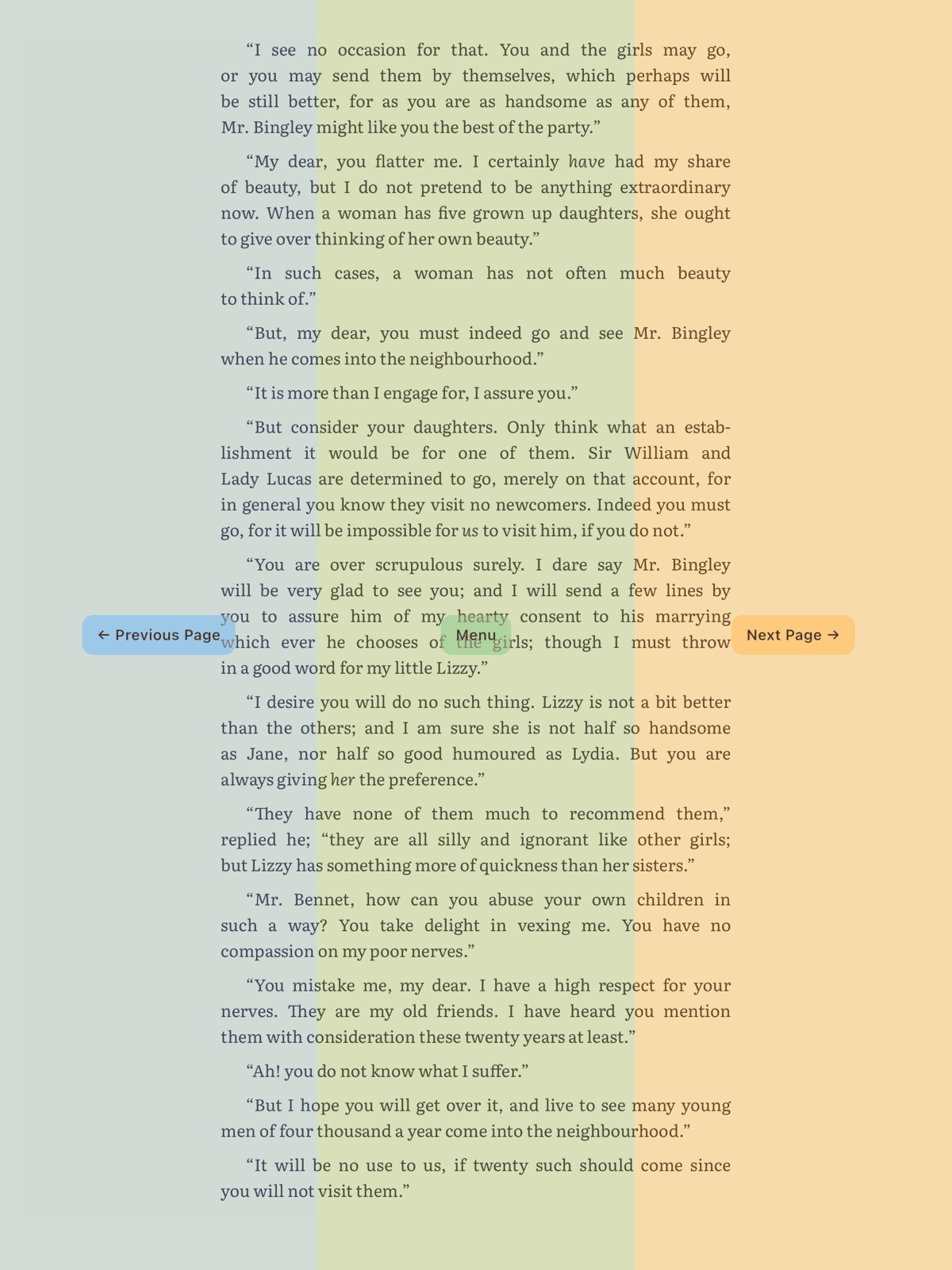
Tap Zones
ScrollWizard divides the screen into three invisible zones:
- Right side — tap to go to the next page
- Left side — tap to go to the previous page
- Center — tap to show or hide the toolbar
You can also swipe left/right to turn pages.
Some people swipe. Some people tap the edge. Some use the progress slider. You'll find your rhythm.
The Toolbar
Tap the center of the screen to summon the controls. The toolbar gives you quick access to:
- Back arrow — return to your library
- Chapter title — shows your current position
- Search — find any word or phrase in the book
- Table of Contents — a tabbed sheet with three tabs: Contents (jump to any chapter, with nested sub-chapters), Bookmarks (this book's bookmark list), and Highlights (this book's highlights and notes)
- Bookmark — bookmark the current page
- Sparkles — opens the Wizard menu (Advanced Wizard Mode tools like the RSVP Speed Reader and Split Reader)
The Quick Settings Panel
While the toolbar is visible, a settings panel appears at the bottom with your most-used controls:
- Font family picker
- Font size adjuster
- Line height adjuster
- Theme switcher (swipe through your themes)
- Page turn animation style
- "More Settings" to open the full appearance sheet
Reading Chrome
Even with the toolbar hidden, ScrollWizard shows subtle reading info in the safe area (around the notch or Dynamic Island): current time, chapter title, page number, and reading progress. This uses no extra screen space since it sits in the area iOS already reserves.
While you're reading, ScrollWizard can also post a Live Activity to your Lock Screen and Dynamic Island showing your current chapter, progress, and estimated time remaining — so you can glance at where you are without unlocking. It's on by default; turn it off in Settings if you'd rather not.
Customizing Your Reading Experience
Deep typography controls, twelve fonts, and five themes. This is where ScrollWizard earns its name.
All of these settings are free.
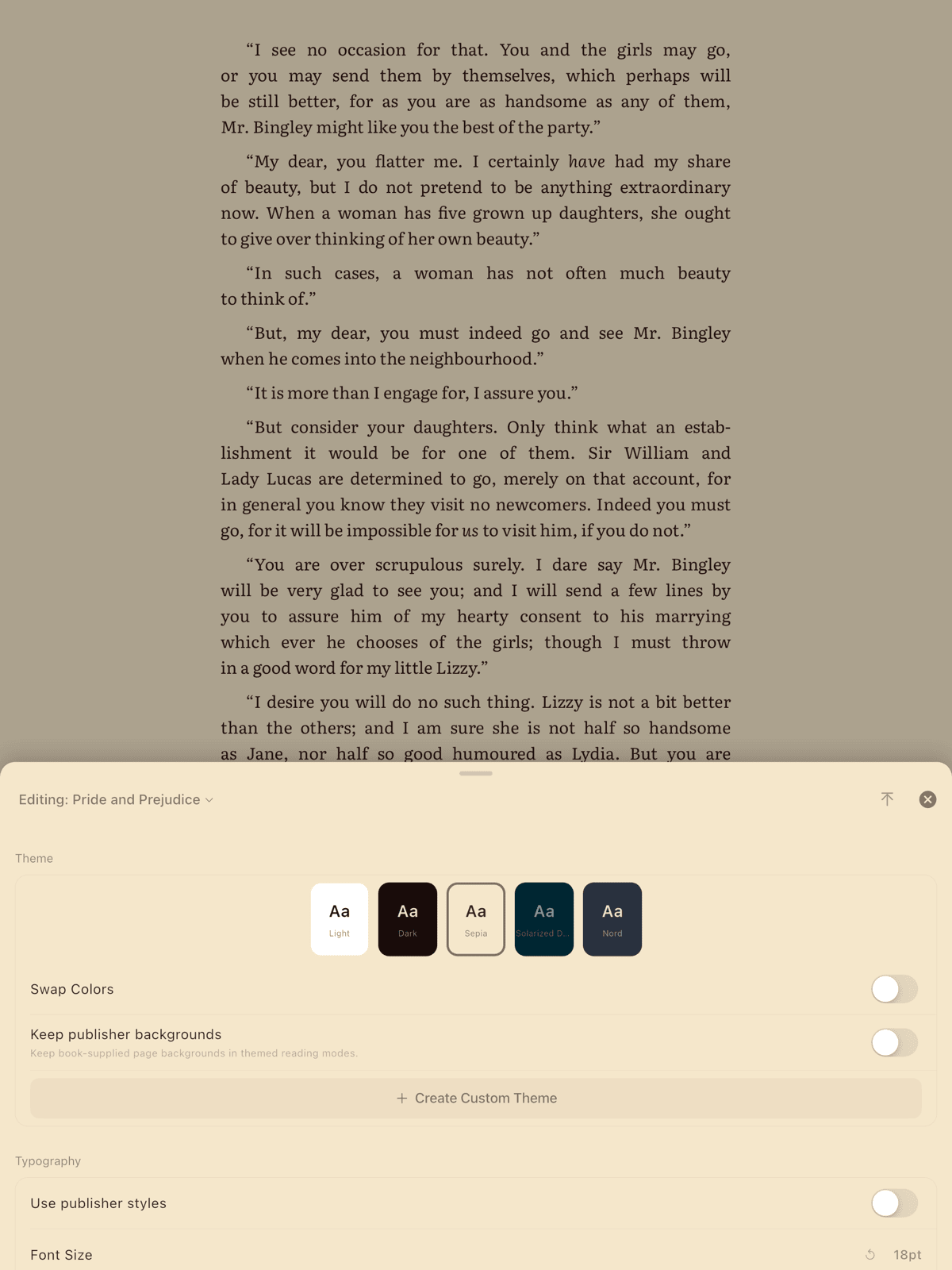
Themes
Five built-in themes come ready to use:
| Theme | Character |
|---|---|
| Light | Clean white background |
| Dark | Easy on the eyes in dim rooms |
| Sepia | Warm, paper-like tones |
| Solarized Dark | The beloved developer palette, adapted for reading |
| Nord | Cool, arctic-inspired blues |
You can switch themes from the quick settings panel, or create entirely custom themes with your own background color, text color, and accent color. ScrollWizard reads the background's luminance to decide whether a custom theme behaves as light or dark — there's no separate light/dark switch to flip.
Tip: You can set a different theme per book. In the full appearance sheet, toggle between "This Book" and "Global" scope. Your study text can sit in sepia while the novel you read at night stays in a dark theme — each book keeps its own.
Typography
Open the full appearance sheet (tap "More Settings" in the quick panel) to access every typography control:
| Setting | What it does |
|---|---|
| Font family | Choose from 12 fonts — 3 bundled (Literata, Source Serif, OpenDyslexic) plus 9 iOS system fonts like Georgia, Palatino, Charter, and New York. There's also a Publisher option that keeps the book's own font |
| Font size | Adjust from tiny to large |
| Line height | Control spacing between lines |
| Letter spacing | Fine-tune character spacing |
| Word spacing | Adjust space between words |
| Text alignment | Left, center, right, or justified |
| Paragraph indent | Set first-line indentation |
| Paragraph spacing | Control space between paragraphs |
| Hyphenation | Toggle automatic word hyphenation |
Layout
- Margins — adjust the top and bottom independently
- Reading Width — a single slider that sets your line length (left and right are governed by this one control)
- Page turn animation — pick the transition style: None, Slide, or Fade
Did you know? OpenDyslexic is right there in the font picker — not buried in accessibility settings.
Once you dial in your perfect setup, every other reading app will feel generic.
Organizing Your Library
Three books? A grid works fine. Three hundred? That's when smart collections start feeling less like a feature and more like a lifeline.
Before you get there: your library sorts by Last Read (newest first) out of the box, and you can switch to title, author, date added, or progress instead. The Filter and Sort controls live in the navigation bar and in the left sidebar — there's no separate filter bar across the top. Same grid, different order — enough on its own for small libraries, and the foundation under everything that follows.
Domains
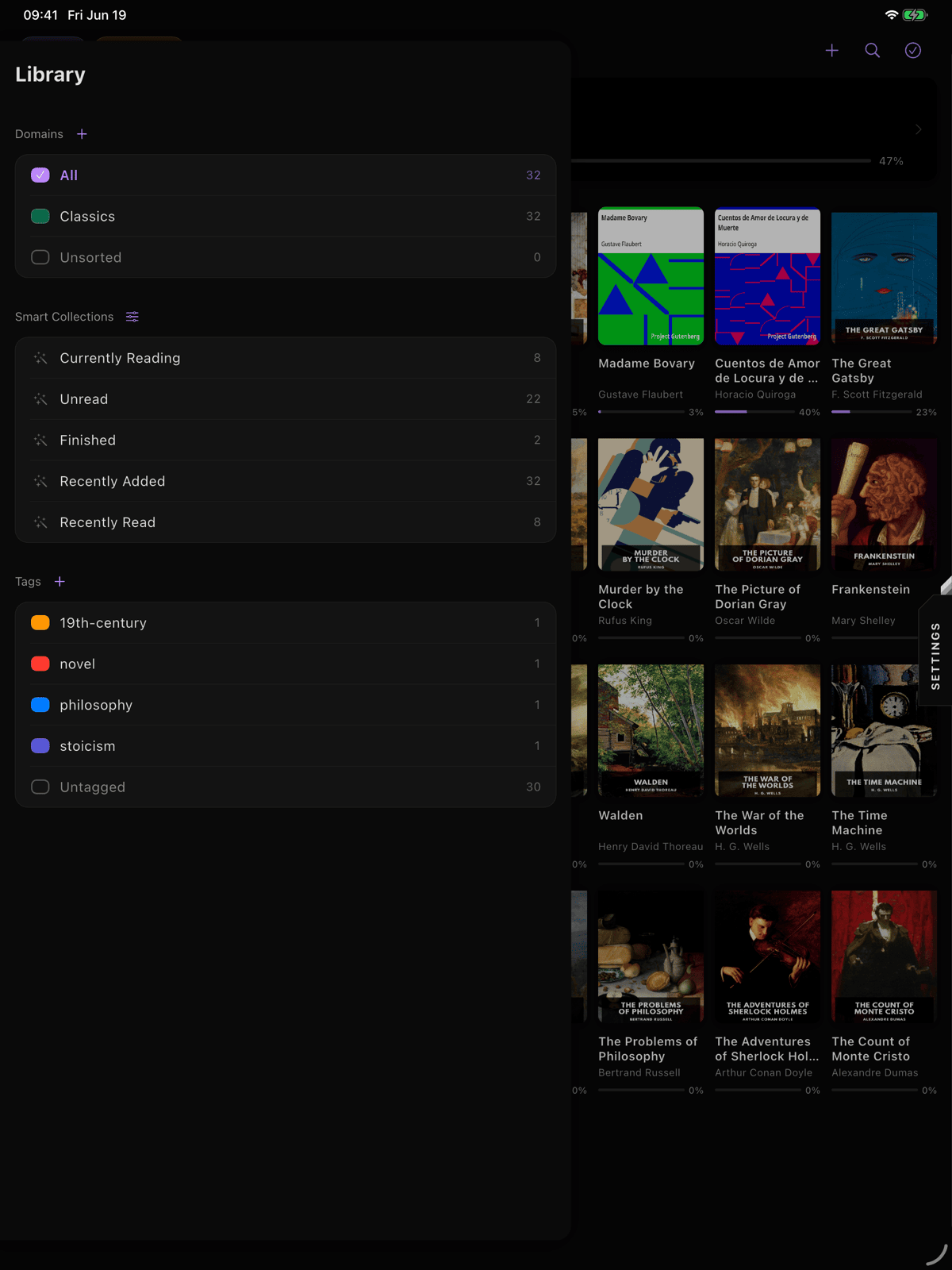
Domains are the primary way to partition your library. Think of them as top-level folders — Fiction, Non-Fiction, Work, Study, or whatever categories make sense for you.
- Open the left sidebar (swipe in from the left edge, or tap the sidebar button in the navigation bar).
- Under Domains, tap Manage to create, rename, recolor, or delete domains.
- Each domain gets a color-coded dot for visual distinction — pick from eight colors (Red, Orange, Yellow, Green, Blue, Purple, Magenta, or None).
- Books belong to at most one domain. Books without a domain appear under "Unsorted."
No algorithm-generated shelves. No "recommended for you" clutter. You built this library. You organize it.
Smart Collections
Smart collections automatically group books based on rules. Built-in presets include:
- Currently Reading — books you've started but not finished
- Unread — books with 0% progress
- Finished — books you've completed
- Recently Added — your newest imports
- Recently Read — books opened in the last few days
You can also create custom smart collections with your own filtering rules. Smart collections update themselves. You just read.
Tags
Tags offer flexible, cross-cutting organization. A single book can have many tags (e.g., "sci-fi," "book-club," "favorites").
- Add tags from the book detail sheet (long-press a book, then tap details).
- Filter by tag from the left sidebar, where all your tags live.
- Manage all tags from the sidebar too.
- In selection mode, batch-tag multiple books at once.
Tag them your way. "Beach reads," "Work stuff," "Books my sister won't stop recommending" — whatever makes sense to you.
Search
The search bar at the top of the library filters your books by title and author. To search the actual text of a book — a phrase you half-remember, say — open the book and use in-book search, and ScrollWizard will jump straight to it.
Your books also show up in iOS Spotlight. Swipe down on your Home Screen, type a title or author, and your library is right there in system search.
Bookmarks, Highlights & Notes
Underline the sentence that stopped you mid-breath. Bookmark the page you want to come back to at 2 AM. Write a note your future self will thank you for.
Bookmarks
- Tap the bookmark icon in the toolbar to bookmark the current page.
- View all bookmarks in the Table of Contents sheet ▸ Bookmarks tab.
- Tap any bookmark to jump back to that page.
Highlights
Select text and a highlight menu appears with five colors:
| Color | Good for |
|---|---|
| Yellow | Key passages and main ideas |
| Green | Points you want to remember |
| Blue | Terms and definitions |
| Red | Things that raise questions or need revisiting |
| Purple | Anything else worth marking |
Five colors, used however you like — the meanings above are just suggestions, and you can customize what each color means. No limit on how many. After highlighting, you can optionally add a note to capture your thoughts in context.
Annotation Timeline
Open the right-edge Notes panel to see your complete reading journal: all your highlights and notes across every book, newest first. Come back weeks later and see exactly what moved you. (To browse just the current book's highlights, use the Highlights tab in the reader's Table of Contents sheet; bookmarks live alongside it in that same sheet's Bookmarks tab.)
When you want it all out, ScrollWizard does a library-wide export — see the Knowledge Export note at the end. There's no per-book export button inside the reader.
Dictionary & Vocabulary
Long-press a word you don't know. Get the definition without leaving the page, without losing your place, without breaking the spell.
Dictionary Popup
Select any word and tap Look Up (or Define) to see its definition in an inline popup — in EPUBs and PDFs. ScrollWizard pulls definitions from:
- The Free Dictionary API — broad coverage, no sign-up, the default online source
- A bundled offline Webster's 1913 — no network needed, always available
Configure dictionary behavior in Settings ▸ Dictionary. (You can also point at your own custom JSON dictionary if you have one.)
Saved Words
When you look up a word, you can save it to your personal list. ScrollWizard tracks the word, its definition, part of speech, and the sentence where you encountered it — and it works on both EPUB and PDF (PDF saves come with a page stamp).
Open the right-edge Notes panel and switch to its Words view to browse your saved words — sort by newest, oldest, or alphabetically. When you want to take them elsewhere, export the list as Anki-compatible CSV (.txt), TSV, or JSON from the share button. See the Save Words guide for the full flow.
You just expanded your vocabulary without putting the book down.
iCloud Sync
Start a book on your iPhone during lunch. Pick it up on your iPad on the couch. Your place, your highlights, your notes — all exactly where you left them.
ScrollWizard syncs via iCloud automatically:
- Your book files
- Reading progress and position
- Bookmarks
- Highlights and notes
No account needed. Apple handles the plumbing. Your data lives in your iCloud, not on our servers. We don't have servers.
Tip: Pull down on the library screen to trigger a manual sync if you want to make sure everything is up to date.
Reading After Dark
It's midnight. You're six chapters in. Reach for a dark palette and your eyes will thank you.
Pick Dark, Solarized Dark, or Nord from the quick settings panel for a low-light read — or build a custom dark theme with exactly the background you like. You can set a different theme per book, so your late-night novel can go dark while your daytime PDF stays light. Night reading: because "just one more chapter" always means three.
Tips & Tricks
You know the basics. Here's where it gets fun.
Footnotes stay in context. When your book has footnotes or endnotes, ScrollWizard renders them in a popup overlay. You never lose your place.
Per-book settings. Every visual setting — font, size, theme, margins, everything — can be customized per book. Switch between "This Book" and "Global" in the appearance sheet.
Continue Reading card. When you return to the library, a card at the top shows your last-read book with its progress. One tap and you're right back where you were.
Drag-select multiple books. In the library, long-press and drag across books to select multiple. Then batch-tag them, move them to a domain, or delete them.
Keyboard shortcuts. If you use a hardware keyboard with your iPad, ScrollWizard supports shortcuts for page turning, bookmarking, and navigation.
Reading statistics. Open the right-edge Stats panel to see your reading stats: today's reading time, weekly charts, how many days you've read in the last 7, annual goals, and more.
Knowledge export. Take your highlights and notes with you: open the Notes panel (right edge) and tap Export ▸ Export knowledge for a library-wide export to Obsidian, Notion, Logseq, Markdown, or JSON, shared as a file through the iOS share sheet.
What's Next?
You've seen what ScrollWizard can do for free — and honestly, it's a lot. Everything above is yours, forever, no strings.
For power readers who want to go deeper, Advanced Wizard Mode (a one-time purchase — about the price of a coffee, not monthly, not yearly, just once) unlocks a few advanced reading tools:
- RSVP Speed Reader — word-at-a-time reading from 100 up to 1500 WPM, with a focal guide line and session tracking (and it works on native-text PDFs too)
- Split Reader — two EPUBs side by side on iPad, with sync modes for translations
Advanced Wizard Mode also unlocks Custom Fonts. Everything else in this guide is free.
Now open a book. That's it. That's the call to action. Everything else will be here when you're curious.
Happy reading.