Library Management
Five books need no system. Fifty books need a good one. Five hundred books need a system that mostly runs itself.
If your library has grown past the point where you can eyeball the grid and find what you want, this guide is for you. ScrollWizard gives you three organizational layers — domains, tags, and smart collections — plus search, sort, and filter tools that make any library navigable in seconds. Everything here is free. No premium organization tier.
The Getting Started Guide covers the basics of importing books and navigating the library. This guide goes deeper: the full toolkit for readers with growing libraries.
Your Library at a Glance
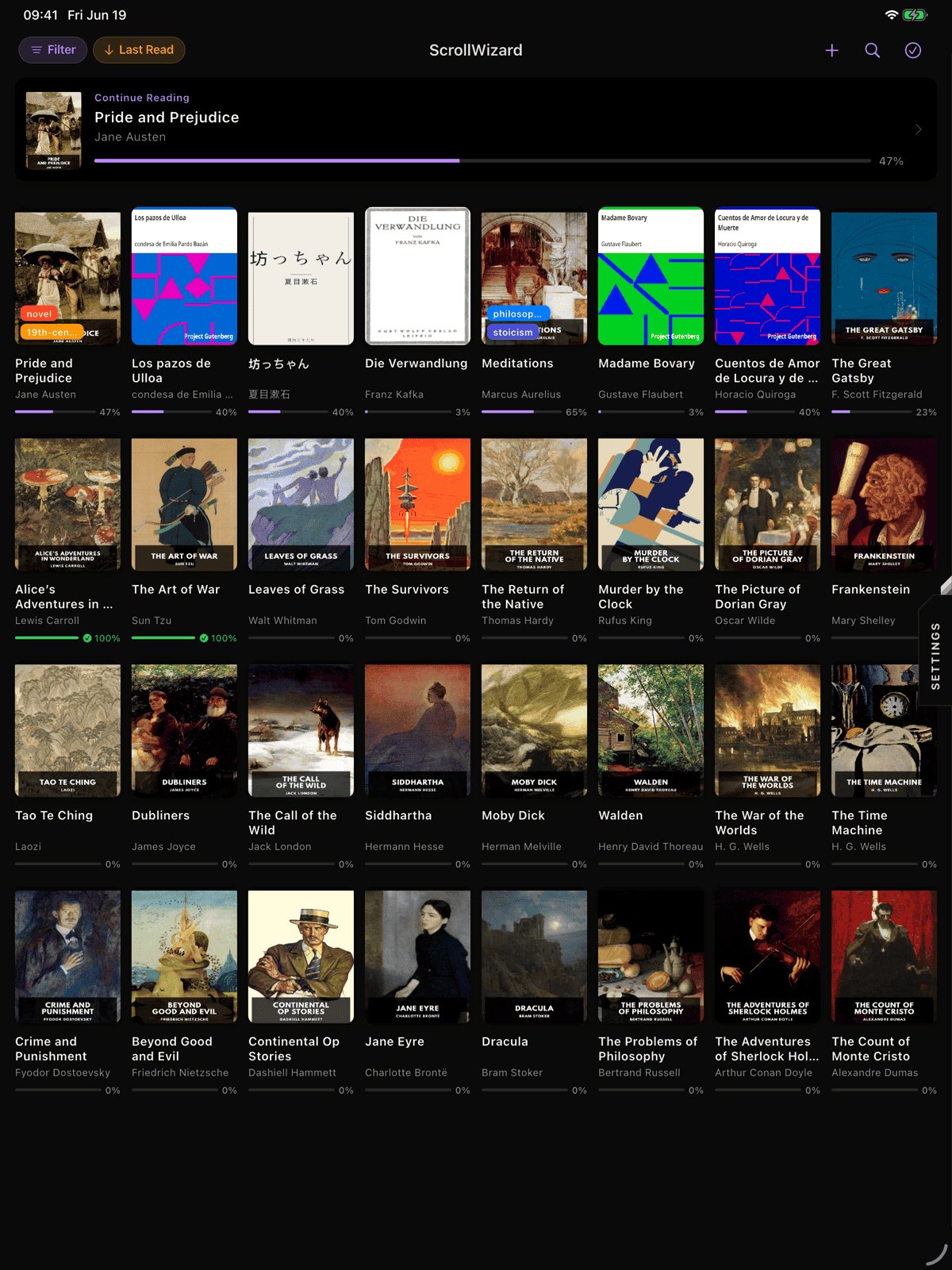
Your library opens to a grid of covers — two columns on iPhone, more on iPad. Covers out, scannable at a glance, the way a bookshelf looks. Everything that reshapes that grid — sorting, domains, tags, smart collections — lives in the left sidebar: swipe in from the left edge, or tap the three-line menu icon in the top-left. There's no filter bar across the top; the sidebar is the one place organization happens.
The + button in the top-right opens the file picker directly, so importing a book is one tap away. (OPDS catalogs are a different doorway — the Catalog panel on the right edge, covered later.)
Sorting
Sort lives in the sidebar, near the top. The sort control shows your current sort option and direction (arrow up or arrow down).
| Sort Option | Default Direction | What it does |
|---|---|---|
| Title | A to Z | Alphabetical by book title |
| Author | A to Z | Alphabetical by author name |
| Date Added | Newest first | When you imported the book |
| Last Read | Most recent first | When you last opened the book |
| Progress | Highest first | Your reading progress percentage |
Tap the sort control to open the sort menu. Selecting the same option again toggles the direction — so tapping "Title" once sorts A to Z, tapping it again sorts Z to A.
Tip: "Last Read" (most recent first) is the default, and it's a solid choice for most libraries. The book you touched last sits at the top, ready to reopen, and books you haven't picked up in a while settle toward the bottom.
Domains
Domains are the broadest organizational layer. Think of them as rooms in a library — or shelves on a wall. Each book belongs to at most one domain.
Some people never create a domain. That's fine. But if your library spans fiction and textbooks and work documents and personal projects, domains let you separate those worlds cleanly.
Creating a Domain
- Open the library sidebar (tap the three-line menu icon in the top-left).
- Under the Domains section, tap the + button.
- Name your domain (e.g., "Fiction," "Work," "Study," "Research").
- Done. Your domain appears in the sidebar.
Color-Coding
Each domain can have a color. Long-press a domain in the sidebar, then choose "Change Color" to pick from eight options: red, orange, yellow, green, blue, purple, magenta, or no color. The color appears as a dot next to the domain name in the sidebar — a quick visual cue when you're scanning.
Filtering by Domain
Tap a domain in the sidebar to show only books in that domain. Tap "All" to see everything again. There's also an "Unsorted" row that shows books without any domain assigned.
Assigning Books to Domains
There are three ways:
- From the book detail sheet. Long-press a book, then tap the domain selector to choose or change its domain.
- In selection mode. Tap the checkmark icon to enter selection mode, select the books you want, then tap the Domain button in the batch action bar at the bottom.
- From the batch action bar. After selecting books, tap Domain, then choose the target domain. All selected books move at once.
Managing Domains
Long-press any domain in the sidebar to rename it, change its color, or delete it. Deleting a domain doesn't delete its books — they simply become "Unsorted."
You can also manage domains from a dedicated screen: sidebar > Domains > Manage (or via Settings). The management screen lets you swipe left to delete or swipe right to rename.
How Many Domains?
Two to five is the sweet spot. Domains work best as broad categories — Fiction / Non-Fiction, Work / Personal, English / Other Languages. If you find yourself creating ten domains, you probably want tags instead.
Tags
Tags are the flexible layer. A single book can have as many tags as you want, and tags can mean whatever you want them to mean. "sci-fi," "book-club," "favorites," "thesis-research," "beach-reads," "books-my-sister-won't-stop-recommending" — all valid.
Adding Tags to a Book
- Long-press a book to open its detail sheet.
- Scroll to the Tags section.
- Use the search field to find an existing tag or type a new one.
- Tap the + button (or an existing tag suggestion) to add it.
- Tags already on this book appear as removable chips below.
Auto-tag from EPUB metadata (off by default). ScrollWizard can seed a book's tags from its <dc:subject> fields the first time you import it. That setting lives in Settings ▸ Library and ships off — publisher-supplied subjects are often messy (BISAC codes, mixed casing, near-duplicates), so most people prefer to tag by hand. Turn it on if you trust your sources' metadata.
Batch Tagging
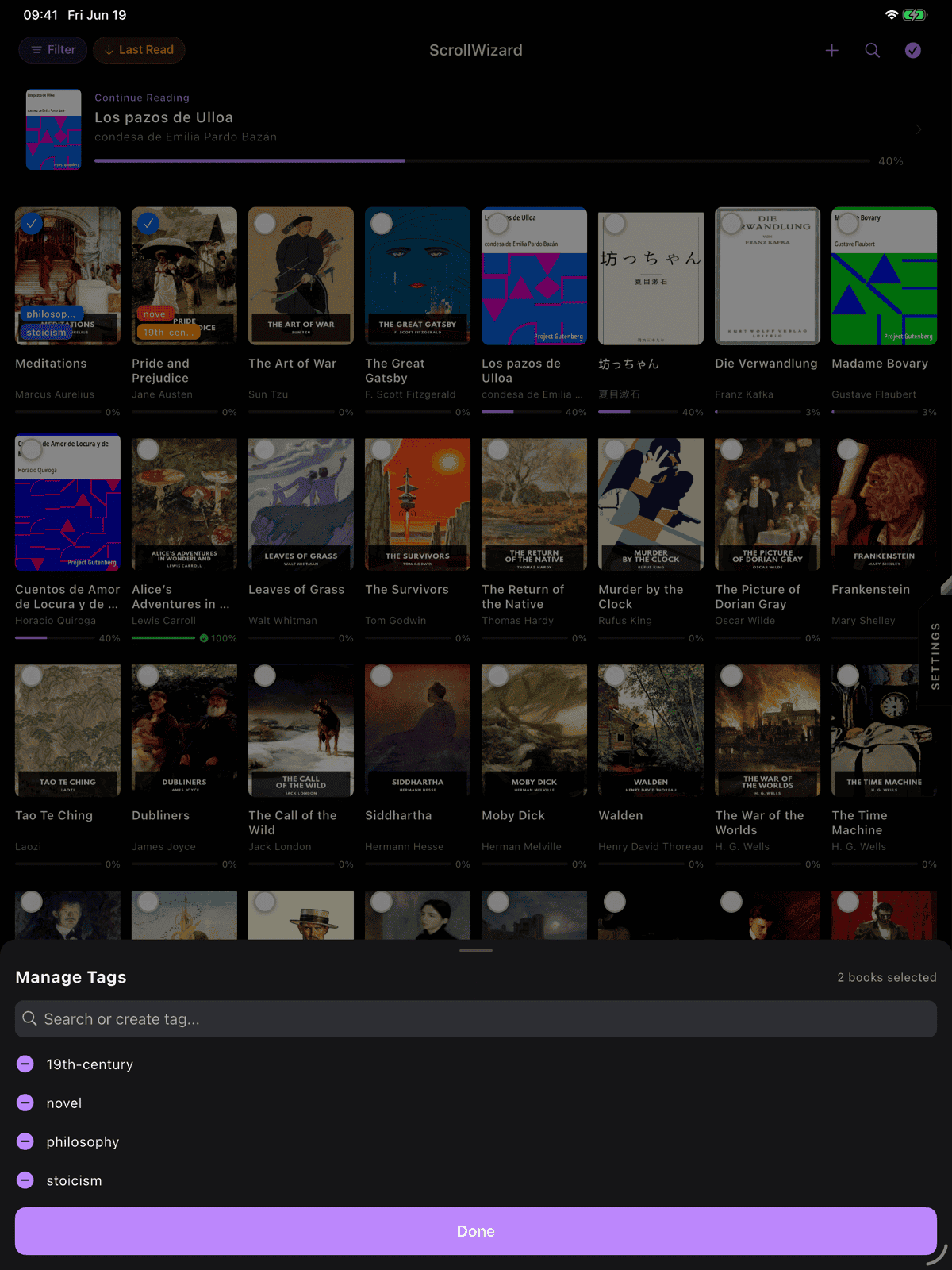
This is where tags really shine. Enter selection mode (tap the checkmark icon in the nav bar), select multiple books, then tap the Tag button in the bottom action bar.
The batch tag sheet shows every tag in your library with three states for each:
- Empty circle — none of the selected books have this tag
- Filled circle — all selected books have this tag
- Minus circle — some of the selected books have this tag
Tap to toggle. You can also create a new tag directly from this sheet. Tag twenty books in ten seconds. Not bad.
Filtering by Tags
Tags live in the sidebar's Tags section — always there, no matter how big or small your library is. Tap any tag to filter the grid down to books carrying it.
You can select multiple tags at once. When you do, an AND/OR toggle appears:
- AND mode: shows books that have all selected tags
- OR mode: shows books that have any of the selected tags
There's also an Untagged filter — useful for finding books you haven't organized yet.
Managing Tags
In the sidebar, the Tags section lists every tag with its book count. Long-press a tag to rename or delete it. Renaming a tag updates it across every book that has it. Deleting a tag removes it from all books (but doesn't delete the books).
When you have more than five tags, a search field appears in the sidebar's tag section to help you find the one you need.
Smart Collections
Smart collections are dynamic groups that update themselves based on rules. You don't add books to a smart collection — books appear (and disappear) automatically as they match the criteria.
Built-in Presets
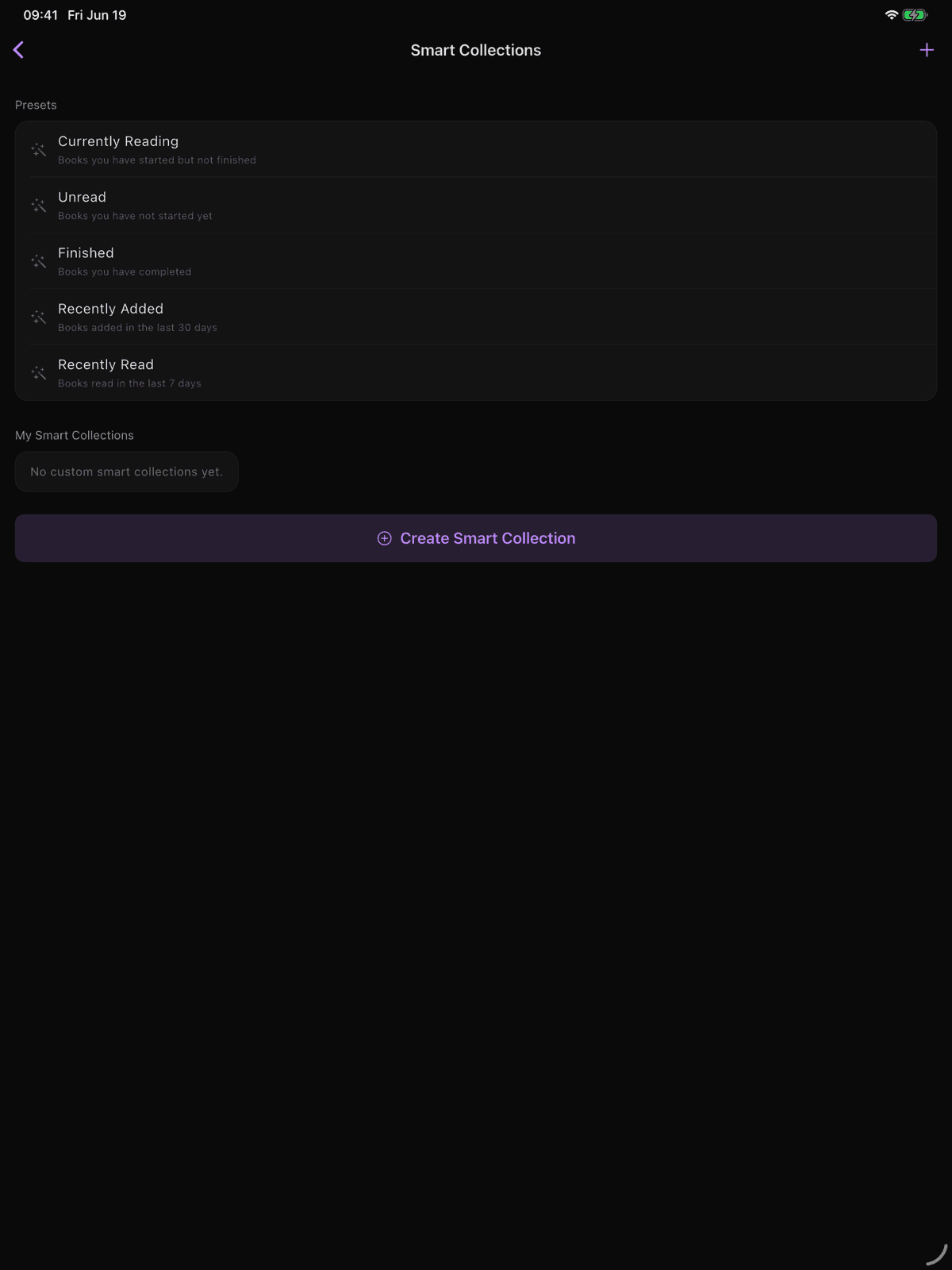
Five smart collections come ready to use:
| Collection | Rule |
|---|---|
| Currently Reading | Progress greater than 0% and less than 100% |
| Unread | Progress equals 0% |
| Finished | Progress at least 100% |
| Recently Added | Added within the last 30 days |
| Recently Read | Read within the last 7 days |
These appear as rows in the sidebar. Tap one to filter your library. Tap it again to clear the filter.
Creating Custom Smart Collections
Open the sidebar, scroll to Smart Collections, and tap the manage button (the slider icon). In the Smart Collections sheet, tap Create New.
The rule editor lets you build collections from any combination of:
| Field | Available Operators |
|---|---|
| Title | contains, doesn't contain, equals, not equals, is empty, is not empty |
| Author | contains, doesn't contain, equals, not equals, is empty, is not empty |
| Language | contains, doesn't contain, equals, not equals, is empty, is not empty |
| Tags | is any of, are all of, is none of, is empty, is not empty |
| Domain | contains, doesn't contain, equals, not equals, is empty, is not empty |
| Progress | equals, not equals, greater than, less than, at least, at most |
| Date Added | within last N days, is empty, is not empty |
| Last Read | within last N days, is empty, is not empty |
The Tags operators work on whole tags, not text fragments: pick one or more tags from a multi-select picker, and "is any of" matches a book with at least one of them, "are all of" matches only books carrying every one, and "is none of" excludes them. "is empty" / "is not empty" match books with no tags / any tags.
Each collection can have multiple rules, and you choose whether books must match all rules (AND) or any rule (OR).
Examples:
- "French Literature" — Language contains "fr" AND Tags is any of "literature, classics"
- "Active reads" — Progress greater than 0.1 AND Last Read within 30 days
- "Deep Work" — Tags are all of "non-fiction, reference" AND Progress greater than 0
Custom smart collections are persisted and sync with iCloud. Built-in presets can't be deleted.
Search
ScrollWizard offers two layers of search:
Library Search (Title and Author)
The search bar in the library (tap the magnifying glass icon in the nav bar) filters by title and author in real time as you type. Fast, simple, good enough when you know roughly what you're looking for.
When you have a domain filter active, search defaults to searching within that domain. A small "All" toggle appears next to the search field — tap it to search across your entire library regardless of the active domain.
Full-Text Search (Inside Books)
ScrollWizard indexes the full text of every book using SQLite FTS5 — a fast, local full-text search engine. This means you can search for a phrase you half-remember and find it across your entire library.
Full-text search is available from the reader's toolbar (tap the search icon while reading). Results show highlighted snippets with the matching text, grouped by chapter. Tap any result to jump directly to that passage.
Both EPUBs and PDFs are indexed — EPUBs by chapter, PDFs by page.
Selection Mode and Batch Operations
When you need to organize more than one book at a time, selection mode is the way.
Entering Selection Mode
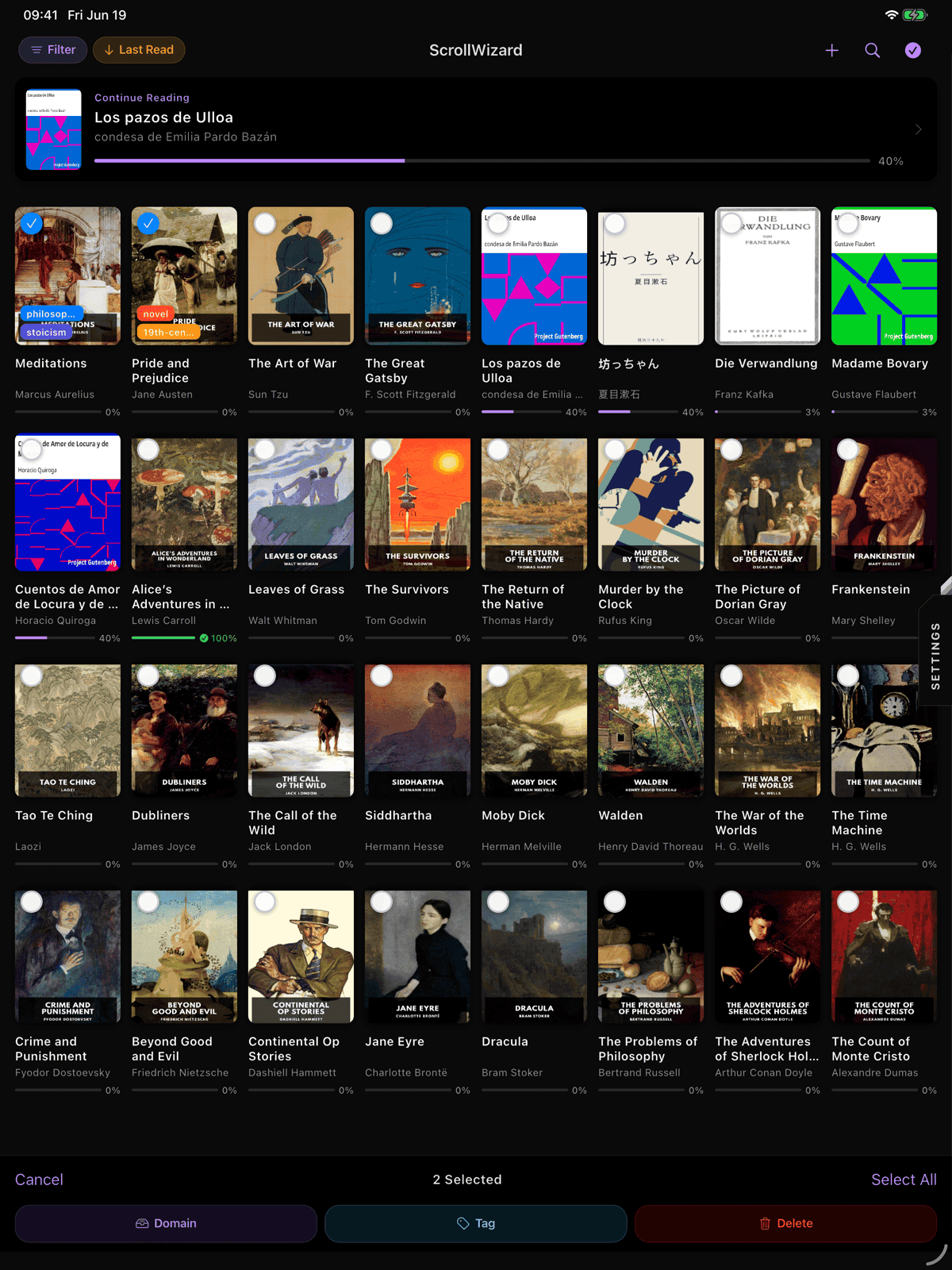
Tap the checkmark icon in the library nav bar. The view shifts: book covers gain selection checkmarks, and a batch action bar appears at the bottom.
Selecting Books
- Tap any book to toggle its selection.
- Tap "Select All" in the nav bar to select everything visible (respects current filters).
- In grid view, long-press and drag across multiple books to select a range.
Batch Actions
The action bar at the bottom offers three operations:
| Action | What it does |
|---|---|
| Tag | Opens the batch tag sheet to add/remove tags from all selected books |
| Domain | Opens a domain picker to move all selected books to a domain (or remove domain) |
| Delete | Removes all selected books from the library (with confirmation) |
Exiting Selection Mode
Tap Cancel in the nav bar, or deselect all books.
The Book Detail Sheet
Long-press any book to open its detail sheet — a scrollable card with everything ScrollWizard knows about that book.
What you'll find:
- Cover image, title, and author at the top
- Metadata card: file size, chapter count, language, date added, last read, and iCloud storage status
- Reading progress: a visual progress bar with percentage and current chapter
- Description: the book's synopsis (from EPUB/PDF metadata)
- Tags section: add, remove, and search tags; see existing library tags as suggestions
- Domain selector: change or remove the book's domain
- Action buttons: Continue Reading (or Start Reading), Look Up on Goodreads, Show in Files, Remove from Library
The detail sheet is live — changes you make to tags and domain update immediately without closing the sheet.
Import and Duplicate Detection
When you import books, ScrollWizard automatically checks for duplicates. If a file matches an existing book by title and author, the duplicate is silently skipped. This means you can safely re-import a folder without worrying about creating duplicates.
Import supports EPUB and PDF files up to 500 MB. You can select multiple files at once for batch import, and a progress dialog tracks each file as it's parsed, indexed, and added to the library.
Books imported via the share sheet, AirDrop, or the Files app are handled automatically — they appear in your library without any extra steps.
The Sidebar
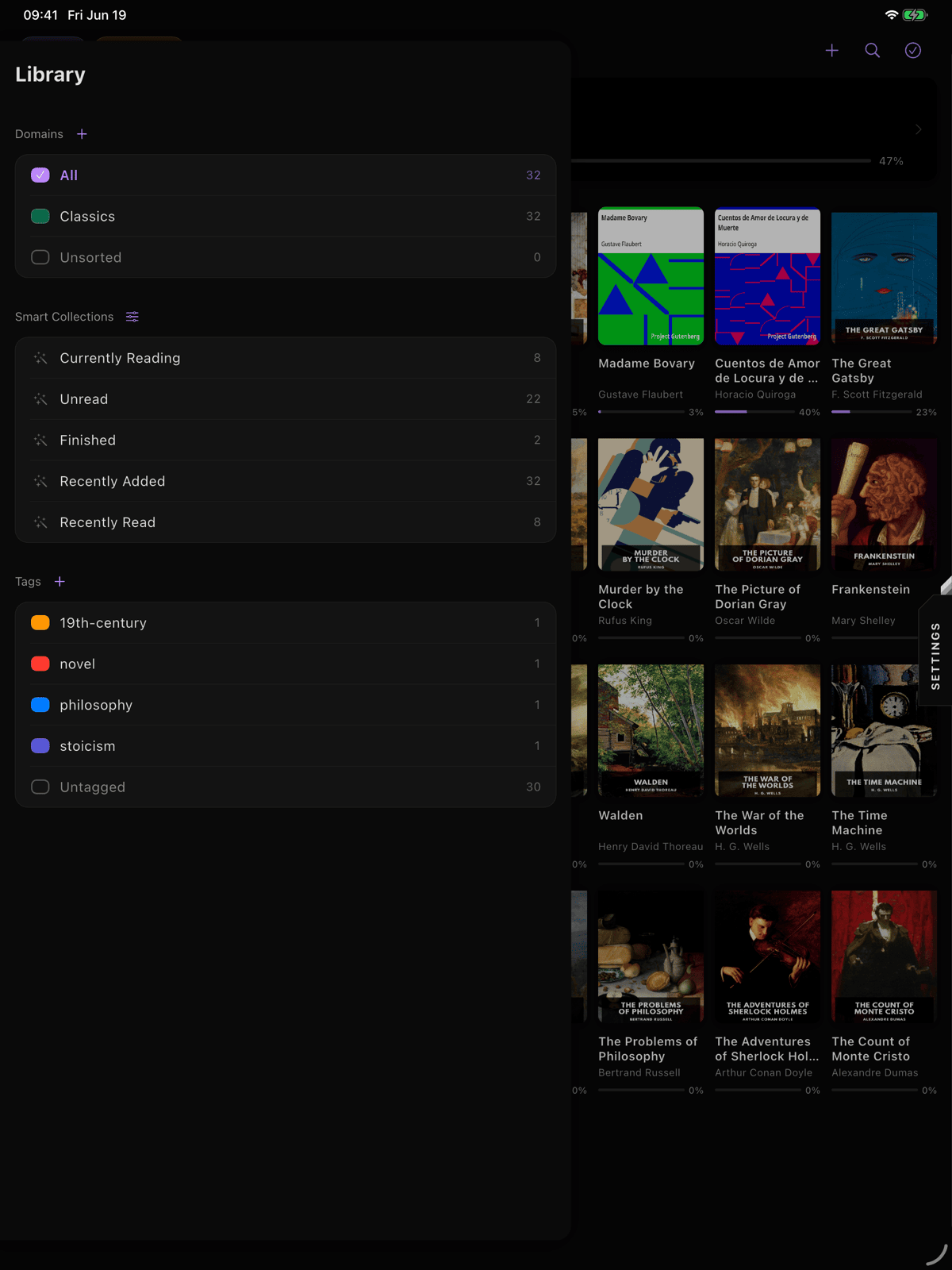
The library sidebar (swipe right from the left edge, or tap the menu icon) is your central navigation hub. From top to bottom:
- Domains — with book counts and a + button to create new ones
- Smart Collections — built-in presets and your custom collections, each with book counts
- Tags — every tag in your library with book counts, plus a search field and long-press context menus
- More — quick links to Settings, Statistics, Annotation Timeline, Vocabulary, and Knowledge Export
The sidebar shows real-time counts: how many books are in each domain, how many match each smart collection, how many carry each tag. These update instantly as you add, remove, or tag books.
Organization Strategies
Here's the honest truth about library organization: the best system is the one you'll actually maintain. A perfect taxonomy that you abandon after three weeks is worse than a loose system you use every day.
The Minimalist
No domains. No tags. Sort by "Last Read" and let smart collections do the work — Currently Reading and Recently Added are always there. Works surprisingly well for libraries under 100 books.
The Two-Domain Split
One meaningful division: Fiction / Non-Fiction, or Personal / Work. Smart collections handle the rest. Low maintenance, high signal.
The Tagger
Skip domains. Use tags for everything. Tags are more flexible — one book can carry five tags, but it can only live in one domain. If your categories overlap (sci-fi and book-club and re-read candidate), tags are your tool.
The Curator
Domains for broad categories, tags for cross-cutting themes, custom smart collections for current projects. Most work to set up, but scales to very large libraries. Start simple — you can add structure later.
The One Rule
Whatever you choose: organize when you import, not later. Assigning a domain and a couple of tags takes five seconds at import time. Retroactively organizing 200 untagged books takes an afternoon. The batch tag tool makes it painless, but "five seconds now" beats "an hour someday."
Tips & Tricks
Your filters persist between sessions. Close the app mid-browse in your "Fiction" domain, and you'll come back to exactly that. Sort order and domain selection stay put too.
The Continue Reading card. A card appears at the top of your library showing your last-read book with its progress. One tap to pick up where you left off. It disappears in selection mode to keep the interface clean.
Drag to select a range. Long-press and drag across book covers to select several at once — faster than tapping each one individually.
Search across domains. When a domain filter is active and you open search, an "All" toggle appears beside the search field. Tap it to search your entire library, not just the current domain.
Tag AND/OR logic. When filtering by multiple tags in the sidebar, look for the AND/OR toggle. AND shows books matching all tags; OR shows books matching any tag. Default is AND.
Spotlight indexing. Every book you import is indexed in iOS Spotlight. You can search for a book title from the iOS home screen and jump straight into it.
Books per domain, at a glance. The sidebar shows book counts next to every domain, smart collection, and tag. No need to switch views to see how many books live where.
Goodreads lookup. From the book detail sheet, tap "Look Up on Goodreads" to search for the book on Goodreads in Safari. Useful for checking reviews or adding to your Goodreads shelf.
Show in Files. Also in the detail sheet: "Show in Files" opens the book's location in the iOS Files app. Handy when you need to share the file or verify its iCloud sync status.
Fill the shelf from a catalog. Swipe in from the right edge to the Catalog panel to browse OPDS and Calibre libraries. ScrollWizard ships four presets (Project Gutenberg, Standard Ebooks, ManyBooks, Feedbooks) and can also sniff out OPDS and Calibre servers on your local network automatically over Bonjour, so a Calibre box on your Wi-Fi often just shows up. You can add a server by hand from its OPDS URL. Downloads come through as EPUB or PDF (EPUB is preferred when a title offers both).
What's Next
A well-organized library isn't about neatness for its own sake. It's about reducing the friction between "I want to read something" and actually reading it. Fifteen seconds of scrolling through an unsorted grid is fifteen seconds you could have spent reading.
- Tracking your progress? The Track Your Reading Guide covers reading time, goals, and statistics.
- Highlighting as you read? The Annotations & Highlights Guide covers your five highlight colors, notes, bookmarks, and the annotation timeline.
- Exporting your knowledge? The Export Guide covers Obsidian, Notion, Logseq, Markdown, and JSON export.
- New to ScrollWizard? The Getting Started Guide covers importing books, reading basics, and everything else.
Now go find that book you've been meaning to start. It's in your library somewhere — and now you know exactly how to find it.
Happy reading.