Reading PDFs on iPhone & iPad
That conference paper. That textbook chapter. That government form you've been avoiding. ScrollWizard reads PDFs alongside your EPUBs — same library, same themes, same highlights. One app for all your reading.
PDFs are everywhere. Research papers, manuals, scanned books, slide decks, tax forms. They weren't designed for phone screens, but that's where you are at 11 PM when you finally have time to read. ScrollWizard's PDF reader gives you theme-matched reading, full-text search, highlights with notes, bookmarks, dictionary lookup, and saved words. It's all free — the one exception is the RSVP speed reader, which is part of Advanced Wizard Mode.
This guide covers everything the PDF reader can do — and is honest about what it can't.
Importing PDFs
Getting a PDF into ScrollWizard works exactly like importing an EPUB. If you've done one, you've done the other.
From the Library
- Open ScrollWizard and go to the Library screen.
- Tap the + button in the top-right corner.
- The iOS file picker appears. Navigate to your PDF — it can be in iCloud Drive, On My iPhone, or any connected cloud storage.
- Select the file. ScrollWizard imports it, generates a cover thumbnail from the first page, and extracts the title and author from the PDF metadata.
- Your PDF appears in the library alongside your EPUBs.
You can select multiple files at once for batch import. PDFs and EPUBs can be mixed in the same batch.
From Other Apps
- Share sheet: When viewing a PDF in Safari, Mail, Files, or any other app, tap the share button and choose "Open in ScrollWizard."
- AirDrop: AirDrop a PDF to your device and choose ScrollWizard when prompted.
- Messages and Mail: Tap a PDF attachment, then use the share sheet.
Once imported, the PDF lives in your ScrollWizard library. It syncs via iCloud to your other devices, gets organized into domains and collections, appears in search results, and tracks reading statistics — just like an EPUB.
The PDF Reading Experience
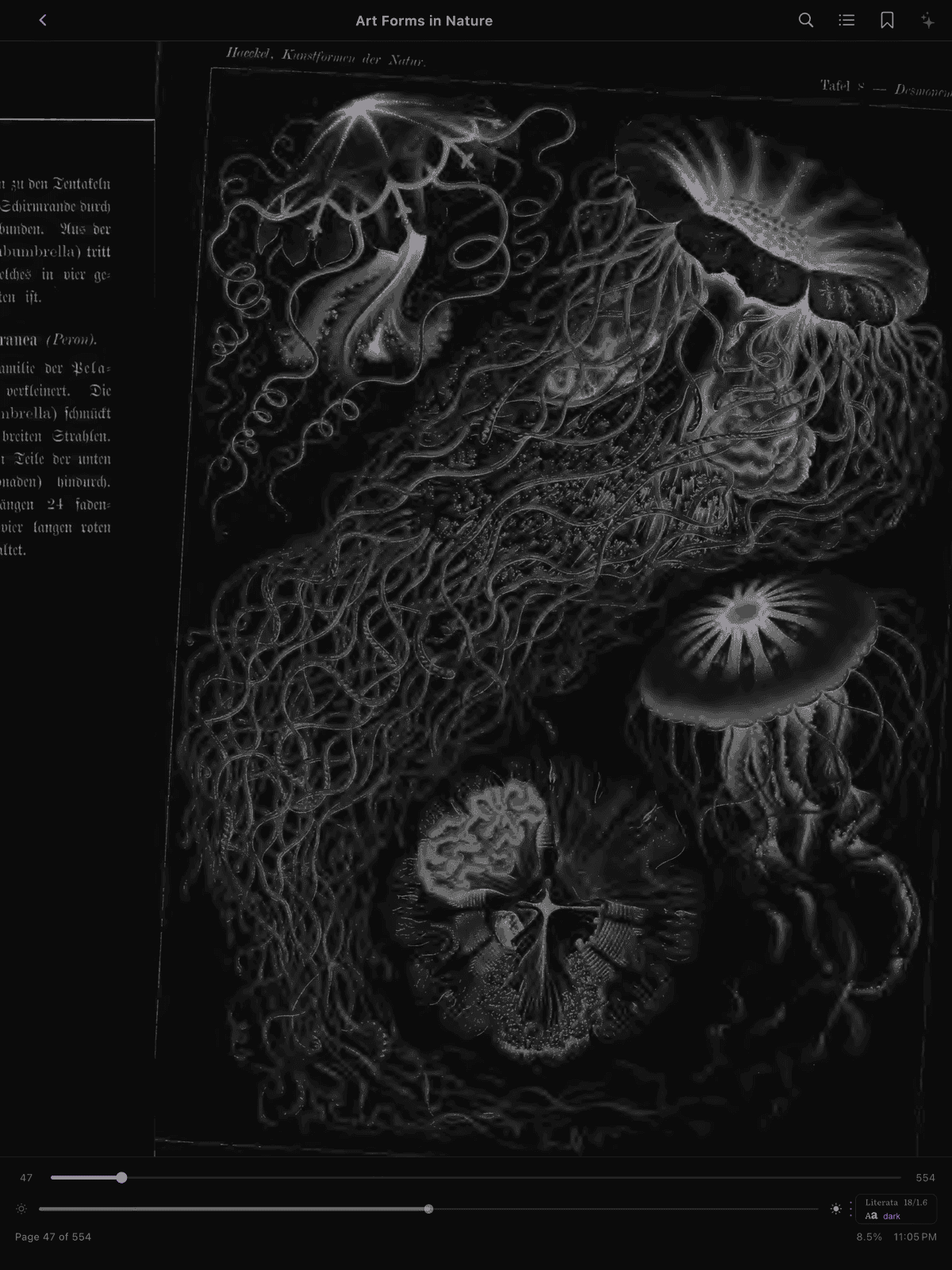
Open a PDF from your library by tapping its cover. The reader launches with a familiar layout: your book fills the screen, and a tap in the center reveals the toolbar.
Here's the key difference between PDFs and EPUBs: PDFs have fixed layouts. Every page is a snapshot — the text, images, and formatting are locked in place exactly as the author intended. This means ScrollWizard can't reflow the text to fit your screen, change the font, or adjust the line spacing. What the PDF contains is what you see.
This is not a limitation of ScrollWizard. It's what PDF means. The format was designed to look identical everywhere — on a printer, a desktop monitor, or your phone. That's useful when layout matters (academic papers, forms, sheet music), but it means the reading experience on a phone screen depends on how the PDF was designed.
ScrollWizard compensates with pinch-to-zoom and theme-aware color filtering, both covered below.
Pinch to Zoom
A PDF designed for A4 paper carries generous margins, headers, and footers, so on a phone screen the actual text can be small. Pinch to zoom in and out on any page, and double-tap to reset the zoom level. Turning the phone sideways (see the tips below) gives a dense page more horizontal room. It's the most basic way to make small text readable, and it works on every PDF.
Theme-Aware Color Filtering
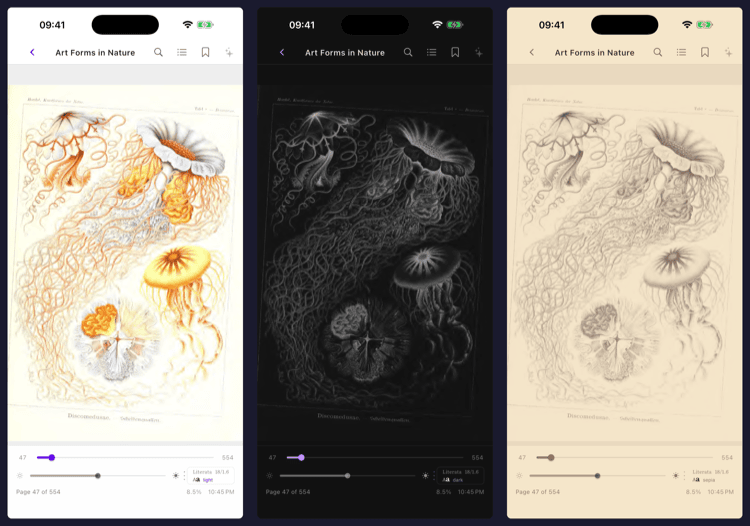
When you switch reading themes, ScrollWizard doesn't just darken the UI chrome — it reskins the PDF content into the active theme's palette. It does this with a single luminance remap: each pixel is mapped along the line between the theme's text color and its background color, so a white page picks up the theme background and the dark text picks up the theme text color. Figures stay coherent with the page instead of getting hue-rotated the way a naive inversion would.
This means your midnight reading session doesn't blast you with a white rectangle in the middle of a dark interface. The PDF adapts to your theme.
| Theme type | What happens to PDF pages |
|---|---|
| Light | Passed through as-is (white page, near-black text) |
| Any other theme | Pages are remapped into that theme's palette (background and text colors) via the luminance remap |
The same remap drives every built-in and custom theme, so a Sepia page reads as the Sepia palette and a Nord page reads as the Nord palette — one mechanism, no per-theme special cases. Theme creation and the broader appearance controls live in Settings and Customization.
Brightness Control
The bottom bar includes a brightness slider, just like the EPUB reader. Drag it to dim or brighten the screen without leaving your book.
Navigating PDFs
Page Slider
When the toolbar is visible, a progress slider appears at the bottom. Drag it to scrub through the document, or tap the page numbers on either side. The slider shows your current page and total page count.
Table of Contents
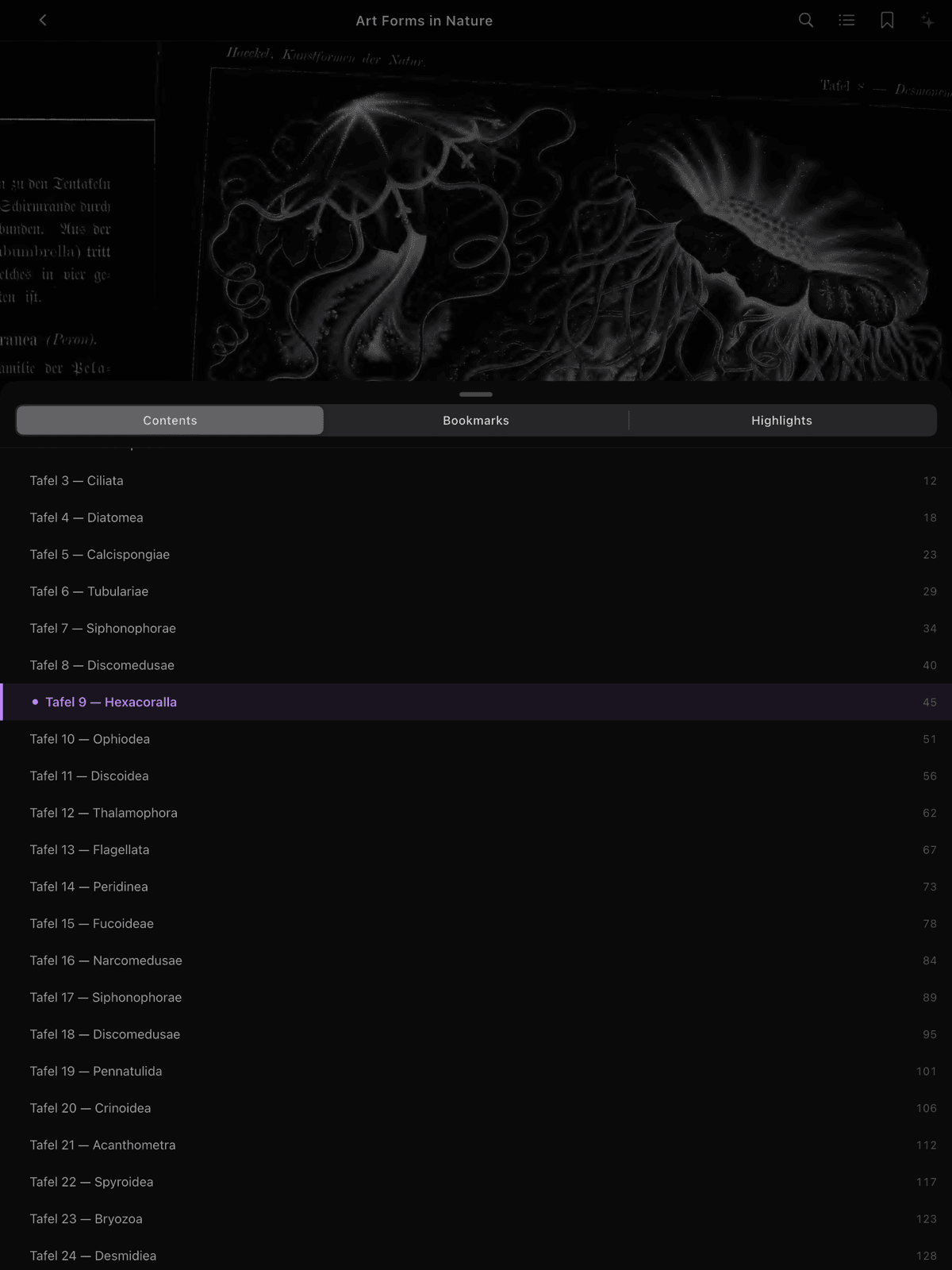
If the PDF includes an outline (most well-made PDFs do), a table of contents button appears in the toolbar. Tap it to open a bottom sheet showing the full document outline with nested sections, page numbers, and a highlight on your current section.
Tap any entry to jump to that page. The sheet auto-scrolls to your current position when it opens.
Not all PDFs have outlines. Scanned books, simple exports, and some older PDFs won't have one, and the TOC button will be hidden.
Tap Zones
The same tap zone system from the EPUB reader applies to PDFs:
- Right side — next page
- Left side — previous page
- Center — toggle toolbar
Tap zones are configurable in Settings. You can also swipe left/right to turn pages.
Keyboard Shortcuts
If you're reading on an iPad with a hardware keyboard, the PDF reader supports the same keyboard shortcuts as the EPUB reader: arrow keys for page turns, B for bookmark, and more. Press F to open search.
Reading Chrome
Even with the toolbar hidden, subtle metadata appears in the safe area around the notch or Dynamic Island: the current time, page number, reading progress percentage, and the current section title (resolved from the PDF outline). This uses no extra screen space.
Highlights and Annotations
PDF highlighting in ScrollWizard works with native text — the kind you can select and copy. Here's the flow.
Creating a Highlight
- Long-press on a word in the PDF, then drag the selection handles to cover the passage you want.
- A context menu appears with Copy, Highlight, and five color dots for one-tap color selection.
- Tap a color dot or tap Highlight (which defaults to yellow).
- The text is highlighted and saved immediately.
The context menu for PDFs shows the color dots directly, so you can pick your color in a single tap without opening the edit sheet first.
Editing a Highlight
Tap an existing highlight to open the highlight edit sheet. From here you can:
- Change the color — tap any of the five color circles
- Switch the style — toggle between Highlight (background fill) and Underline (a line beneath the text)
- Add or edit a note — type in the text field below the preview
- Delete the highlight — tap the red Delete button at the bottom
Notes auto-save as you type. No save button needed.
Browsing Highlights
Open the table of contents sheet from the toolbar and switch to its Highlights tab to see all highlights for the current PDF, sorted by page number. Each row shows the color bar, highlighted text, any note, and the page reference. Tap a row to jump to that page.
Bookmarks
Tap the bookmark icon in the toolbar to bookmark the current page. The icon fills in to confirm. Tap it again to remove the bookmark.
To browse all bookmarks, open the same table of contents sheet and switch to its Bookmarks tab. The sheet has three tabs in all — Contents, Bookmarks, and Highlights — so document outline, saved pages, and annotations all live in one place. The list shows each bookmark with its page number.
All annotation features — highlights, notes, bookmarks — are free. No limits.
To get your highlights and notes out of the app, use Knowledge Export (Notes panel ▸ Export ▸ Export knowledge), which writes a library-wide Markdown file you share through the iOS share sheet. There's no separate export action inside the PDF reader itself.
A Note About Scanned PDFs
Highlighting requires selectable text. If your PDF is a scan (essentially a stack of images), there's no text to select or highlight. ScrollWizard detects this automatically when you import the file. You can still bookmark pages and scrub with the page slider, but text selection, highlighting, and search won't be available.
ScrollWizard classifies each PDF on import:
| Text quality | What it means |
|---|---|
| Native text | Full text in the PDF. All features work. |
| Hybrid | Some pages have text, others are scanned. Features work on text pages. |
| Scanned | No extractable text. Bookmarks and navigation only. |
Searching PDFs
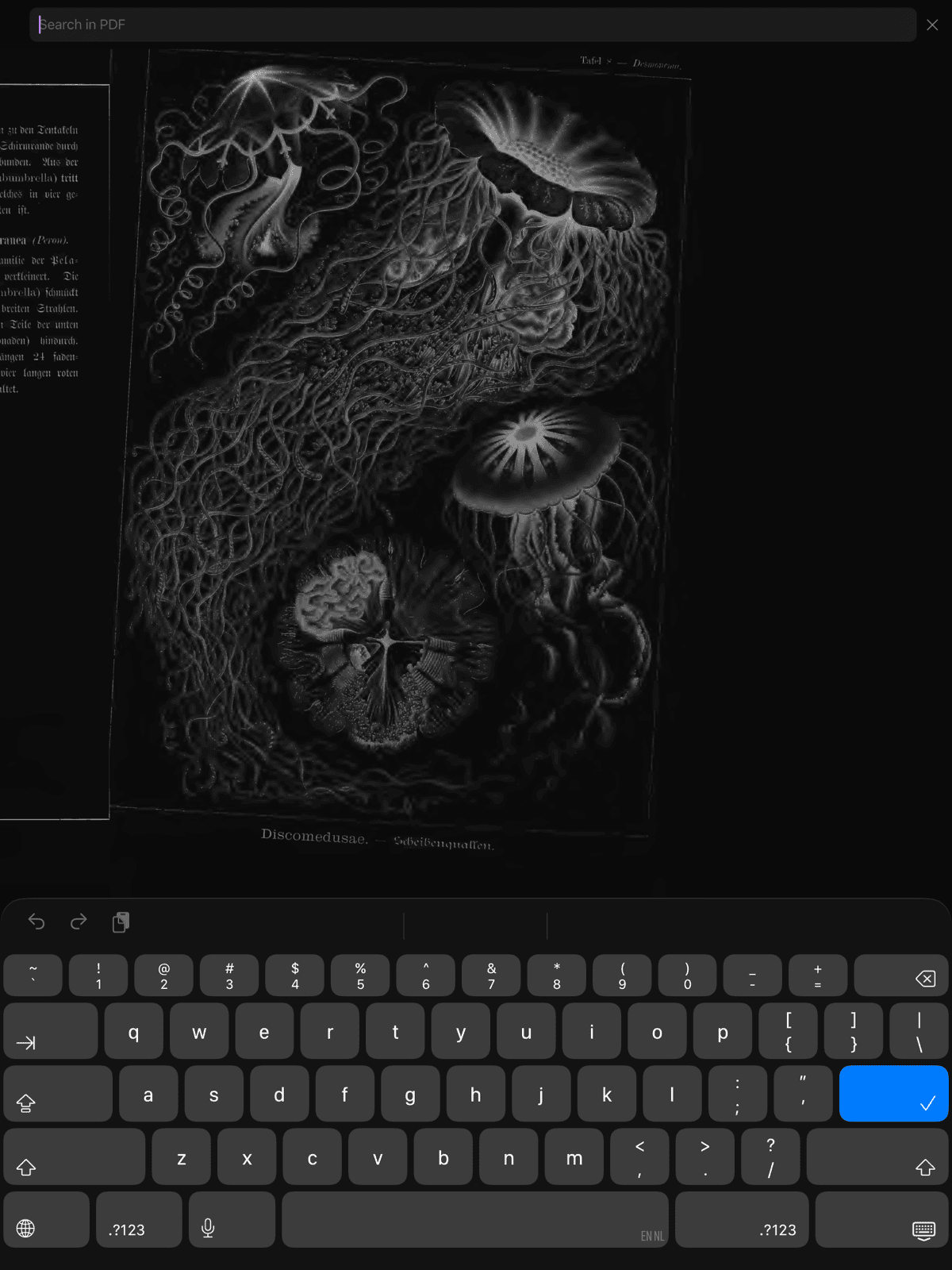
Tap the search icon in the toolbar (or press F on a hardware keyboard) to open the search bar. Type your query and ScrollWizard searches the PDF text in real time.
The search bar shows your current match position ("3 of 17") with up/down arrows to jump between matches. Matches are highlighted in the document.
Search works on PDFs with native or hybrid text. Scanned PDFs have no text to search.
RSVP Speed Reading for PDFs
The RSVP speed reader — the word-at-a-time display from Advanced Wizard Mode — also works with PDFs that contain native text. Tap the sparkle button in the toolbar to access it.
ScrollWizard extracts all the text from the PDF, cleans it up (stripping repeated headers and footers, rejoining hyphenated words), and feeds it into the RSVP engine. When you exit the speed reader, your page position updates to match where you stopped.
A note of honesty: RSVP with PDFs works well for text-heavy documents like papers and books. It works less well for PDFs with complex layouts, tables, or figures, because the extracted text may not flow naturally. ScrollWizard shows a one-time heads-up about this when you first use it.
RSVP requires Advanced Wizard Mode (a one-time purchase) and a PDF with native text.
PDF vs. EPUB: What Works Where
This is the honest comparison. Both formats live in the same library, but they have fundamentally different strengths.
| Feature | EPUB | |
|---|---|---|
| Reflow text to fit screen | Yes | No — fixed layout |
| Change font | Yes (12 selectable + Publisher) | No |
| Adjust font size | Yes | No (pinch to zoom) |
| Change line height / spacing | Yes | No |
| Adjust margins | Yes | No |
| Reading themes (dark, sepia, etc.) | Yes | Yes (via color filtering) |
| Brightness control | Yes | Yes |
| Highlights with notes | Yes | Yes (native text PDFs) |
| Bookmarks | Yes | Yes |
| Text search | Yes | Yes (native text PDFs) |
| Table of Contents | Yes | Yes (if PDF has outline) |
| RSVP speed reading | Yes | Yes (native text PDFs) |
| Dictionary lookup | Yes | Yes (native text PDFs) |
| Vocabulary builder | Yes | Yes (saved with a page stamp) |
| Split Reader | Yes | No (EPUB-only) |
| Page turn animations | Yes | No |
| iCloud sync | Yes | Yes |
| Reading statistics | Yes | Yes |
| Knowledge Export (highlights & notes) | Yes | Yes (library-wide, via Notes panel) |
| Keyboard shortcuts | Yes | Yes |
The rule of thumb: If you have a choice between EPUB and PDF versions of the same book, choose EPUB. You'll get reflowable text, custom fonts, adjustable typography, and the Split Reader. The reading experience is simply more flexible. (Dictionary lookup and saved words work in both — on a PDF they just need native, selectable text.)
Choose PDF when that's the only format available, or when the fixed layout matters — academic papers, technical manuals, sheet music, forms, and anything with precise visual formatting.
Tips for the Best PDF Reading Experience
Use dark theme for nighttime PDF reading. The luminance remap reskins white pages into the dark palette without crushing text legibility, so a midnight session isn't a white rectangle in a dark room.
Try landscape on iPhone. Turning your phone sideways gives PDFs significantly more horizontal space — a real help on a dense page.
Bookmark generously. Since PDFs don't have reflowable chapters, bookmarks are your best tool for marking positions you want to return to. They're free, fast, and show up in the bookmarks list sorted by page number.
Check text quality on import. When ScrollWizard imports a PDF, it classifies the text quality. If your PDF shows up as "scanned," features like search and highlighting won't work. This isn't a bug — the PDF simply doesn't contain extractable text. For scanned books, consider finding an EPUB version or a PDF that's been OCR-processed.
What's Next
PDFs aren't the most comfortable format for phone-sized screens — that's just the reality of a fixed-layout format on a small display. But ScrollWizard does its best to close the gap: theme-aware rendering, highlights, search, and iCloud sync make PDFs feel like first-class citizens in your library rather than a grudging afterthought.
Everything in this guide is free except RSVP speed reading, which is part of Advanced Wizard Mode (a one-time purchase).
- New to ScrollWizard? The Getting Started Guide covers importing, reading basics, and library organization.
- Want to annotate more effectively? The Annotations & Highlights Guide goes deep on colors, notes, export, and the annotation timeline.
- Interested in speed reading? The RSVP Speed Reader Guide covers the word-at-a-time display for both EPUBs and PDFs.
- Tracking your reading habits? The Reading Statistics Guide covers sessions, days-read, and goals.
Happy reading — even the PDFs.